Resignations Guide
This guide explains the Resignations section under the HR Operations menu. It walks you through how employees can apply for resignation and how admins can manage resignation requests — including approval, decline, and tracking processes.
🎯 Overview
The Resignations module allows:
- Employees to submit resignation requests
- Admins to approve, decline, or accept resignations
- HR to track notice periods and final working dates
- Seamless documentation of voluntary exits
The interface includes:
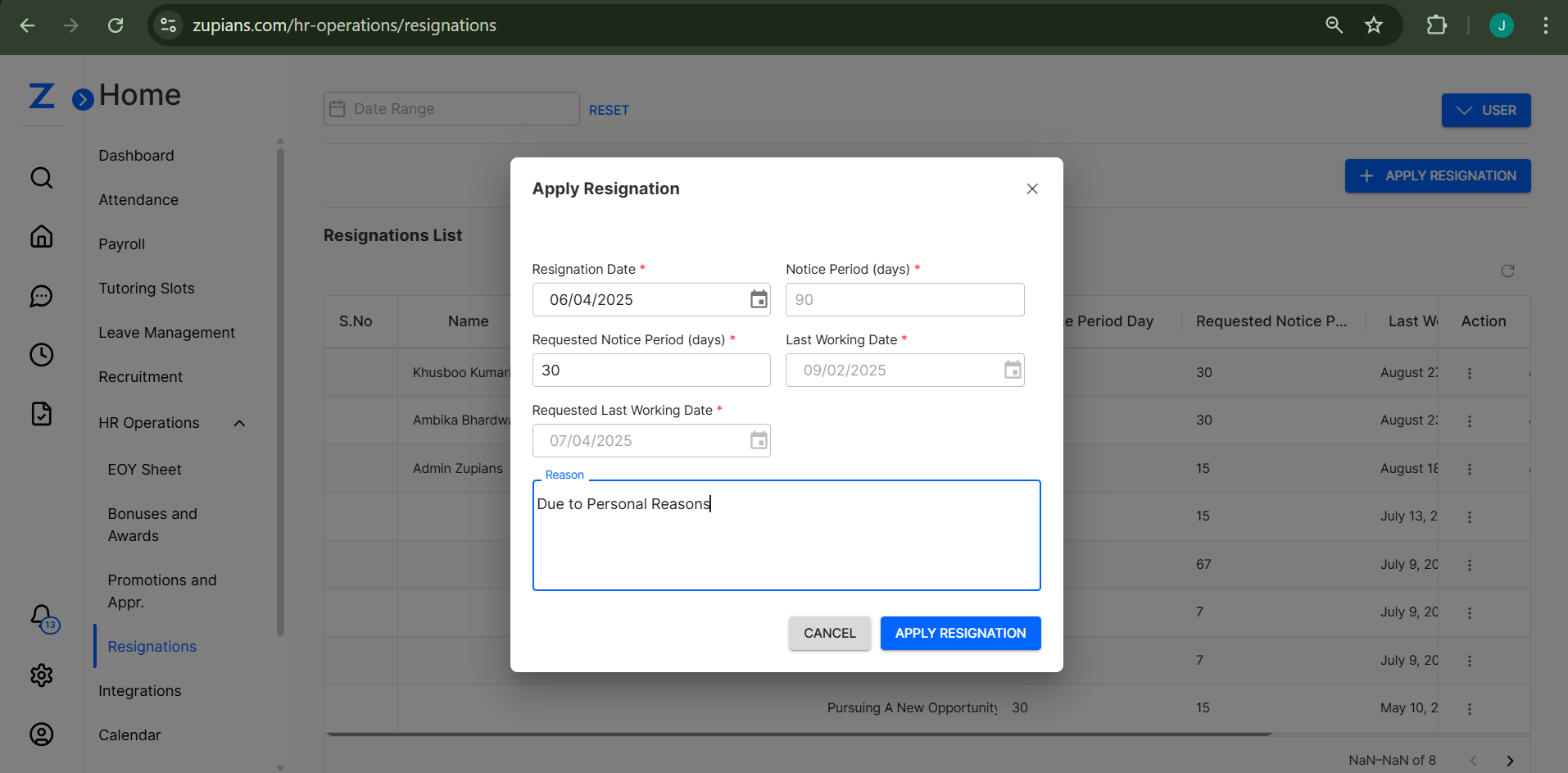
- Apply Resignation Form (for Users)
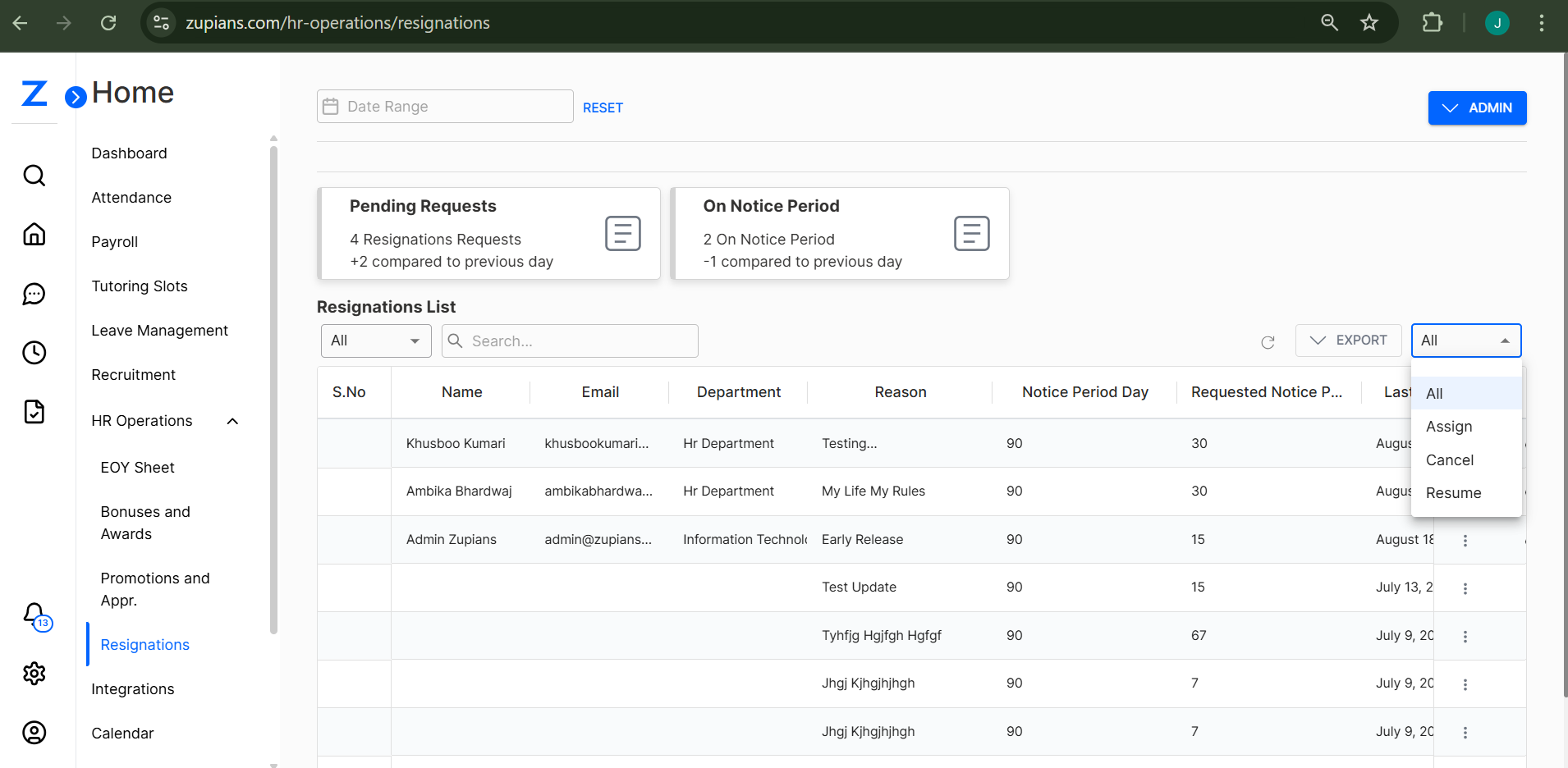
- Resignation List Table (visible to Admins)
Visual examples:
👤 User View (Employee)
Employees can:
- Submit a resignation request
- Specify preferred notice period and last working date
- Cancel a resignation request (if still pending)
- Track the status of submitted resignations
📝 How to Apply for Resignation
Click the + APPLY RESIGNATION button and fill in the form:
Required Fields:
- Resignation Date – Date you're submitting the resignation
- Notice Period (days) – Standard notice period (e.g., 90 days)
- Requested Notice Period (days) – Your preferred notice period
- Last Working Date – Auto-calculated based on standard notice
- Requested Last Working Date – Your preferred last day
- Reason – State the reason for your resignation
✅ Click Apply Resignation to submit
🛑 Use Cancel to discard the request
🔁 How to Cancel a Resignation
If your resignation is still in Pending status, you can cancel it from the Resignation List section.
🛠️ Admin View
Admins can manage all submitted resignation requests and take appropriate actions.
📌 Resignation Statuses:
- Pending – No action taken yet
- ✅ Approved – Resignation approved
- 📤 Accepted – Final dates adjusted and accepted
- ❌ Declined – Rejected by Admin (with internal reason)
🎛️ Admin Actions:
Admins can:
- View and filter all resignation records
- Sort by name, department, or notice period
- Use the three-dot menu (⋮) to take actions
- Export resignation data for audits or reviews
📋 Resignation Listing Table
- Admins: See all resignation requests across departments.
- Users: See only their own resignation history.
Key Columns:
- S.No
- Name
- Department
- Reason
- Notice Period
- Requested Notice Period
- Last Working Day
- Requested Last Working Date
- Action (Status & Controls)
🔍 Use the search bar to filter by name or department
📅 Use date range filters to narrow down records
📤 Export and Reporting
✅ Click Export to download all resignation data as a CSV file.
Useful for tracking trends, attrition, and HR action timelines.
💡 Best Practices
- 📆 Ensure notice periods comply with employment agreements.
- 📝 Request clear resignation reasons to maintain transparency.
- 📊 Monitor patterns for workforce planning and attrition analysis.
- 🔐 Restrict resignation status actions to Admins only.