Team Space Guide
The Team Space module provides a centralized view of all team members across departments. It facilitates transparency, collaboration, and easier access to colleague information.
🌐 Purpose
The Team Space is designed to:
- Display active member records from all departments
- Enable team leads and HR to monitor personnel across roles
- Support cross-functional collaboration by providing contact and role information
🧭 Navigation
Go to:
Team Space
🖥️ User Interface Overview
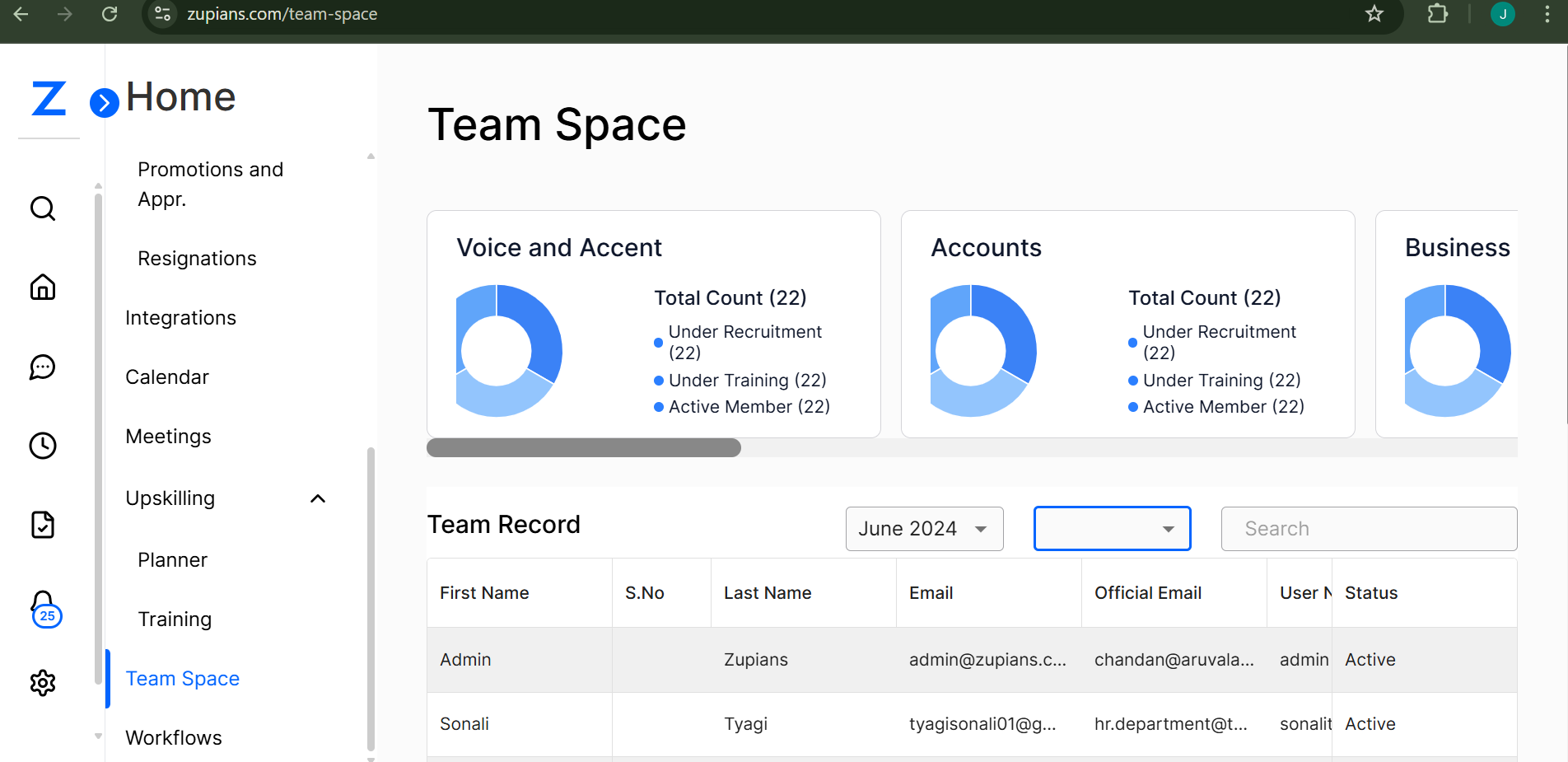
The interface consists of two major sections:
1. Department Summary Cards (Top Section)
Each card represents a department and includes:
- Department Name (e.g., Reading Department, Math Department, etc.)
- Total Count – Number of team members
- A pie chart visual showing:
- Under Recruitment
- Under Training
- Active Member
📊 This helps quickly assess the status distribution within each department.
2. Team Record Table (Bottom Section)
This table displays a detailed record of team members.
| Field | Description |
|---|---|
| First Name / Last Name | Team member’s name |
| S.No | Serial number (auto-generated) |
| Personal email address | |
| Official Email | Company-assigned email address |
| User Name | Internal system username |
| Designation | Job title/position |
| Department | Department the user belongs to |
| Groups | Assigned user group (if applicable) |
| Status | Current employment status (e.g., Active) |
📅 Filters & Search
- Month Dropdown – Filter by a specific month to view data snapshots
- Status Dropdown – Filter users by status (e.g., Active, Inactive)
- Search Bar – Quickly find users by name, email, or other fields
🔎 Use Cases
- Find contact info for internal communication
- Identify team structure within a department
- Assist HR in verifying employee records
- Enable managers to track active team members
📌 Notes
- Only active members are displayed unless filtered otherwise.
- Ensure proper update of user records in the backend to reflect accurate information.
- Use official emails for professional communication.
The Team Space ensures seamless collaboration and visibility across all departments in one place.
🧠 Frequently Asked Questions (FAQ)
1. Who can access the Team Space module?
All users with access to the platform can view the Team Space. However, data visibility may vary based on role-based permissions (e.g., Admins, HR, or Managers may have broader access).
2. What statuses are included in the department pie chart?
The pie chart shows a visual breakdown of team members by: - Under Recruitment - Under Training - Active Member This provides a quick summary of department composition.
3. Can I filter users by department?
Currently, filtering options are based on Month and Status. Department-based filtering is represented via summary cards but may not be an interactive filter unless implemented.
4. What is the difference between "Email" and "Official Email"?
- Email refers to the personal email provided during onboarding. - Official Email is the company-assigned email for internal communication.
5. Why do I see only active users in the table?
By default, the table displays only active users. Use the Status Dropdown filter to include other categories like inactive or under training.
6. Can I export the Team Space data?
Currently, there is no built-in export feature shown. However, this may depend on your organization's permissions or upcoming feature rollouts.
7. What is the purpose of the "Groups" column?
The Groups column helps identify users who are part of specific internal teams or cohorts (e.g., Product Group, QA Team).
8. How often is the data updated?
Data is synced in real-time or near real-time based on backend updates. Any changes to a user’s department, designation, or status will reflect once saved in the system.
9. What does the Month Dropdown filter do?
It allows users to view the state of department records as of a specific month. This is useful for audits, reporting, and comparing headcounts.
10. Can I view inactive or exited employees here?
Yes, but you must change the Status Dropdown filter to include those statuses. By default, only active members are shown.