Training Planner Guide
This guide outlines how to use the Planner feature under the Upskilling section. It allows you to create and manage training plans for different departments and track their status.
📍 Accessing the Planner
Navigate to:
Upskilling > Planner
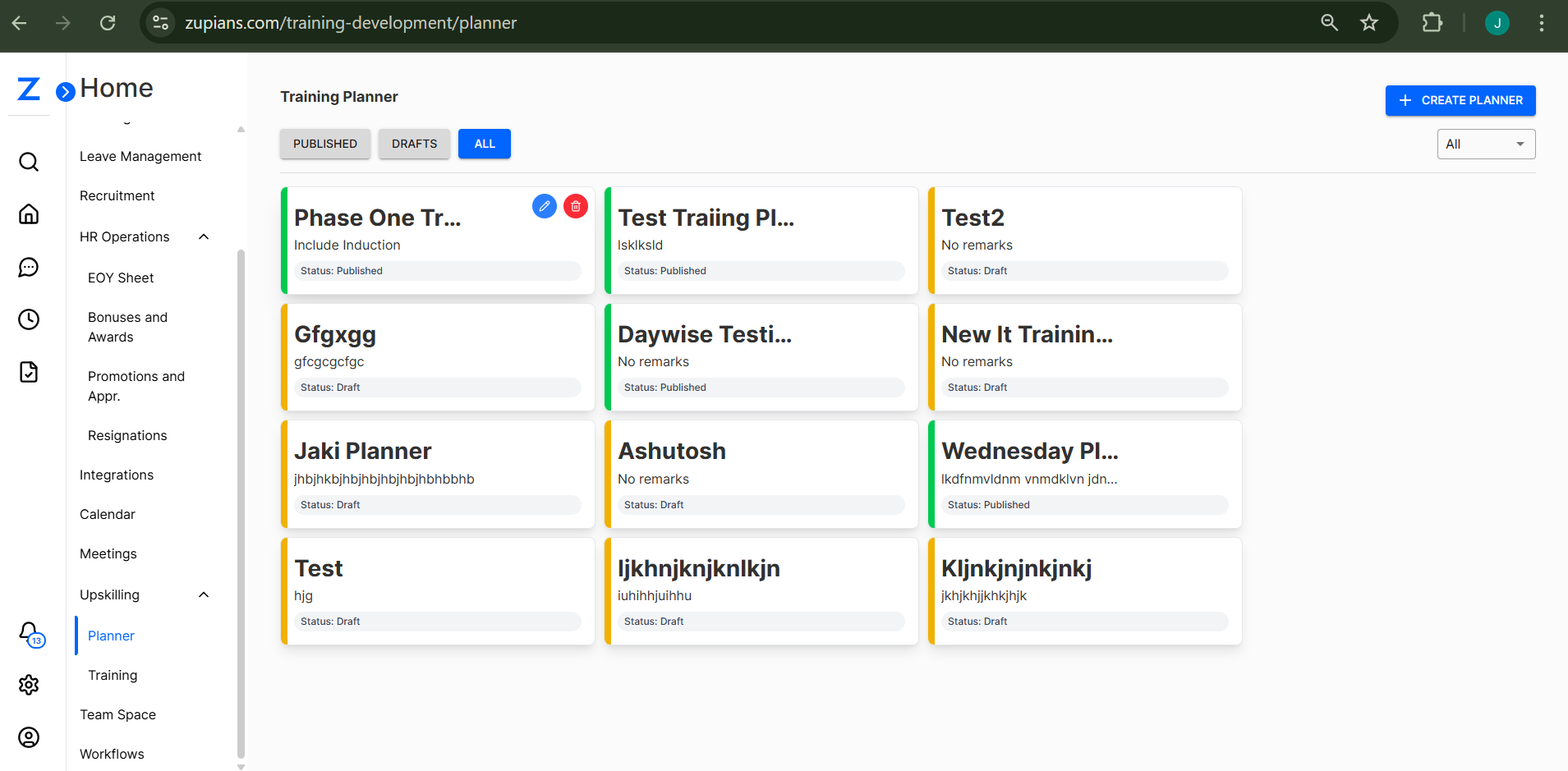 Here you will see:
-
dashboard of existing planners categorized as Published, Drafts, or All
-
Create Planner button to initiate a new training plan
-
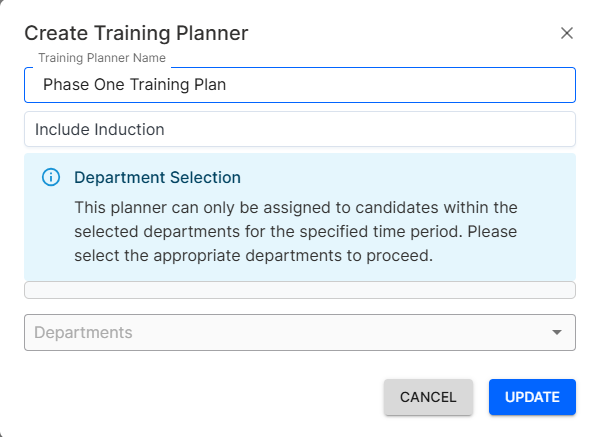
Select Planner Card to edit training plan
-
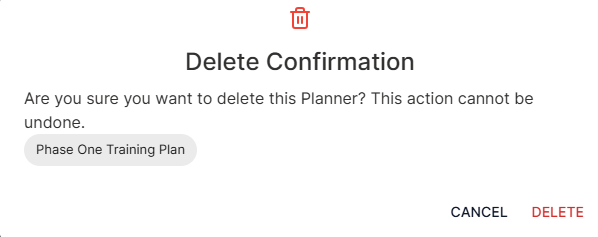
Select Planner Card delete training plan
-
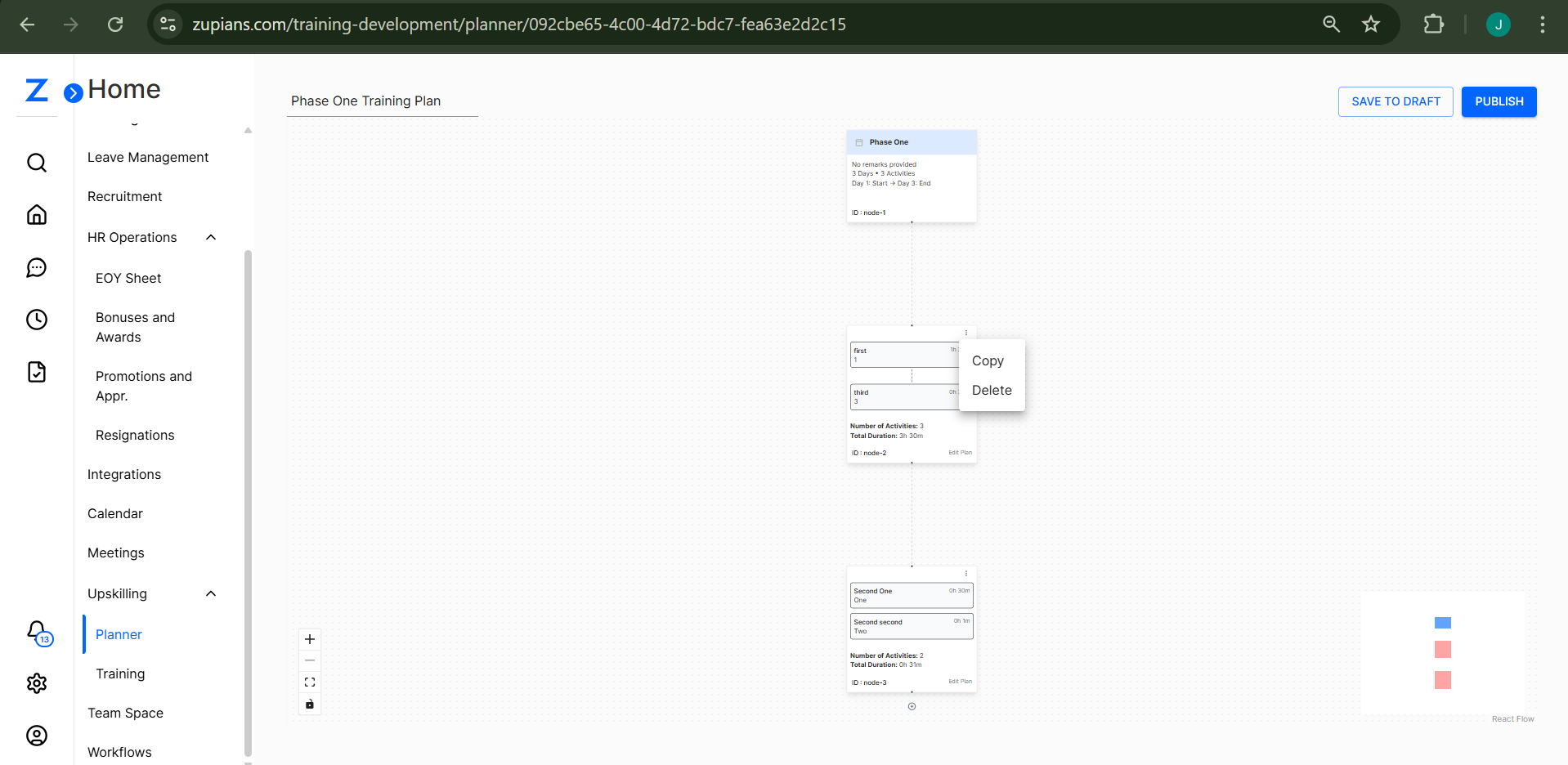
Click on Card to view/edit/copy/delete training plan Activity Details
-
Click on + to add activity for training plan
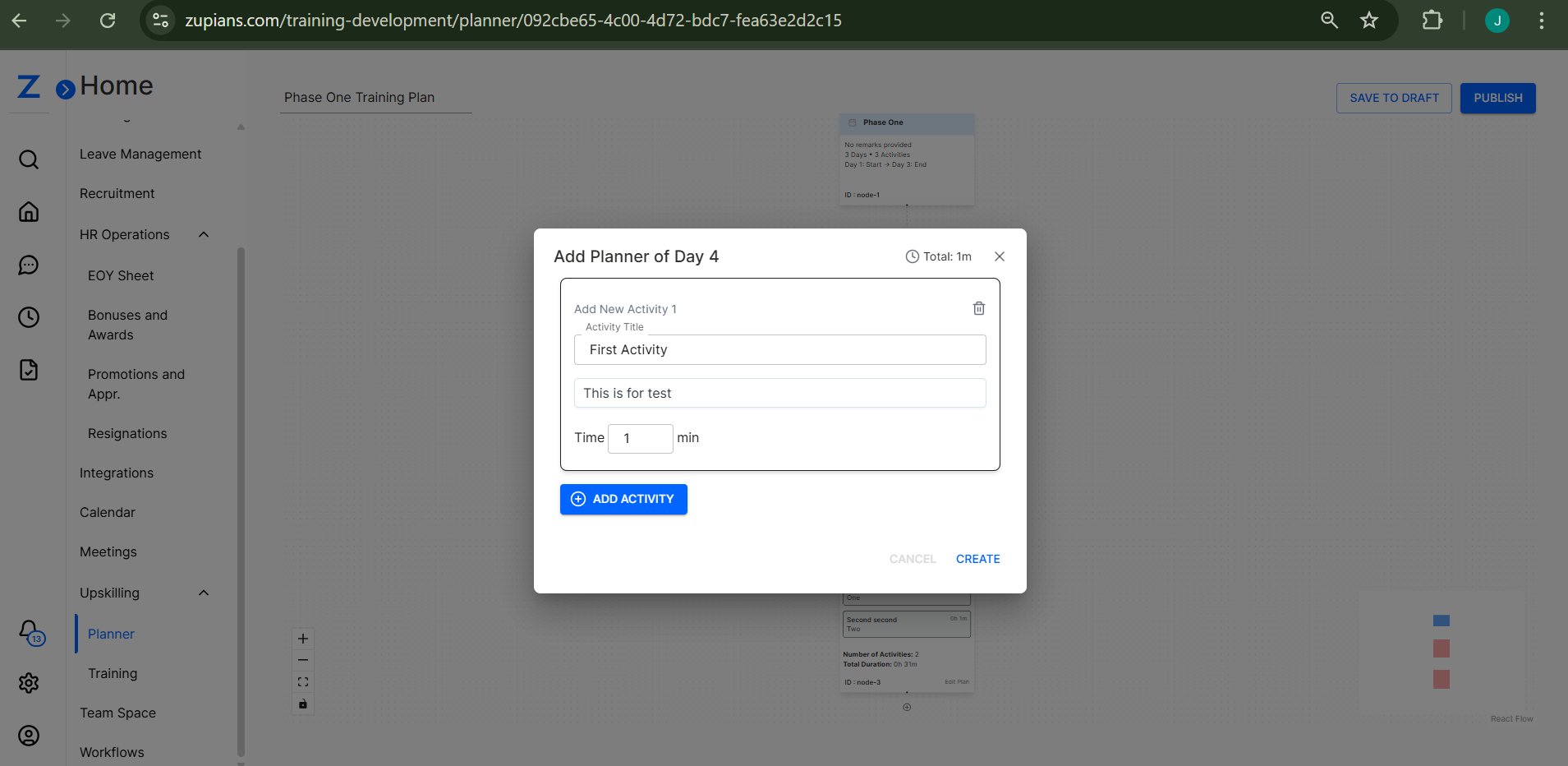
- Click on Save To Draft or Published to reflect Changes
🧾 Planner Status Cards
Each planner is displayed as a card showing:
- The Planner Title
- Any Remarks
- Status (Draft or Published)
- Color-coded borders for quick identification:
- 🟢 Green: Published
- 🟡 Yellow: Draft
➕ Create a Training Planner
Click the "Create Planner" button to open the planner creation form.
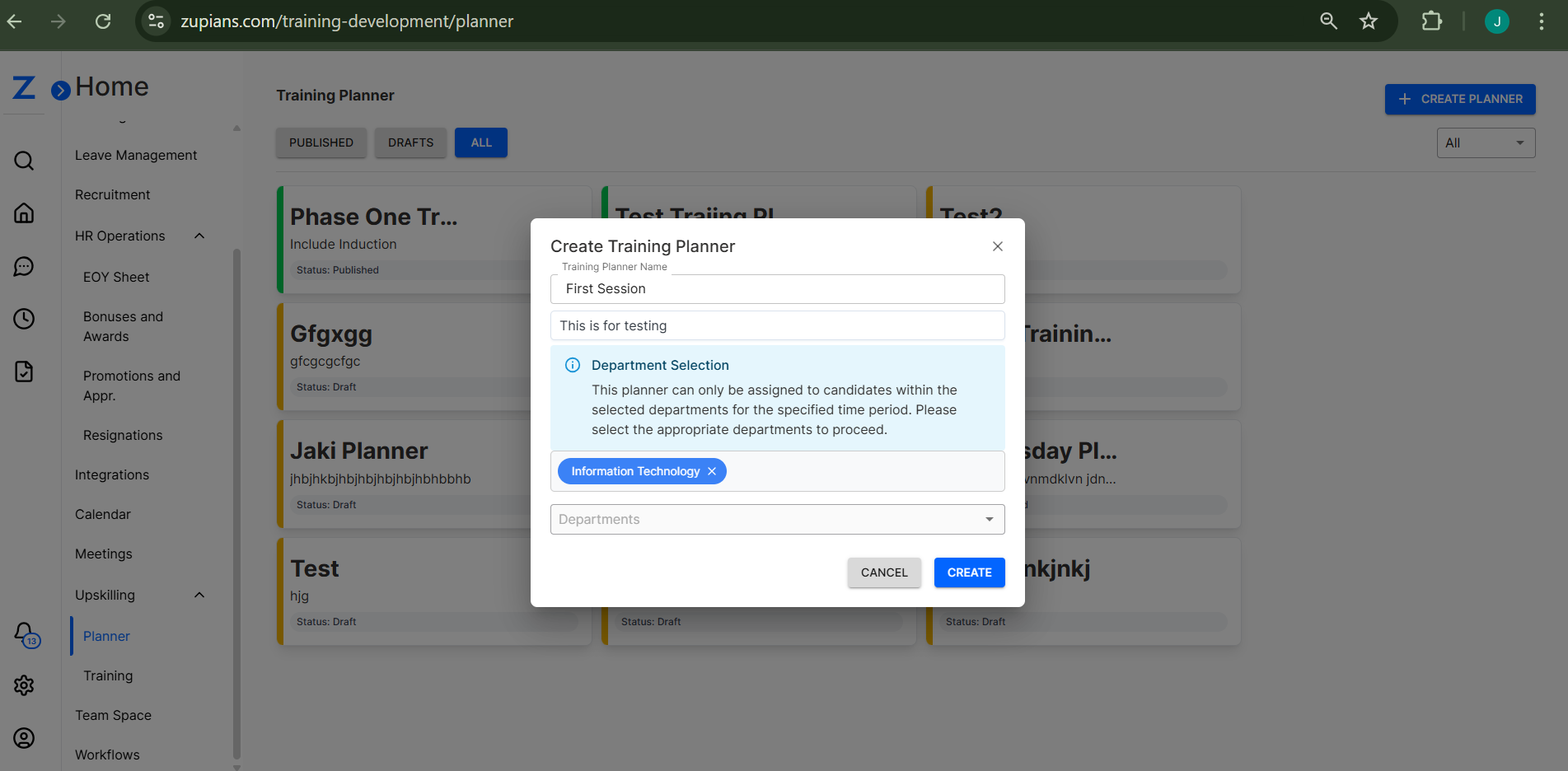
Step 1: Basic Information
- Training Planner Name – Enter a name for the planner (e.g., “Phase One Training – Induction”)
- Remarks – Optional notes or internal comments (e.g., “Includes onboarding materials”)
Step 2: Department Selection
- Departments – Select one or more departments to assign the planner to
- ℹ️ Note: This planner will only apply to candidates within the selected departments for the specified training period _ After Succesfull creation,it will reflect on card view
📂 Planner View Options
Use the tabs at the top to toggle between:
- Published – View only active planners
- Drafts – View planners that are still in progress
- All – View all planners regardless of status
📂 Fillter Options
Use the deaprtment fillter
👤 User Roles
Regular Users:
- Can create, edit, and view planners assigned to them
- Can only assign planners to departments they have access to
Admins:
- Have full visibility and control
- Can publish, edit, or delete any planner
✅ Best Practices
- 📝 Always include meaningful names and remarks
- 🏢 Assign the correct departments to ensure accurate deployment
- 🕐 Save as Draft if the planner is incomplete
- 🚀 Use Published status only when the planner is finalized
The Training Planner module ensures a structured and role-based approach to planning employee upskilling activities across departments.