Calendar Guide
This guide explains the Calendar section under the menu. It details how both Admins and Users can view scheduled meetings and events in a grid-based format.
🎯 Overview
The Calendar module is designed to:
- Display scheduled meetings and events in a visual calendar layout
- Help users stay informed about upcoming tasks or sessions
- Provide Admins with visibility into everyone's schedules
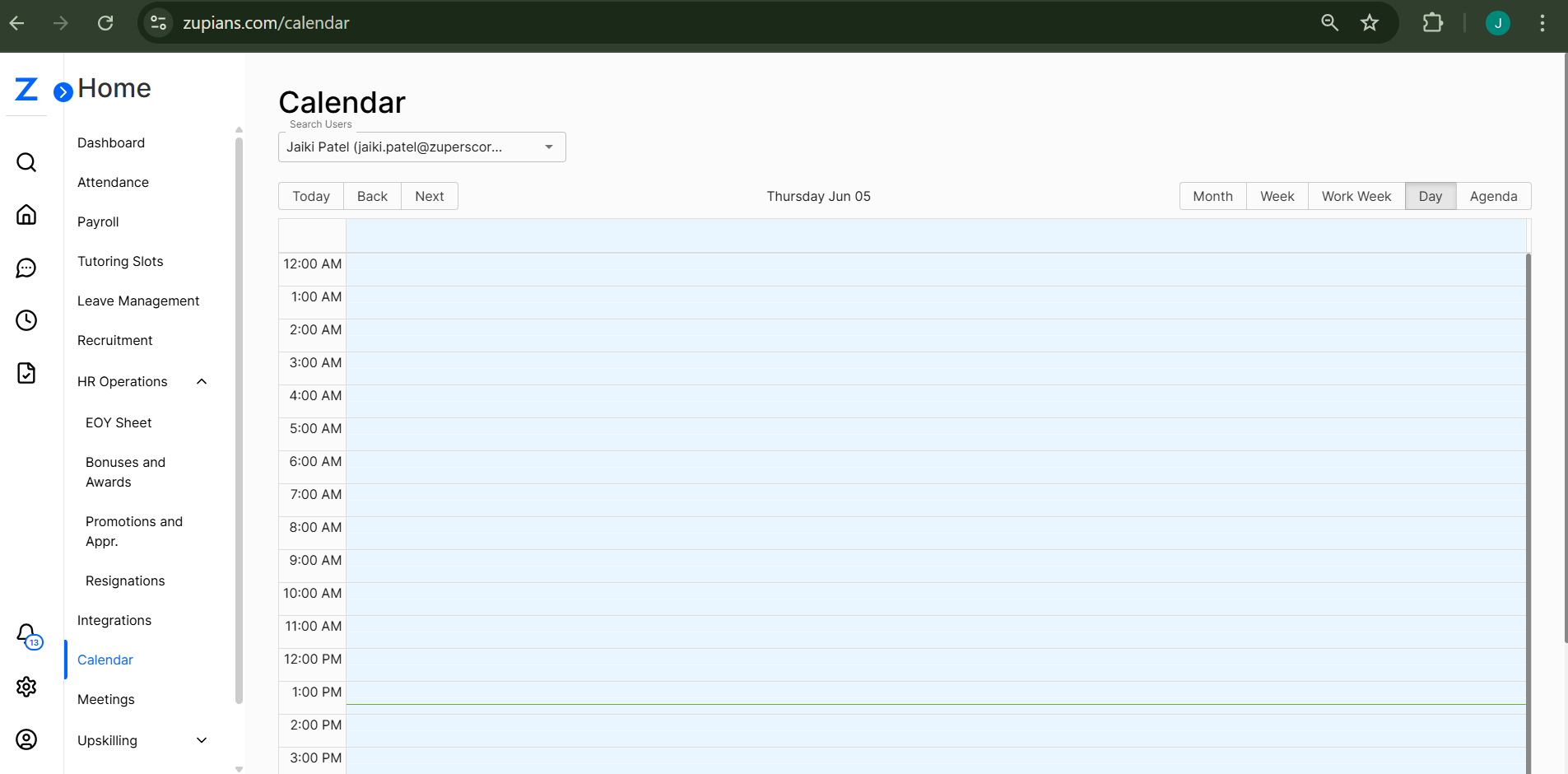
The interface includes:
- Month View by default
- Filter dropdown to search by User
- View toggle buttons: Month, Week, Work Week, Day, Agenda
Here’s a visual sample of the Calendar view:
👤 User View
In the User View, user can:
- See their own calendar events and meetings
- Navigate through dates using the Today, Back, and Next buttons
- Switch between calendar views: Month, Week, Work Week, Day, Agenda
📅 Events shown may include:
- Scheduled meetings
- Training sessions
- Integrated calendar events (Google or Zoom)
❌ Note: Users cannot see events from other users.
🛠️ Admin View
Admins have additional control and visibility.
🔍 Features for Admins:
- Use the Search Users dropdown to view any user’s calendar
- Monitor and audit scheduled events across the team
- Switch between multiple calendar views to better analyze event loads
This helps with:
- Resource planning
- Availability checks
- Meeting audits
📅 Calendar Navigation
View Modes Available:
- Month – Full month overview (default)
- Week – Weekly breakdown
- Work Week – Weekday view only (Mon–Fri)
- Day – Single-day focus
- Agenda – Scrollable list of upcoming events
Use Today, Back, and Next to move through dates.
💡 Best Practices
- 🗓️ Sync events from integrated tools like Google or Zoom for consistency
- 👥 Admins should verify meeting overloads or clashes using user filters
- 📌 Regularly check the calendar for upcoming responsibilities
That’s all for the Calendar module! This tool helps ensure organized scheduling and visibility across your organization. 📆✨
🧠 Frequently Asked Questions (FAQ)
1. Can I see someone else’s calendar?
Only Admins can view other users’ calendars using the Search Users dropdown. Regular users can only see their own calendar events.
2. Are Google or Zoom events shown in the calendar?
Yes, once integrated, your connected Google or Zoom meetings will be displayed automatically within the calendar view.
3. What happens if I schedule overlapping meetings?
The system allows overlapping events, but it’s best to monitor your calendar regularly to avoid conflicts. Admins can help review scheduling issues.
4. Can I add or edit events directly from the Calendar view?
Currently, users cannot add or edit events directly from the Calendar interface. Events are pulled from integration platforms or scheduled through the meeting modules.
5. What does the “Agenda” view show?
The Agenda view displays a vertical, scrollable list of all your upcoming events in chronological order — great for quick overviews.
6. I don’t see any events on my calendar. What should I do?
Check that your integrations are connected and active. You can also try switching views or adjusting the date range using the navigation buttons.
7. Can Admins filter events by department or type?
Admins can only filter by individual users currently. Filtering by department or event type is not available yet.
8. Does the calendar show holidays or company-wide events?
Yes, global events such as holidays, organization-wide announcements, or trainings will also appear on relevant user calendars.
9. What time zone is used for calendar events?
Calendar events are displayed in the time zone of the user’s system/browser. Ensure your system clock is accurate for best results.
10. Can I print or export my calendar?
Currently, exporting or printing from the calendar view is not supported. You may use connected platforms (like Google Calendar) for such actions.