Notifications Guide
The Notifications module helps you stay updated on important activities across the platform—like attendance, meetings, tasks, and HR policies—via multiple channels such as SMS, Phone, WhatsApp, Email, and Web Push.
🌐 Purpose
- Keep users informed through multi-channel alerts
- Let users customize which alerts they want to receive
- Allow temporary muting of all notifications when needed
🧭 Navigation
✅ Method 1: Step-by-step navigation
- Click the 🔔 Notifications icon from the top-right navigation bar.
- Then click on the ⚙️ Settings icon to open Notification Settings.
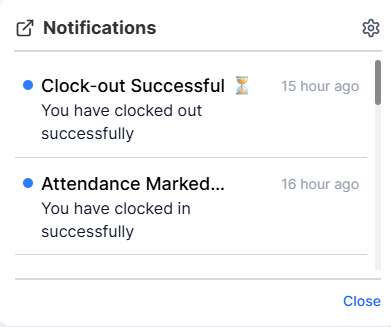
✅ Method 2: Direct link
Go to:
zupians.com/notifications/all
or
zupians.com/notifications/settings directly to access settings.
🛠️ Notification Settings
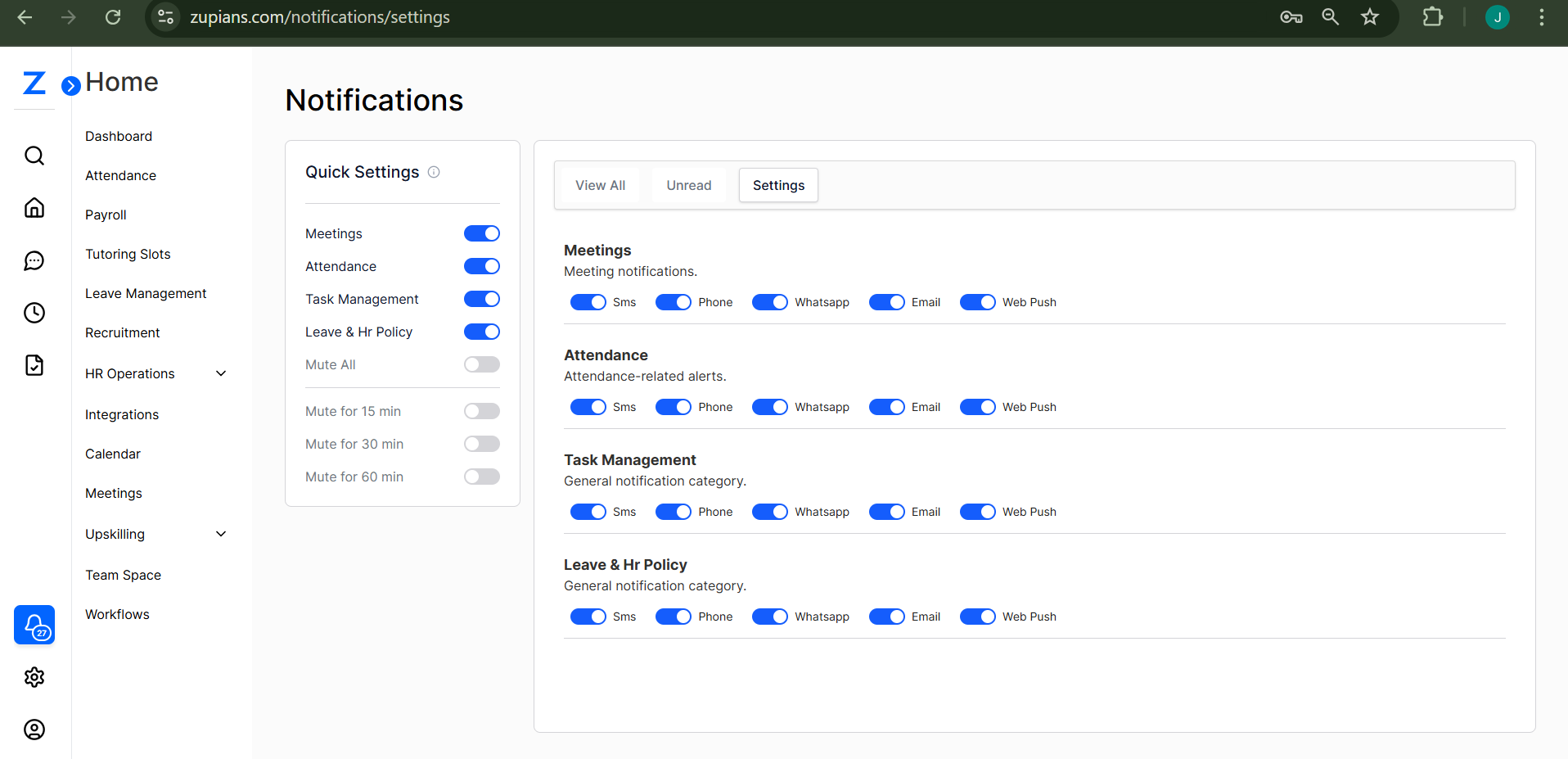
The Settings page allows you to manage notification preferences across four major categories:
| Category | Description |
|---|---|
| Task Management | Notifications about assigned tasks |
| Meetings | Notifications for scheduled meetings |
| Attendance | Alerts for clock in/out and attendance |
| Leave & HR Policy | Company policies and leave updates |
Each of these can be enabled/disabled independently through the following channels:
- SMS
- Phone Call
- Web Push
Toggle switches (blue = enabled, gray = disabled)
⚙️ Quick Settings Panel
Located on the left side of the settings page.
| Option | Function |
|---|---|
| Mute All | Turns off all notifications across all channels |
| Mute for 15/30/60 min | Temporarily disables all notifications for the selected duration |
| Toggle individual categories (Meetings, Attendance, etc.) | Instantly enable/disable all channels for that category |
Quick Settings and Settings Overview
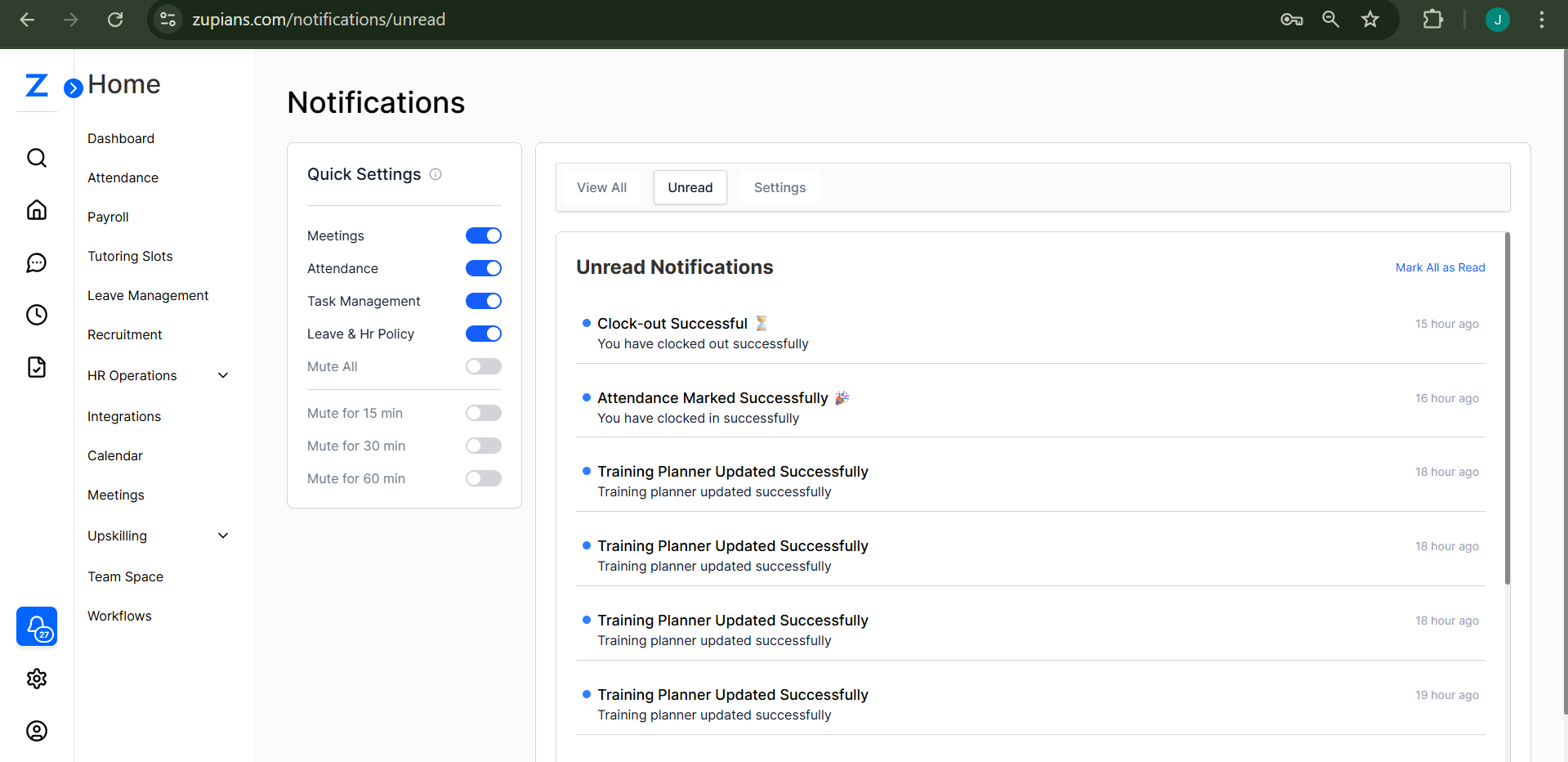
Unread Overview
View all Overview
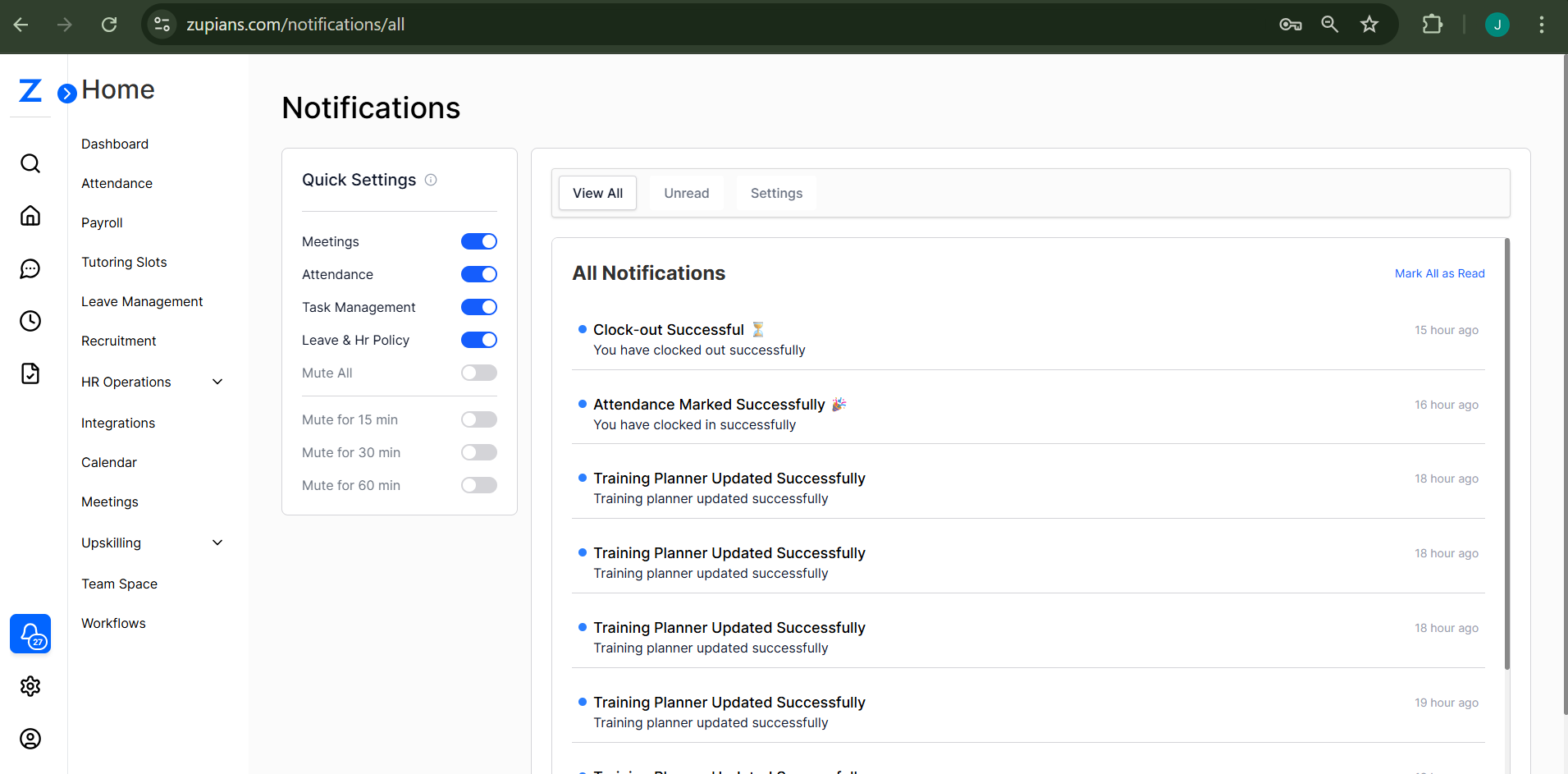
Use this screen to fine-tune how you stay informed.
🧪 Example Workflow
- Go to Notifications Settings
- Locate the Quick Settings panel
- Toggle on Attendance for WhatsApp, Email, and Web Push
- Toggle off Phone and SMS
- Under Mute All, choose Mute for 30 min if you’re in a meeting
- Click on the Settings tab to see all categories and confirm your preferences
This module gives you full control over your communication preferences so you never miss what's important—while staying distraction-free when needed.