Task Management Guide
The Task Management module empowers teams to collaborate efficiently by organizing tasks within projects and teams. This guide walks you through the process of creating a team, setting up a project, and adding tasks.
🌐 Purpose
- Organize tasks within structured teams and projects
- Assign responsibilities to team members
- Track progress and deadlines effectively
- Enhance collaboration and productivity
🧭 Navigation
Access the Task Management module via:
👉 zupians.com/task-management
📌 Accessible from both user and admin dashboards.
👥 Creating a Team
Teams serve as the foundational units for collaboration. Follow these steps to create a new team:
- Navigate to the Teams section in the Task Management module.
- Click on the "Create Team" button.
- Fill in the required details:
- Team Name
- Description
- Add members and assign roles.
- Click "Save" to create the team.
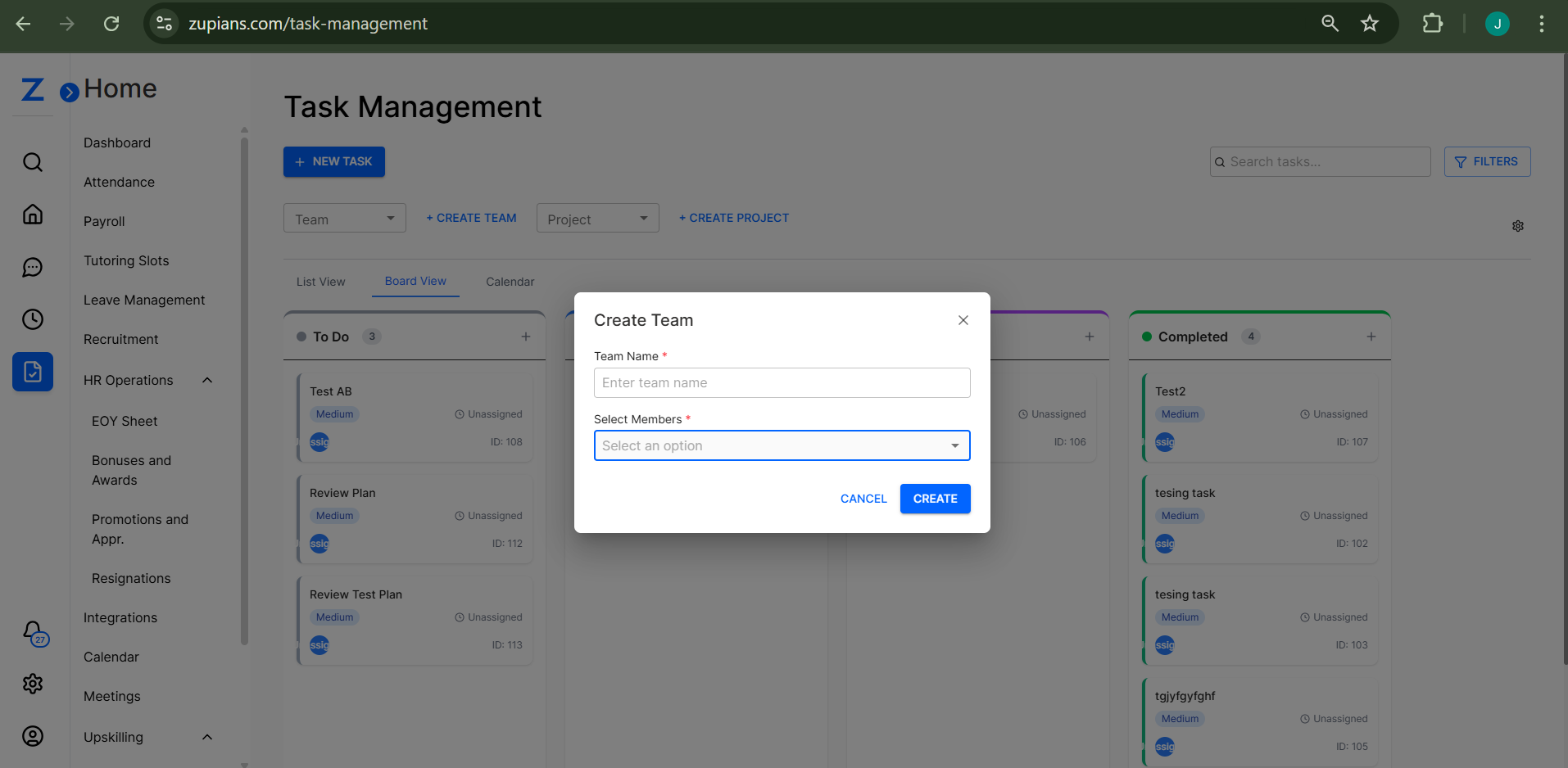
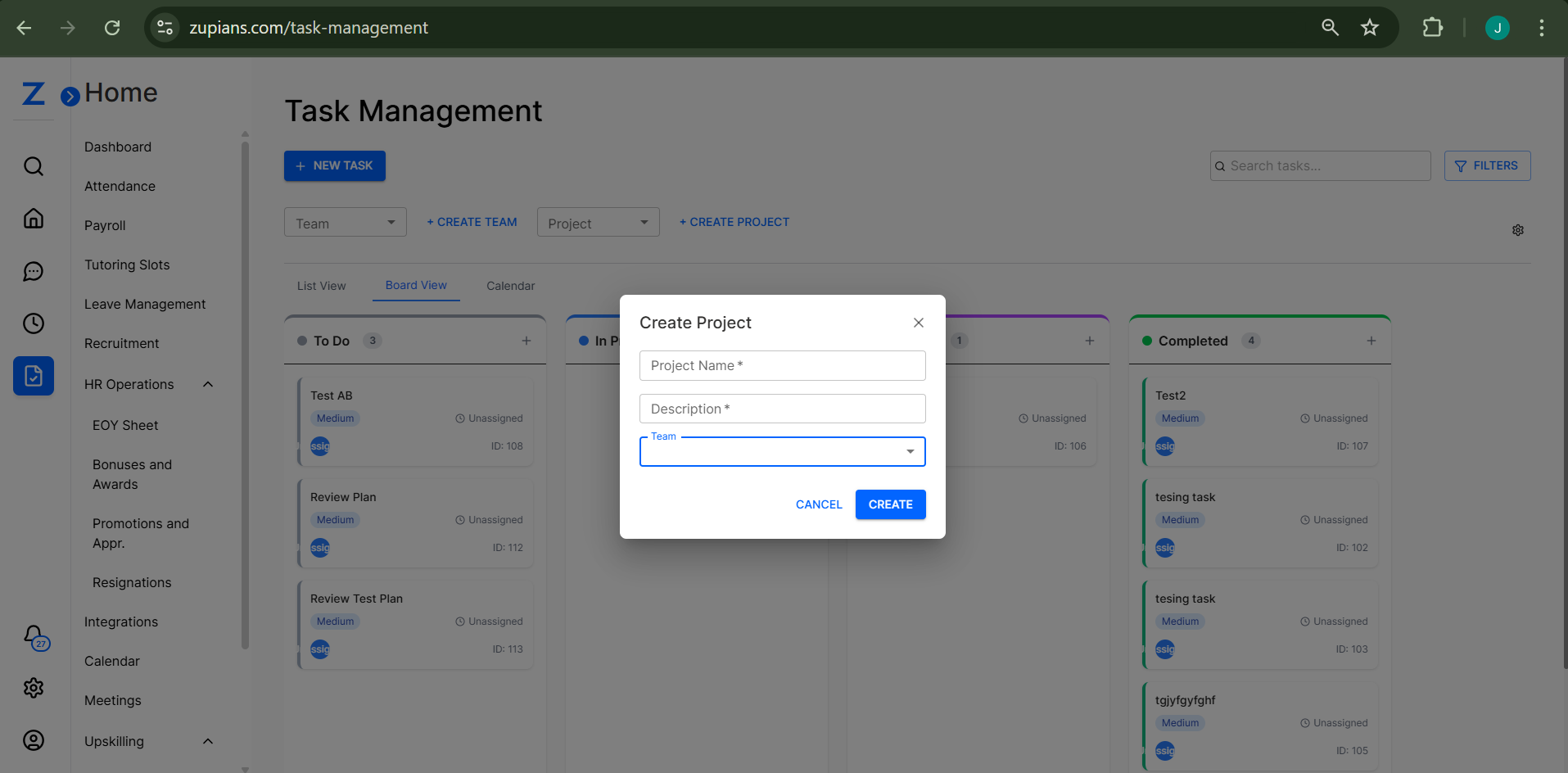
📁 Creating a Project
To create a project:
- Go to the Projects section.
- Click on the "Create Project" button.
- Enter:
- Project Name
- Description
- Associated Team
- Set start and end dates, assign project manager if needed.
- Click "Save".
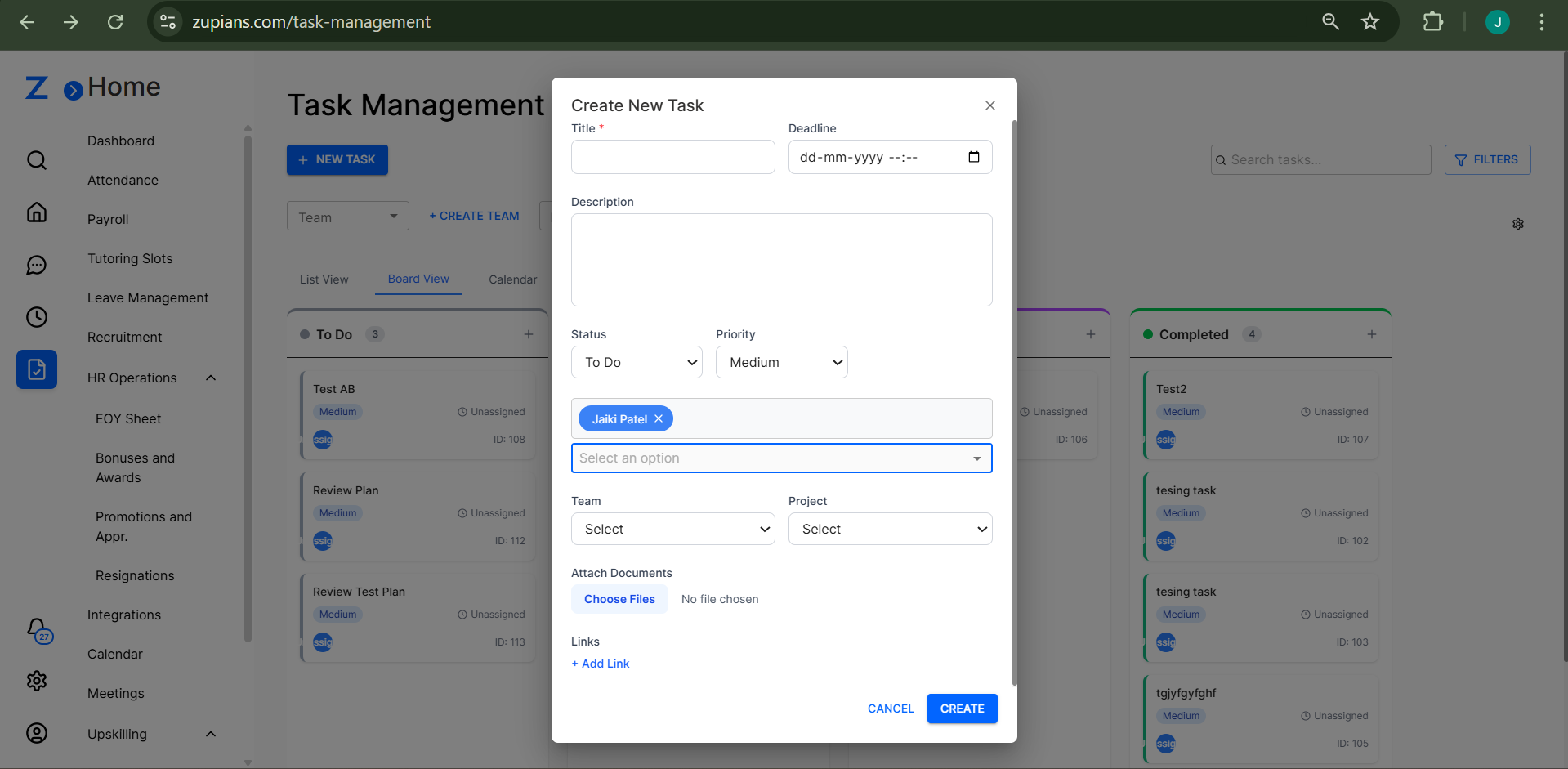
✅ Creating a New Task
To add a task:
- Inside a project, go to the Tasks tab.
- Click on "Add Task".
- Fill in:
- Task Title
- Description
- Assignee
- Priority
- Due Date
- Attach relevant files (optional).
- Click "Create".
📬 Notification:
Once a task is created, both the assigner and the assignee will receive email and web push notifications.
- Assignee is notified of the new task assignment
- Assigner is notified of task creation success
🔄 Task Updates & Notifications
Each action in the task lifecycle triggers automatic notifications:
| Action | Notified Parties | Type of Notification |
|---|---|---|
| Task Assigned | Assignee | Email + Web Push |
| Task Status Updated | Assigner & Assignee | Email + Web Push |
| Task Marked Complete | Assigner | Email + Web Push |
| Task Overdue | Assignee + Project Mgr | Email + Web Push |
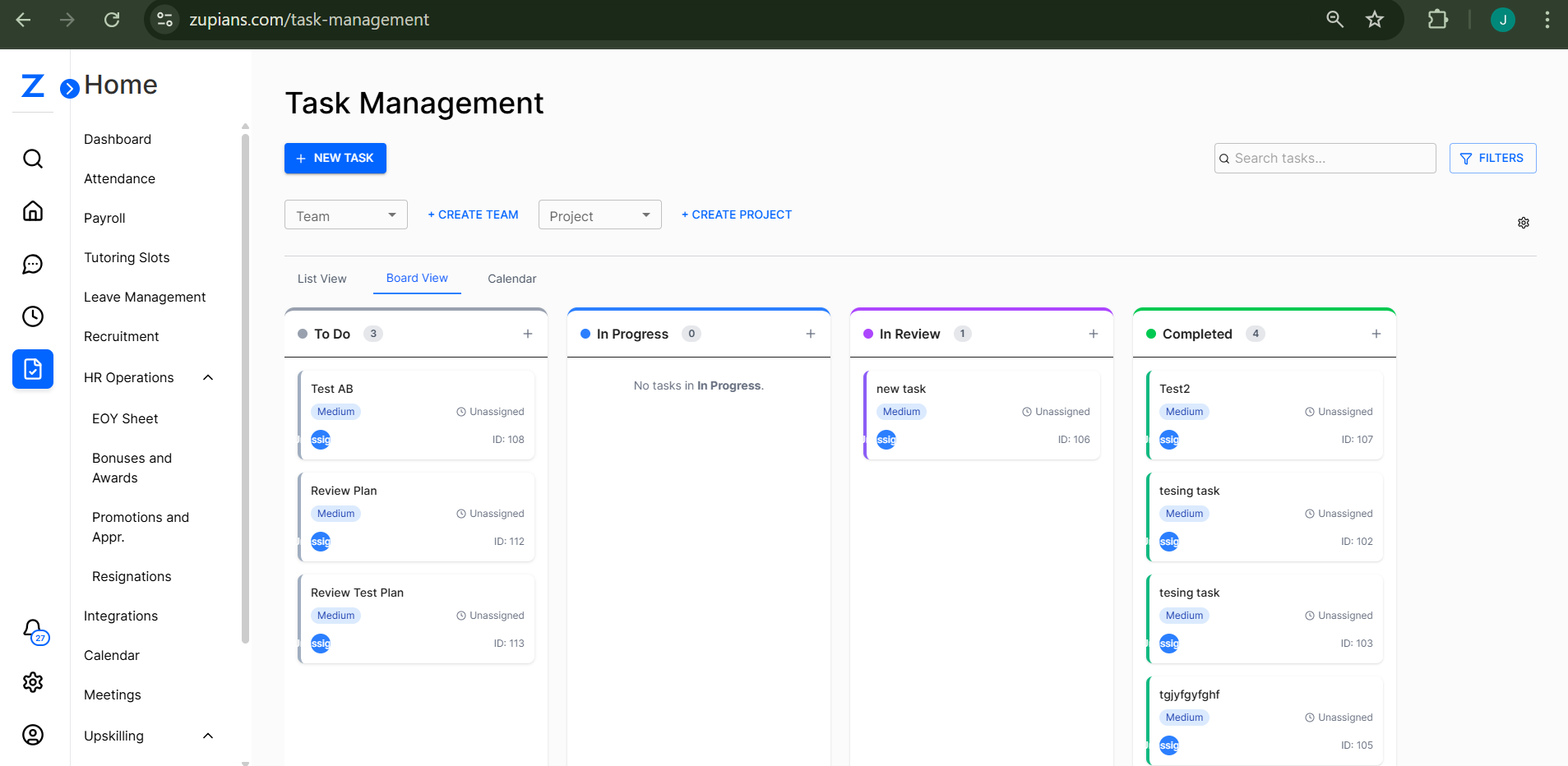
📊 Task Overview and Management
You can:
- Track status updates (Not Started, In Progress, Completed)
- Add comments for collaboration
- Get notifications for updates
- Use filters/views to manage tasks
🧪 Getting Started
For Team Members
- Join the team
- Access assigned projects
- Review and update task statuses
- Add comments and collaborate
For Project Managers
- Create/manage teams and projects
- Assign tasks
- Monitor timelines and status
- Facilitate progress and unblock issues
🧠 Frequently Asked Questions (FAQ)
1. Can I assign a task to multiple team members?
Currently, a task is assigned to one member. For collaboration, create subtasks.
2. How do I change the priority of a task?
Edit the task and choose a different priority from the dropdown menu.
3. What happens when a task is overdue?
Overdue tasks are flagged and notify the assignee and project manager.
4. Can I duplicate a task for recurring activities?
Yes, use the Duplicate Task option to copy task structure.
5.Where user can view assigned task?
User can view/update assigned task from their dashboard.can also track progress of each assigned task
Need help? Reach out to the support team or visit the help center for more tutorials.