Teams Guide
The Teams module enables users to host and join virtual meetings with built-in video, audio, chat, and collaborative tools — all accessible directly from the browser.
🌐 Purpose
The Teams platform is built to:
- Enable seamless video conferencing with no downloads
- Provide HD video/audio quality with adaptive streaming
- Offer real-time collaboration with chat, screen sharing, and whiteboarding
🧭 Navigation
Go to:
teams.zupians.com
📌 No installation required — just open in a browser and start.
🖥️ Home Page Overview
Upon accessing the Teams site, users are presented with a simple and powerful meeting hub.
Key Sections:
| Section | Description |
|---|---|
| Header | Access features, plans, and support links |
| Main CTA | Options to Start a Meeting or Join a Meeting |
| Feature Grid | Overview of key tools like HD video, chat, screen sharing |
| Footer Bar | Quick join field for entering a meeting ID or link |
✨ Core Features
🔊 HD Video Conferencing
Crystal-clear video that adjusts dynamically to your internet speed for a smooth experience.
💬 Intelligent Chat
Persistent in-meeting chat with searchable history and file sharing.
🔕 Noise Cancellation
AI-powered filtering for distraction-free communication.
🔐 Enterprise Security
Secure rooms, waiting lobbies, and host controls for confidential sessions.
🖥️ Screen Sharing
Share your entire screen or a single app window, enhanced with annotations.
🧑🎨 Collaborative Whiteboard
Draw, write, and co-create on a digital whiteboard in real time.
🧪 Getting Started
- Visit teams.zupians.com
- Click Start a Meeting to create a new meeting room
- Or click Join a Meeting and enter your meeting ID
- Enable your mic/camera when prompted
- Share the link or invite others to join
📸 Visual Overview
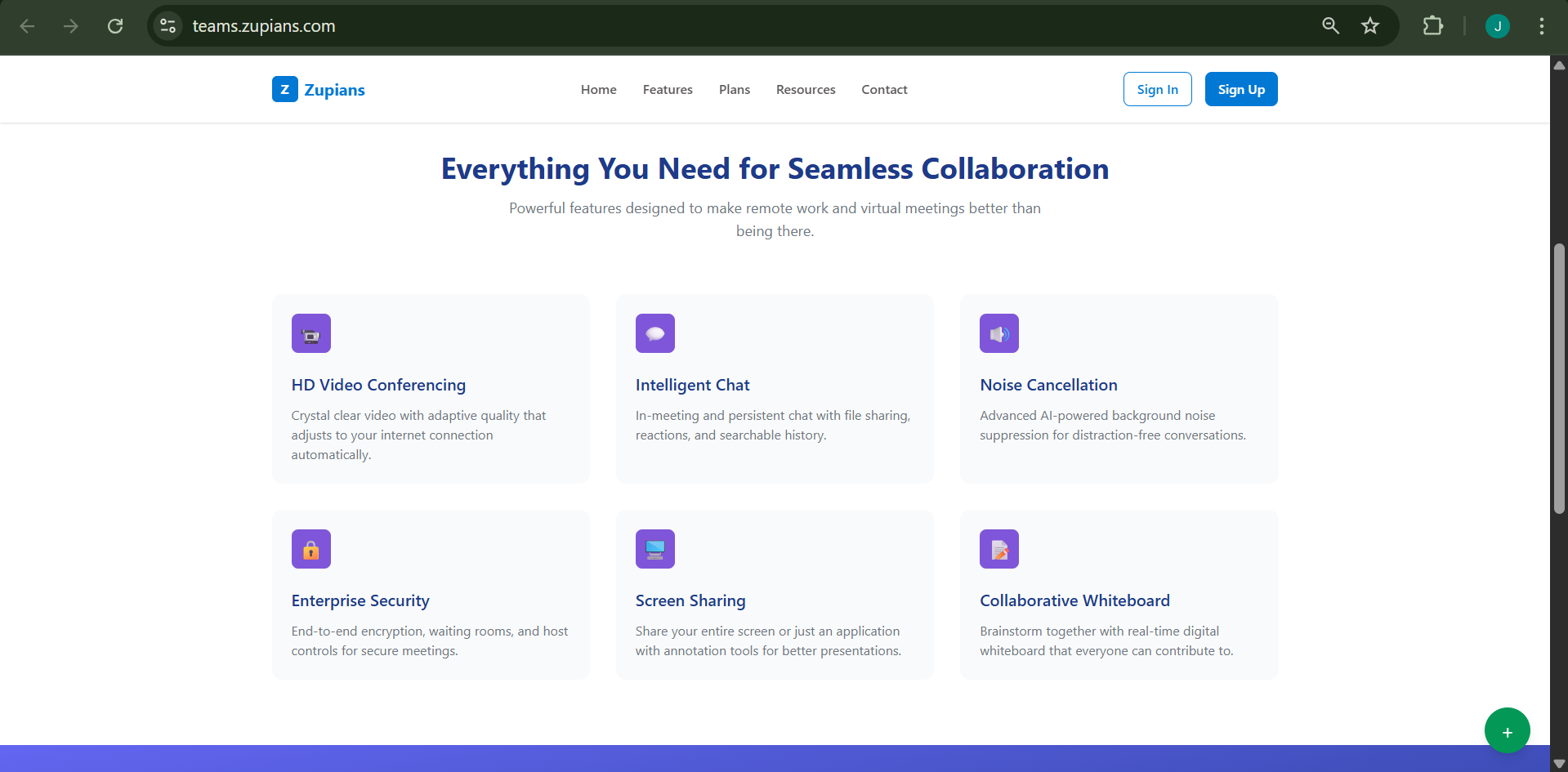
This is the home screen of Teams, offering quick meeting access and feature highlights.
The Teams module brings your organization together — whether for daily standups, interviews, or project brainstorming sessions — without the hassle of external tools.