Daily Attendance Guide
The Attendance module allows users to clock in/out, view attendance history, and manage regularization requests. Admins can track attendance across the team and take action on pending requests.
🌐 Purpose
- Track user attendance with clock in/out functionality
- Provide visibility into daily and historical logs
- Enable users to request regularizations for missed or incorrect attendance
- Allow admins to manage and take action on requests
🧭 Navigation
Go to:
zupians.com/daily-attendance
📌 Available on both user and admin dashboards.
👤 User View
Users can log their attendance and view their daily status.
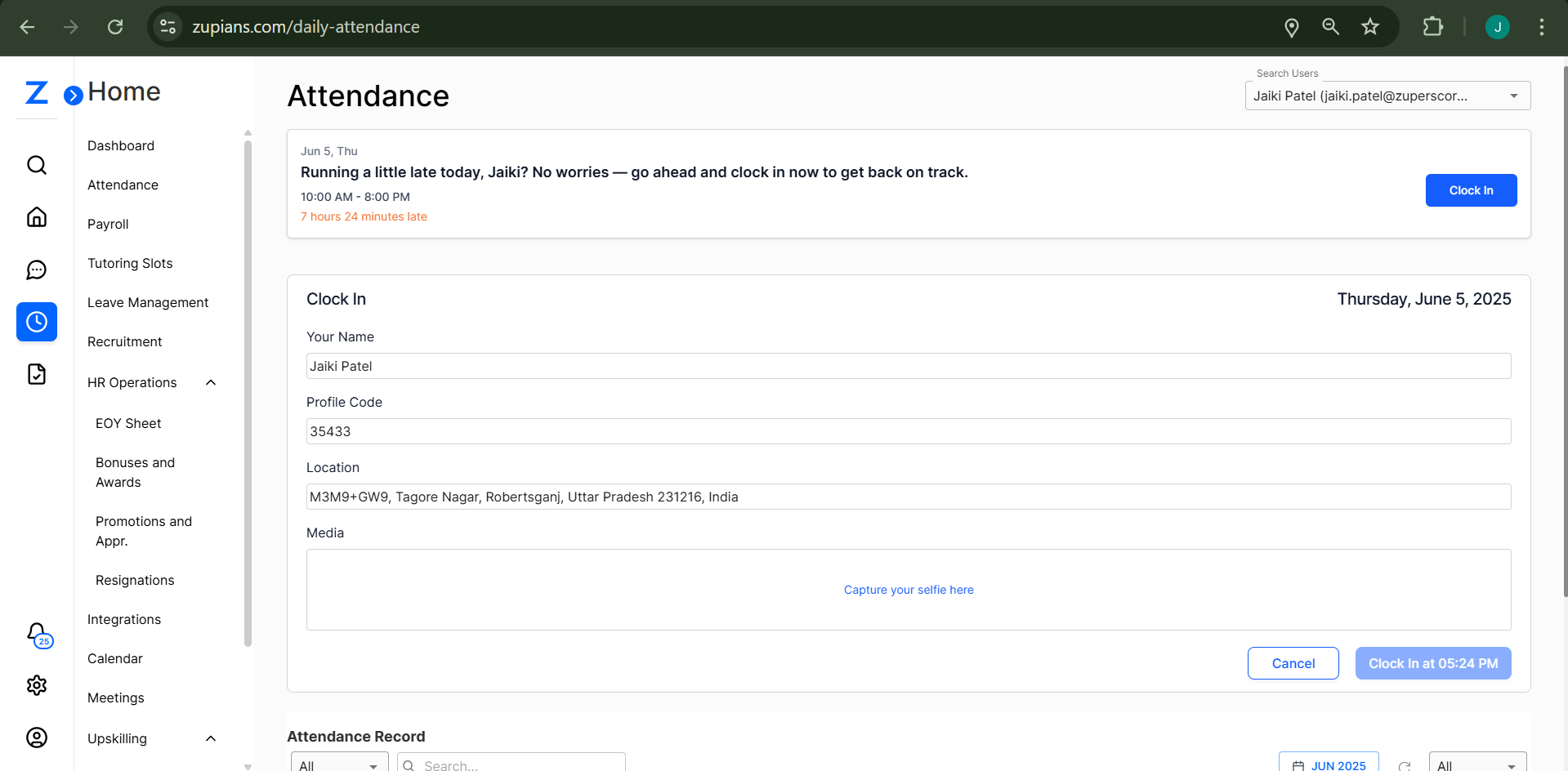
✅ Actions Users Can Perform:
- Clock In / Clock Out for the day
- Auto-fetched device location and upload a selfie
- View their attendance log
- Submit a Regularization Request for missed or incorrect entries
📋 Ensure While Clock In/Out click on Capture your selfie in order to enable Clock In/Out Button
📋 Clock In/Out Interface
| Field | Description |
|---|---|
| Name | Auto-filled from profile |
| Profile Code | Auto-filled unique user ID |
| Location | Auto-fetched device location (e.g., city or office) |
| Media | Option to upload a selfie or file |
| Time | Button appears with the current time for clock-in or clock-out |
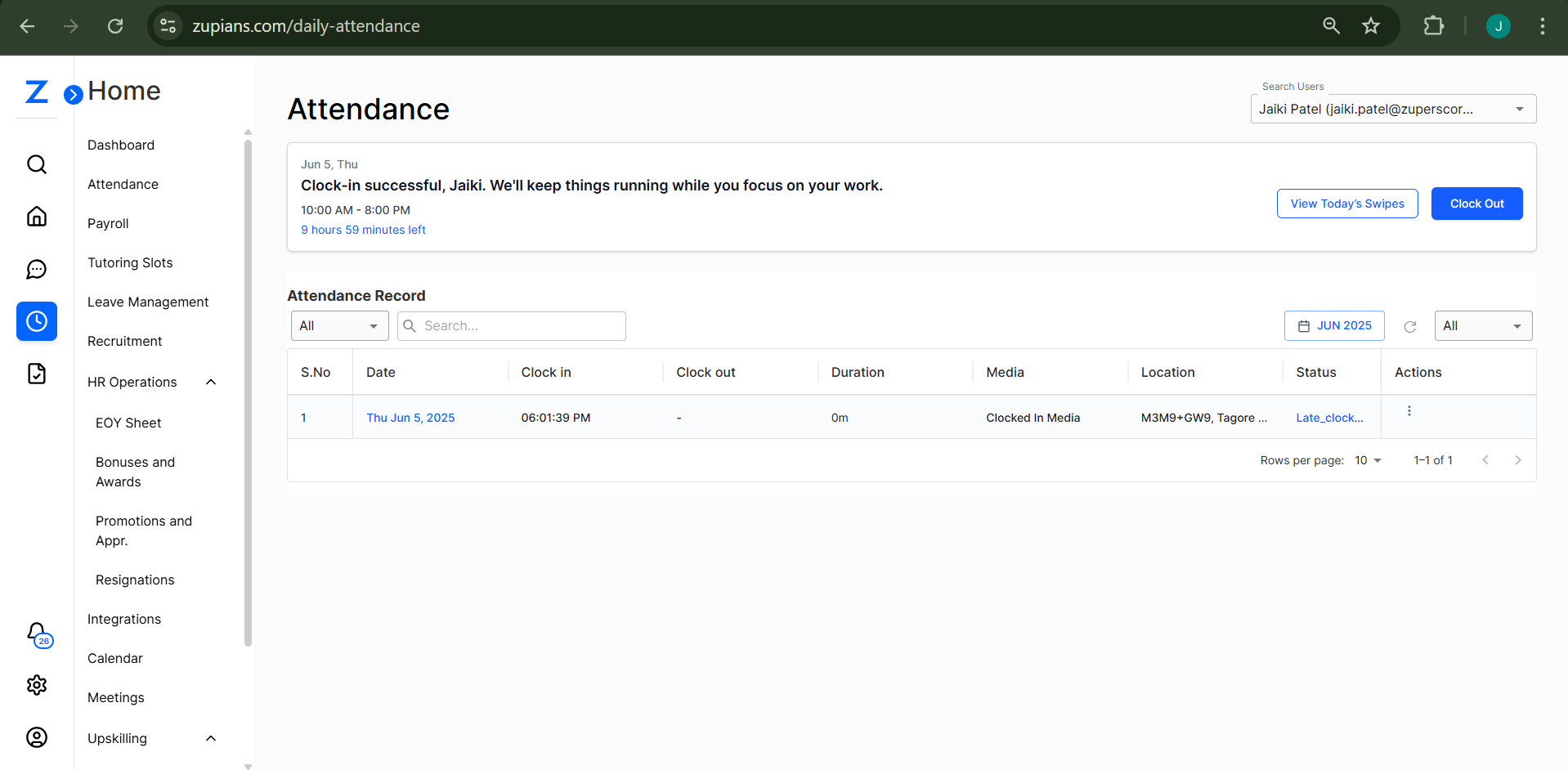
🔄 Regularization Request
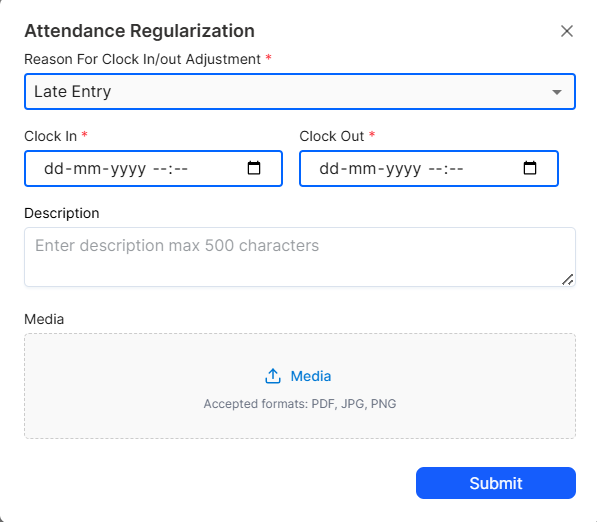
Users can submit a request when:
- They forgot to clock in/out
- Their attendance record has incorrect times
Admins will receive and review these requests.
👨💼 Admin View
Admins have full visibility of the organization's attendance.
🛠️ Admin Features
- View all user attendance records
- Filter by user, date, status
- View and manage Regularization Requests:
- Approve valid requests
- Reject invalid or unsupported requests
![Attendance - Admin View]
📜 Attendance Record Table
Admins and users both see a listing table:
| Column | Description |
|---|---|
| S.No | Serial number |
| Date | Attendance date |
| Clock In / Clock Out | Logged times |
| Duration | Calculated based on logs |
| Media | Uploaded file or selfie |
| Location | User-defined entry |
| Status | Normal, Pending, or Regularized |
| Actions | Options (e.g., Approve/Reject for Admins) |
🧪 Getting Started
For Users:
- Go to daily-attendance page
- Enter location and upload optional media
- Click Clock In or Clock Out
- View entries in Attendance Record
- Submit a Regularization Request if needed
For Admins:
- Access the Admin Panel
- Browse or search user logs
- Review pending regularization requests
- Approve or reject as appropriate
This module helps ensure accurate, verified attendance records while offering flexibility and transparency for both users and admins.
🧠 Frequently Asked Questions (FAQ)
1. Why can’t I see the Clock In/Out button?
The Clock In/Out button is enabled only after you capture and upload a selfie. Ensure your browser has access to your camera and location.
2. What happens if I forget to clock in or clock out?
You can submit a Regularization Request via the attendance page. Just select the date and provide the correct details for Admin approval.
3. What is the difference between Statuses: Normal, Pending, and Regularized?
- Normal: Properly logged attendance - Pending: Awaiting regularization approval - Regularized: Approved request for missed/incorrect clock in/out
4. Can I upload any file type for proof?
Only supported media types like images (selfies) or basic files are allowed. Always prefer uploading a selfie for verification.
5. How is the working duration calculated?
Duration is automatically calculated as the difference between Clock In and Clock Out times for each day.
6. Can I edit my attendance after submitting?
No direct edits are allowed. You must submit a regularization request if you need to correct any entry.
7. As an Admin, can I update someone's attendance manually?
Admins typically cannot directly edit clock-in/out times but can approve or reject submitted regularization requests.
8. How far back can I request a regularization?
This depends on your organization’s policy. Some allow up to 7–30 days backdated requests. Check with HR or system admin for limits.
9. What should I do if location or selfie is not loading?
- Ensure location and camera permissions are enabled in your browser - Try refreshing or switching to a different browser if the issue persists
10. Will admins get notified about my regularization request?
Yes, admins can view all pending regularization requests in their dashboard and take appropriate actions.