Meetings Guide
This guide explains how to use the Meetings module under the menu section. It enables users to schedule, view, and manage meetings efficiently within the organization.
🎯 Overview
The Meetings module allows users to:
- Schedule and manage meetings
- Add detailed meeting information
- Invite attendees and set reminders
- Categorize and prioritize meetings
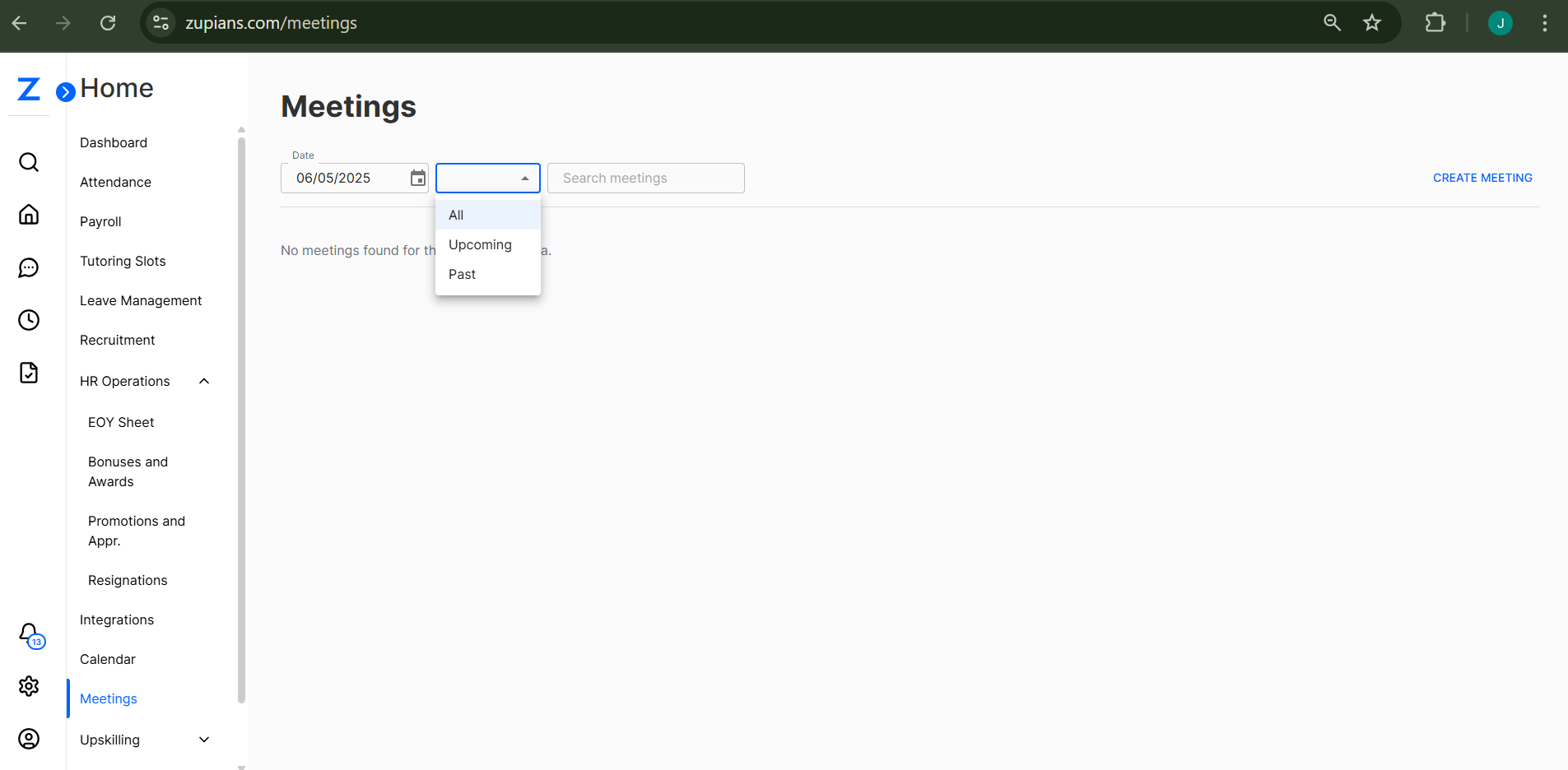
Here’s a visual sample of the Meeting Interface:
📅 Meeting Dashboard
Located under HR Operations > Meetings, the main dashboard displays:
- A date filter to choose and view meetings scheduled for a specific day
- A filter to choose and view meetings scheduled for upcomming and past
- A search box to locate specific meetings
- A "Create Meeting" button to schedule a new meeting
📝 Create a Meeting
Click "Create Meeting" to open the setup form.
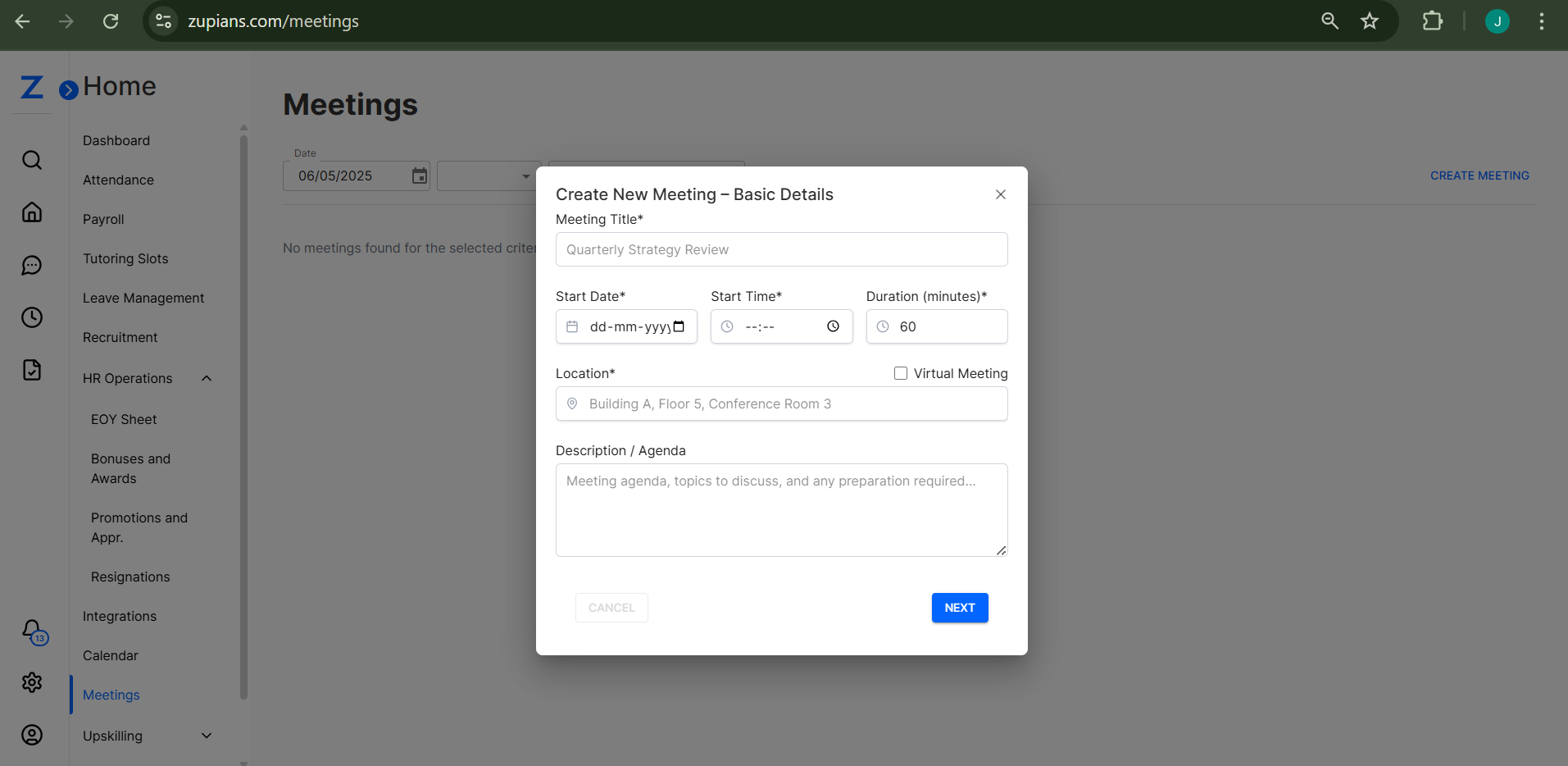
Step 1: Basic Details
- Meeting Title – Name your meeting (e.g., “Quarterly Strategy Review”)
- Start Date – Choose the meeting date
- Start Time – Specify the time
- Duration – Input the duration in minutes (e.g., 60)
- Location – Choose a platform or venue
- Virtual Meeting – Check this box for online meetings
- Description / Agenda – Enter topics, objectives, or prep notes
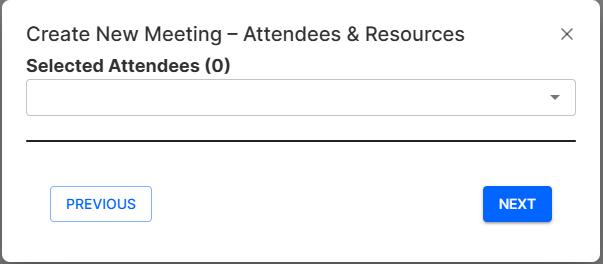
Step 2: Attendees & Resources
- Selected Attendees (0) – Add team members or stakeholders who should attend
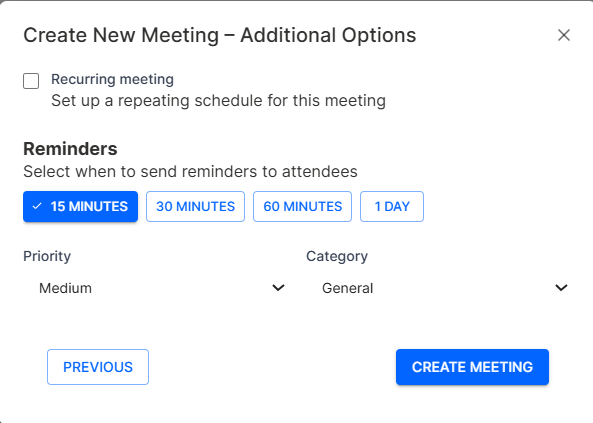
Step 3: Additional Options
- Recurring Meeting – Enable this if the meeting should repeat on a schedule (e.g., weekly, monthly)
- Reminders – Set reminders (e.g., 15 mins, 1 hour before) for attendees
- Priority – Set importance level (Low / Medium / High)
- Category – Choose a classification (e.g., Team Meeting, Review, One-on-One)
After successful creation of the meeting, the host and attendees will receive an email with the meeting details
👤 User & Admin Experience
Users:
- Can create and manage their meetings
- Can only view meetings where they are participants
Admins:
- Can view, create, and manage meetings for all users
- Useful for scheduling organizational or cross-functional meetings
💡 Best Practices
- 📌 Use clear and concise meeting titles
- 🧭 Always fill in the agenda to guide the discussion
- ⏰ Set reminders to ensure attendance
- 🔄 Use recurring meetings for regular sync-ups
- 🧑🤝🧑 Add all relevant attendees early to avoid conflicts
The Meetings module supports seamless communication and effective planning across your organization.
🧠 Frequently Asked Questions (FAQ)
1. Can I edit a meeting after it’s been created?
Yes, the meeting host can edit meeting details such as date, time, attendees, agenda, and more. All changes will trigger updated email notifications to participants.
2. Will attendees receive reminders for meetings?
Yes, you can set reminders like 15 minutes or 1 hour before the meeting during creation. These reminders will be sent via email and possibly push notifications (based on user settings).
3. Can I invite external guests (non-Zupians users)?
Currently, only registered users in the system can be added as attendees. For external participants, include meeting links and details manually in the agenda or description.
4. What happens when a meeting is marked as recurring?
Recurring meetings will automatically appear on relevant future dates based on your chosen schedule (e.g., weekly or monthly). Editing or canceling affects only the selected occurrence unless applied to all.
5. Can users delete meetings?
Only the meeting creator (host) or an Admin can delete a meeting. Once deleted, all participants are notified.
6. How are virtual meeting links handled?
If the meeting is marked as "Virtual" and the platform is integrated (e.g., Google Meet or Zoom), a join link will be generated automatically and shared with attendees.
7. I scheduled a meeting but didn’t receive an email. What should I do?
Check your spam/junk folder. Also, verify if your email integration is active. Contact Admins if the issue persists.
8. Can attendees see each other’s calendars?
No, attendees only see their own calendar. However, Admins can view calendars across the organization for scheduling purposes.
9. What are meeting categories used for?
Categories help classify meetings (e.g., Review, Team Meeting, Training) for better organization, filtering, and reporting.
10. Is there a limit to the number of attendees in one meeting?
There’s no strict system limit, but it’s best to keep meetings focused by inviting only relevant participants. External platform limits (Zoom, Google Meet) may apply.