Leave Management Guide
This guide covers the Leave Management module, helping you understand how to view, apply for, and manage leave requests in the Zupians HR system.
🎯 Leave Dashboard
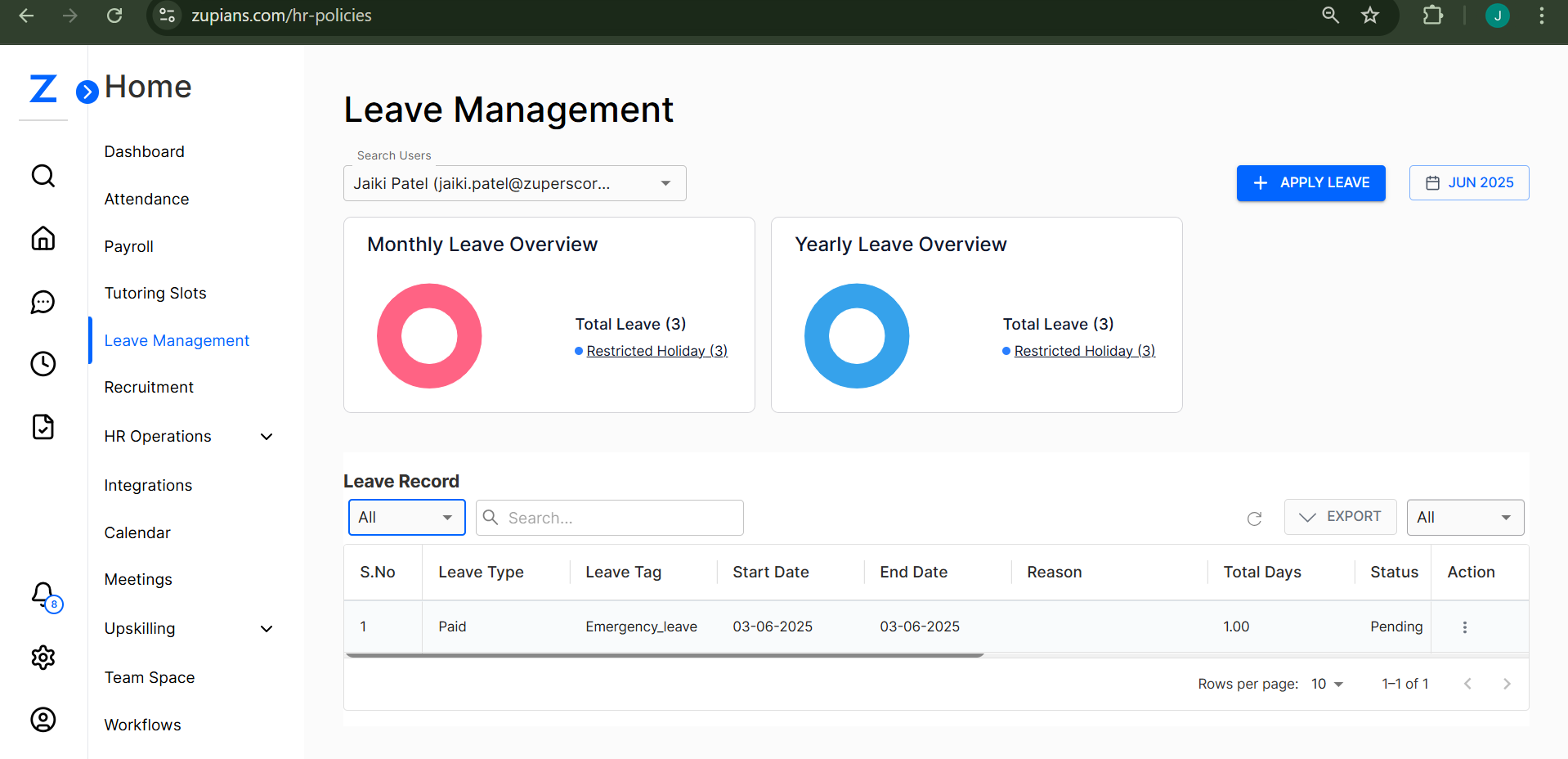
The Leave Management dashboard provides a comprehensive overview with two visual representations:
Monthly & Yearly Leave Overview
✅ Monthly Leave Overview - Pink donut chart showing current month's statistics
✅ Yearly Leave Overview - Blue donut chart displaying annual trends
✅ Total Leave (3) - Current total leave count
✅ Restricted Holiday (3) - All current leaves are restricted holidays
📈 Leave Statistics Summary
The dashboard currently shows:
| Overview Type | Total Count | Leave Type Distribution |
|---|---|---|
| Monthly | 3 | Restricted Holiday (3) |
| Yearly | 3 | Restricted Holiday (3) |
✅ These visual charts help you quickly understand leave patterns and distribution across different time periods.
📜 Leave Record Management
The Leave Record table displays detailed information about all leave applications:
Table Structure
- S.No - Serial number for tracking
- Leave Type - Category (Paid, Unpaid, etc.)
- Leave Tag - Specific classification (Emergency_leave, etc.)
- Start Date - Leave commencement date
- End Date - Leave conclusion date
- Reason - Purpose/justification for leave
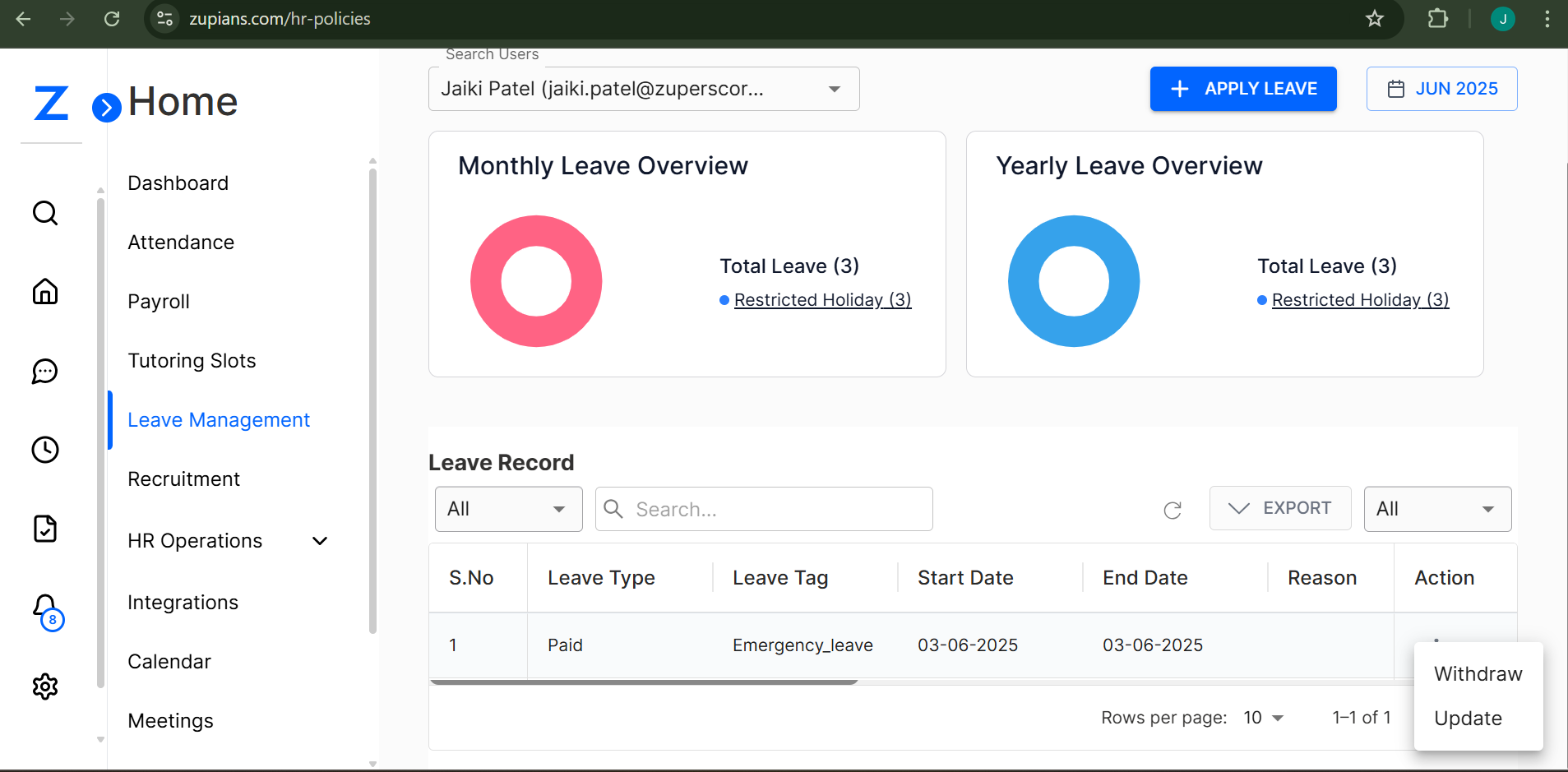
- Action - Available operations (Withdraw, Update)
Current Leave Example
Based on the system data:
- Leave Type: Paid
- Leave Tag: Emergency_leave
- Duration: 03-06-2025 to 03-06-2025 (Single day)
- Available Actions: Withdraw, Update
![Leave Record Table]
🔍 Filters & Search
The system provides powerful filtering capabilities:
✅ Search Bar - Find specific leave records by keywords
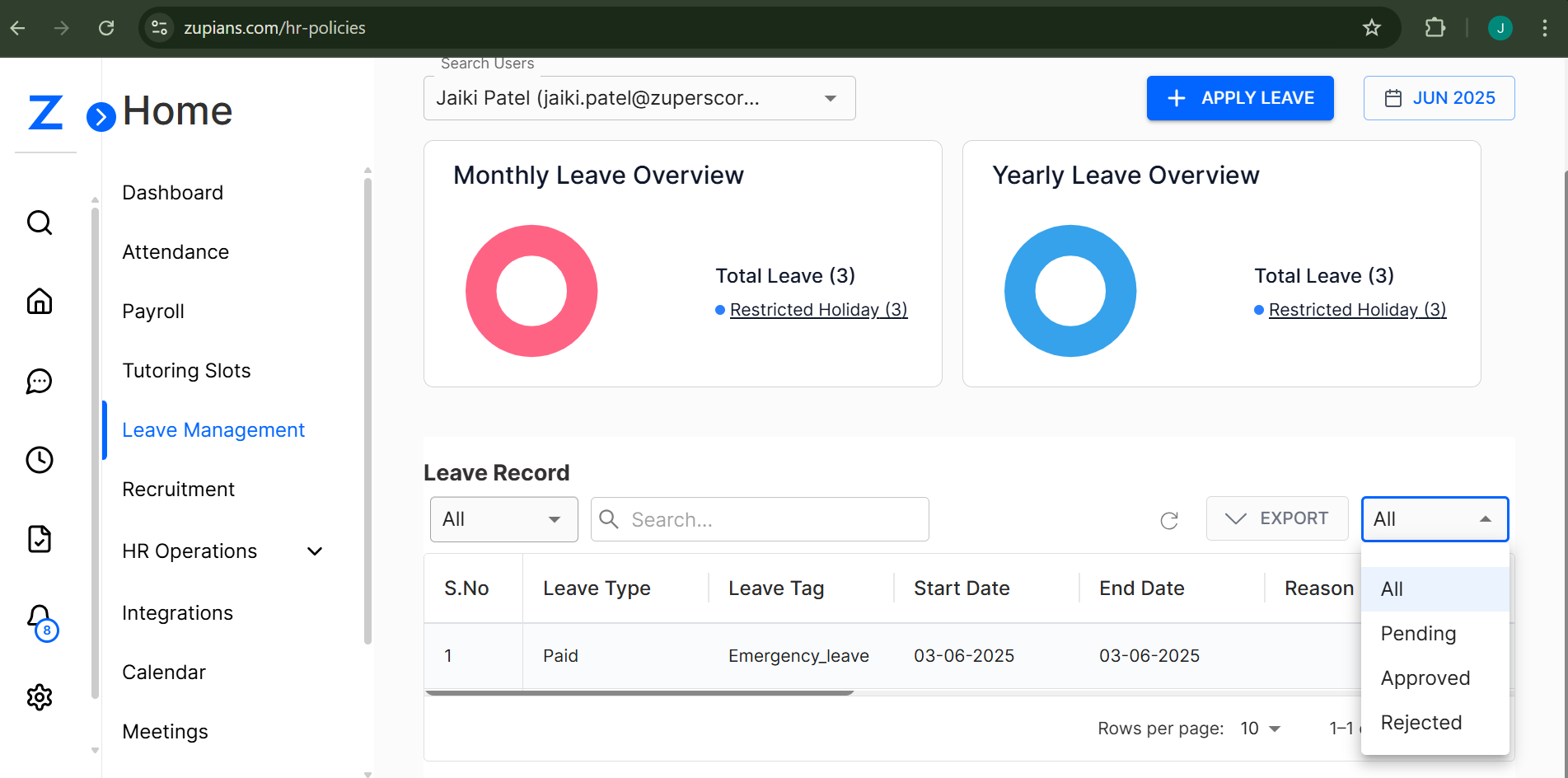
✅ Filter Dropdown - Switch between different view modes:
- All records
- Pending approvals
- Approved leaves
- Rejected applications
✅ Export Options - Generate comprehensive reports
✅ Action Filters - Quick access to specific actions
🗓️ Calendar Integration
Navigate through different time periods easily:
Month Selection
- Current Display: June 2025
- Quick Navigation: Calendar grid with all 12 months
- Visual Layout: Quarterly organization (Q1: Jan-Mar, Q2: Apr-Jun, Q3: Jul-Sep, Q4: Oct-Dec)
![Calendar Navigation]
The calendar integration helps with:
- Leave planning and scheduling
- Identifying potential conflicts
- Visual date selection for applications
➕ Apply for Leave
Application Process
Click the "+ APPLY LEAVE" button to open the application form with the following required fields:
Required Information
- Leave Type* - Select from dropdown (Paid, Unpaid, etc.)
- Leave* - Choose category (Restricted Holiday, etc.)
- Leave Tag* - Specify type (Emergency Leave, etc.)
- Start Date* - Use date picker (Format: MM/DD/YYYY)
- End Date* - Use date picker (Format: MM/DD/YYYY)
Form Actions
- APPLY LEAVE - Submit the application
- CANCEL - Discard changes and close form
- APPLY LEAVE - After Submit the application it will reflect in Table with details
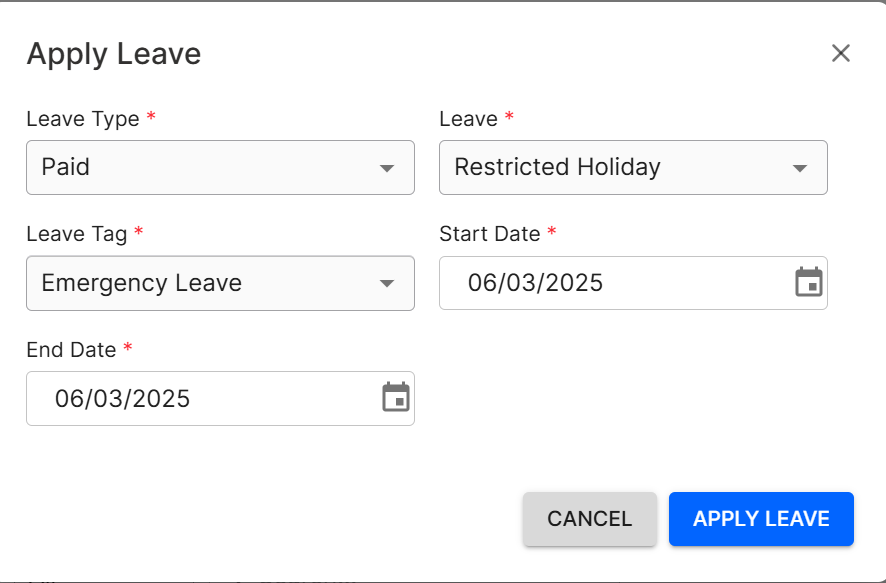
ℹ️ Note: All fields marked with red asterisk (*) are mandatory. Same-day leave applications are supported.
📊 Export & Reporting
Export Leave Records
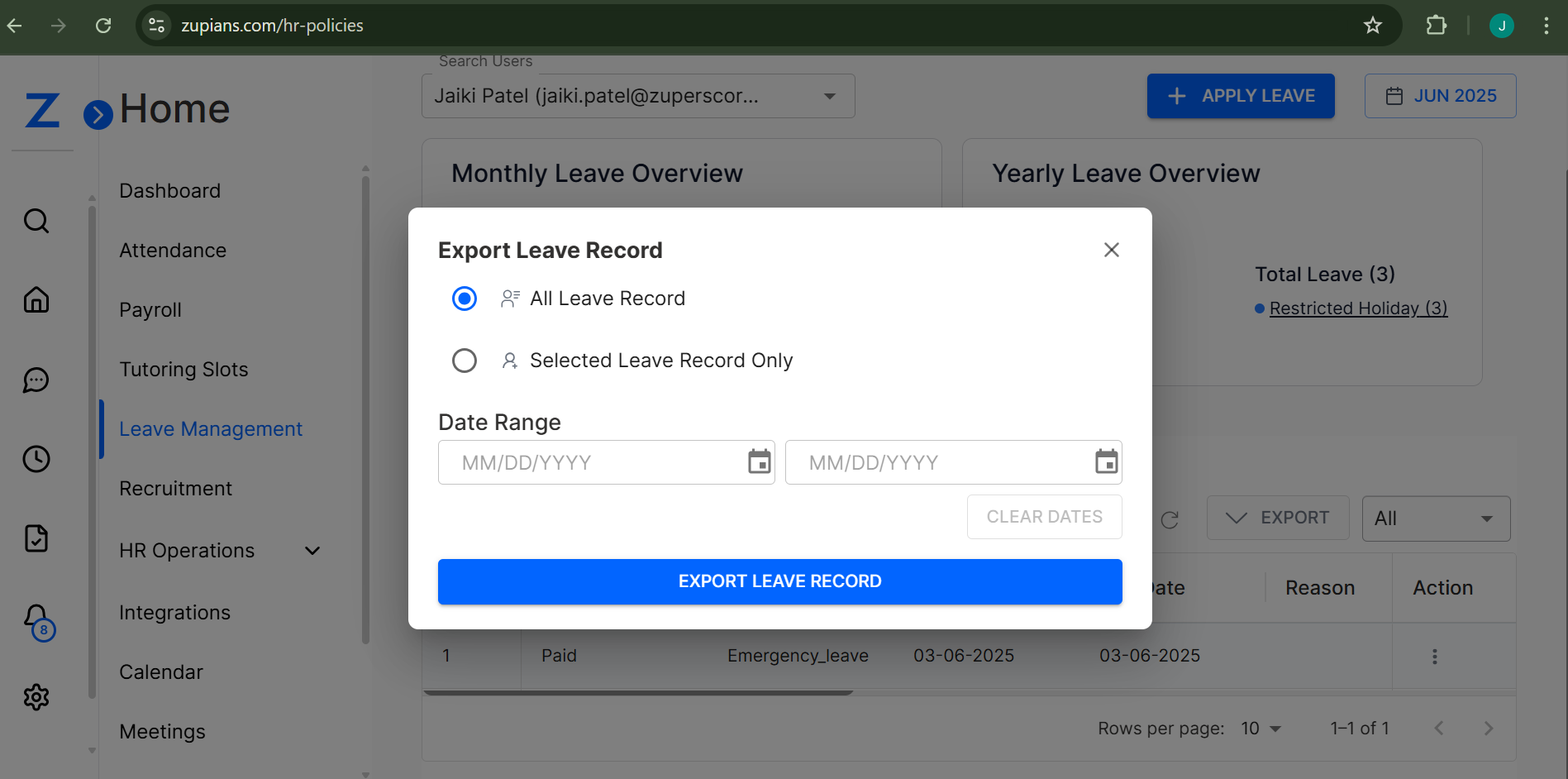
The system offers comprehensive export functionality:
Export Options
- All Leave Record - Export complete database
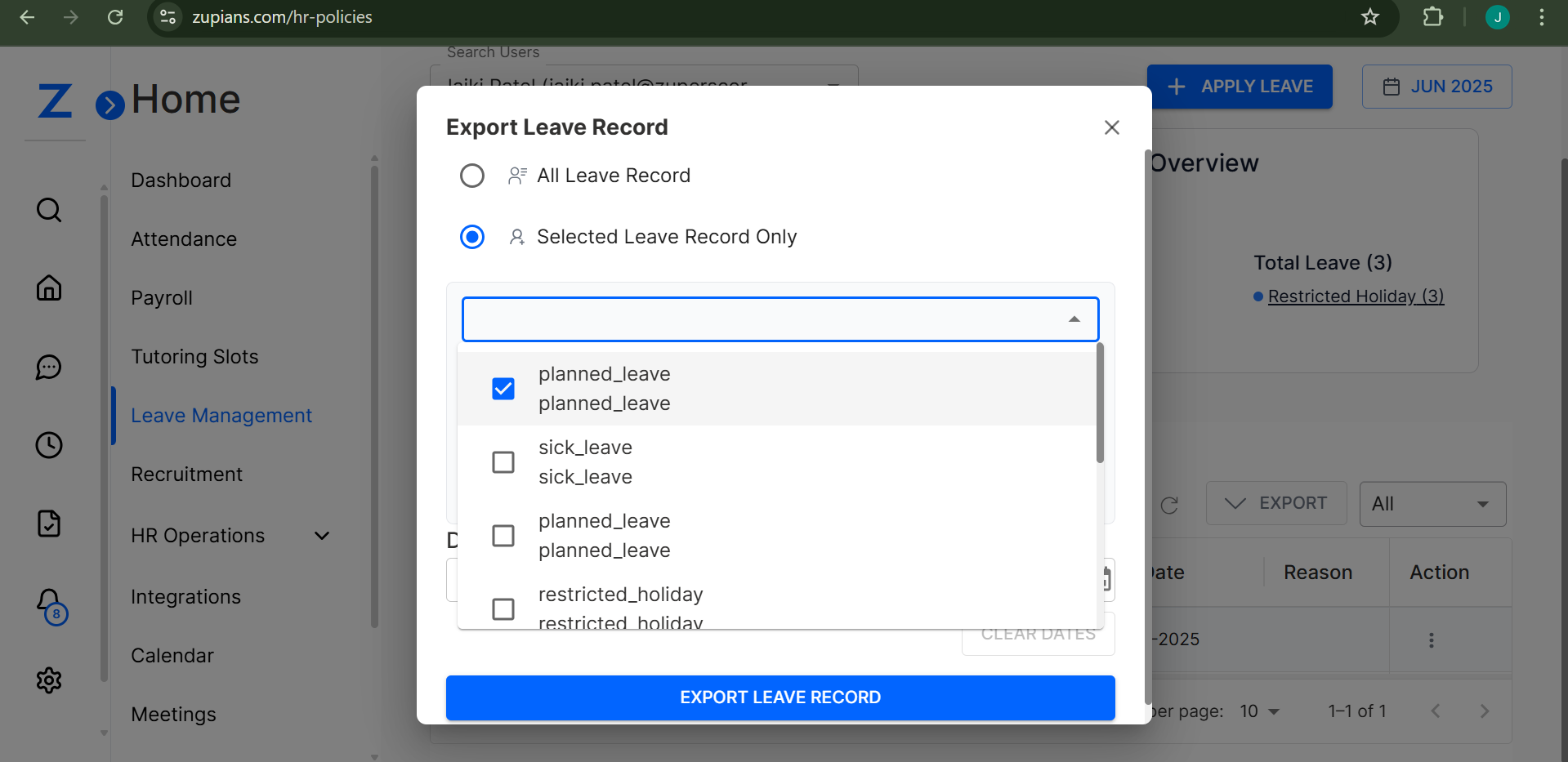
- Selected Leave Record Only - Export specific entries
Available Leave Types for Export
- planned_leave - Multiple entries available
- sick_leave - Individual sick leave records
- restricted_holiday - Holiday-related leaves
Date Range Filtering
- Custom date selection using MM/DD/YYYY format
- "CLEAR DATES" option to reset filters
- Flexible reporting periods for analysis
Export Process
- Select desired leave types using checkboxes
- Set date range if needed (optional)
- Click "EXPORT LEAVE RECORD" to generate report
⚙️ Advanced Features
Action Management
Available actions for each leave record:
- Withdraw - Cancel submitted leave request
- Update - Modify existing leave details
- View Details - Access comprehensive information
Status Tracking
- Real-time status updates
- Visual indicators for different states
- Automatic notifications for changes
User Interface Highlights
- Modal Dialogs - Clean, non-intrusive forms
- Date Pickers - User-friendly date selection
- Dropdown Menus - Organized selection options
- Color Coding - Pink (monthly), Blue (yearly) visualizations
💡 Best Practices
For Employees
✅ Plan Ahead - Submit applications well in advance
✅ Complete Information - Fill all required fields accurately
✅ Use Calendar - Check for conflicts before applying
✅ Monitor Status - Regularly check application progress
✅ Update Promptly - Use update feature when changes are needed
For Managers/HR
✅ Regular Reviews - Process applications promptly
✅ Utilize Filters - Manage large volumes efficiently
✅ Generate Reports - Export data for analysis
✅ Track Patterns - Monitor leave trends and usage
✅ Maintain Records - Keep comprehensive histories
🧠 Frequently Asked Questions (FAQ)
How do I access Leave Management?
What's the difference between Leave Type and Leave Tag?
Can I apply for single-day leave?
What information is required for leave application?
How do I cancel my leave application?
Can I modify an existing leave request?
What leave types are available?
What does "Restricted Holiday" mean?
How do I export leave records?
Can I filter exports by date range?
My leave application isn't showing in the table.
The apply leave button isn't working.
New Users
- Explore the dashboard layout and visual charts
- Understand available leave types and tags
- Practice using the calendar navigation
- Test the application process
- Learn about export and reporting features
Administrators
- Review current leave policies and settings
- Configure appropriate leave types and categories
- Set up approval workflows
- Train users on the system
- Establish reporting schedules
That's it! This comprehensive guide ensures you're well-equipped to manage leave requests effectively using the Zupians Leave Management system. 🚀😊