Integrations Guide
This guide explains the Integrations section under the menu. It outlines how Users and admins can integrate platforms like Google Meet, Google Calendar, and Zoom Meet to enhance scheduling, communication, and collaboration.
🎯 Overview
The Integrations module allows:
- Connecting third-party calendar and video conferencing tools
- Enabling seamless scheduling and meetings across platforms
- Admins to invite teammates to the system via email
- Both users and admins to manage integration access
The interface includes:
- Integration Cards for Google Meet, Google Calendar, and Zoom Meet
- Invite Teammates panel (Admin only)
Here’s a visual sample from the Admin panel:
![Integrations Interface - Admin View]
👤 User View
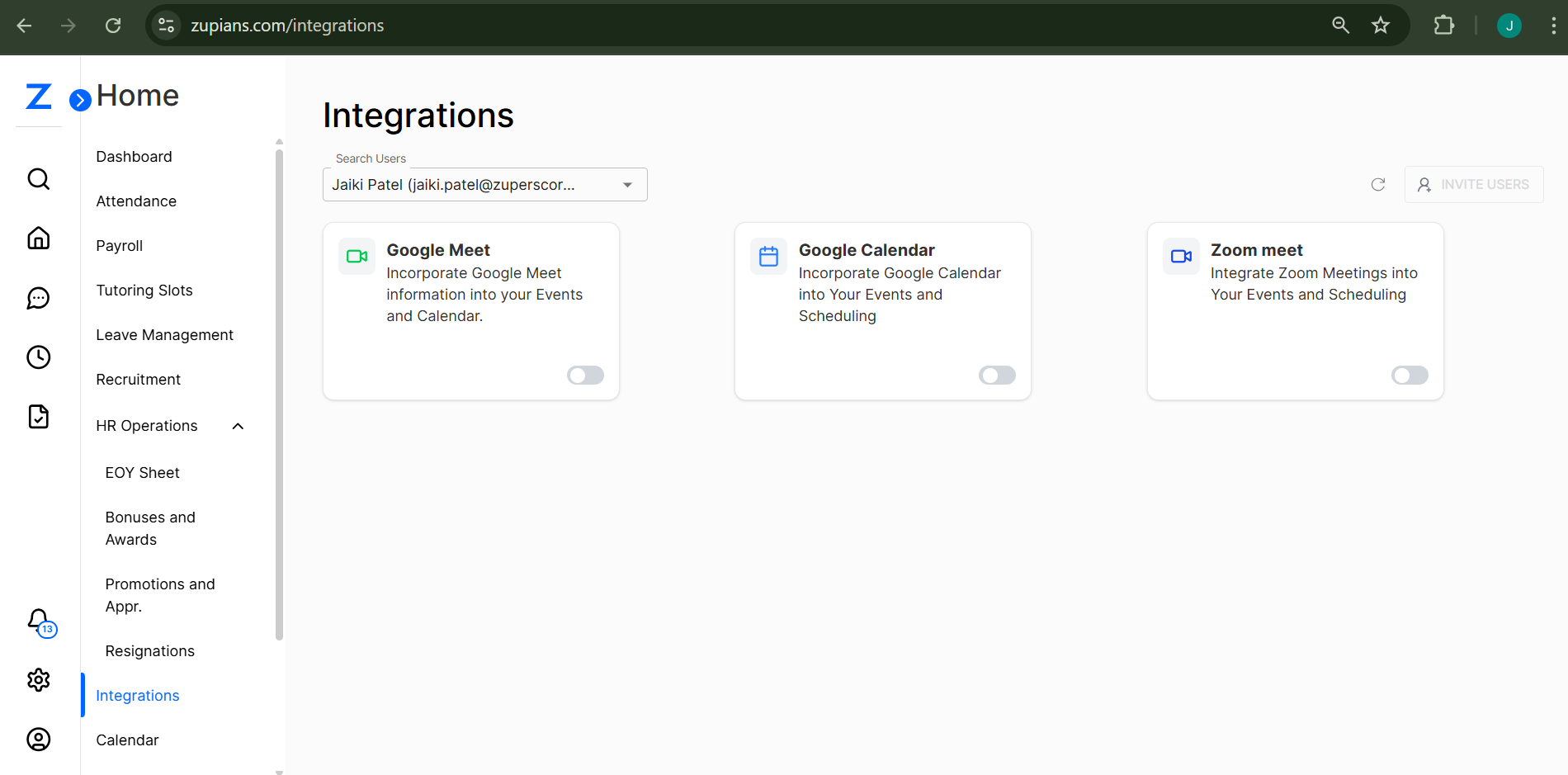 In the User View, User can:
- Integrate their own Google Meet, Google Calendar, and Zoom Meet
- Follow an authentication process to connect accounts
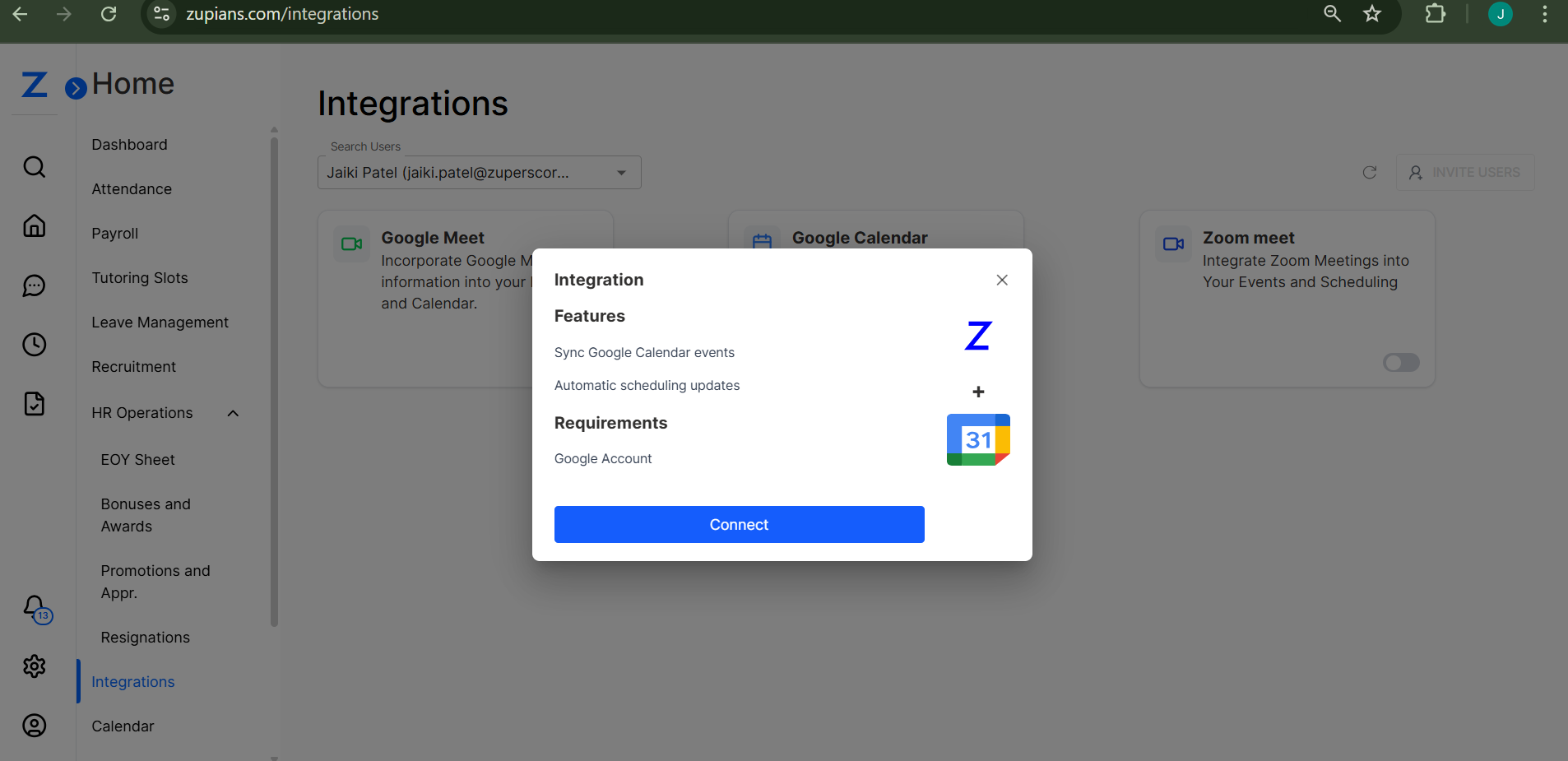
📝 How to Integrate:
- Toggle the switch for Google Meet, Google Calendar, or Zoom Meet
- You will be prompted to sign in with your Google account
- Choose the account you wish to connect
- Follow the prompts and grant the necessary permissions
- Integration is complete once the toggle shows "on"
✅ Users can only manage their own integrations
❌ Users cannot view or control integrations for others
🛠️ Admin View
Admins have extended access to manage user integrations and invite new teammates.
🎛️ Features Available to Admins:
- View integration status for all users
- Add or remove integrations for any team member
- Use the Invite Users button to onboard teammates
👥 Invite Teammates Panel
Clicking Invite Users opens the Invite Teammates dialog.
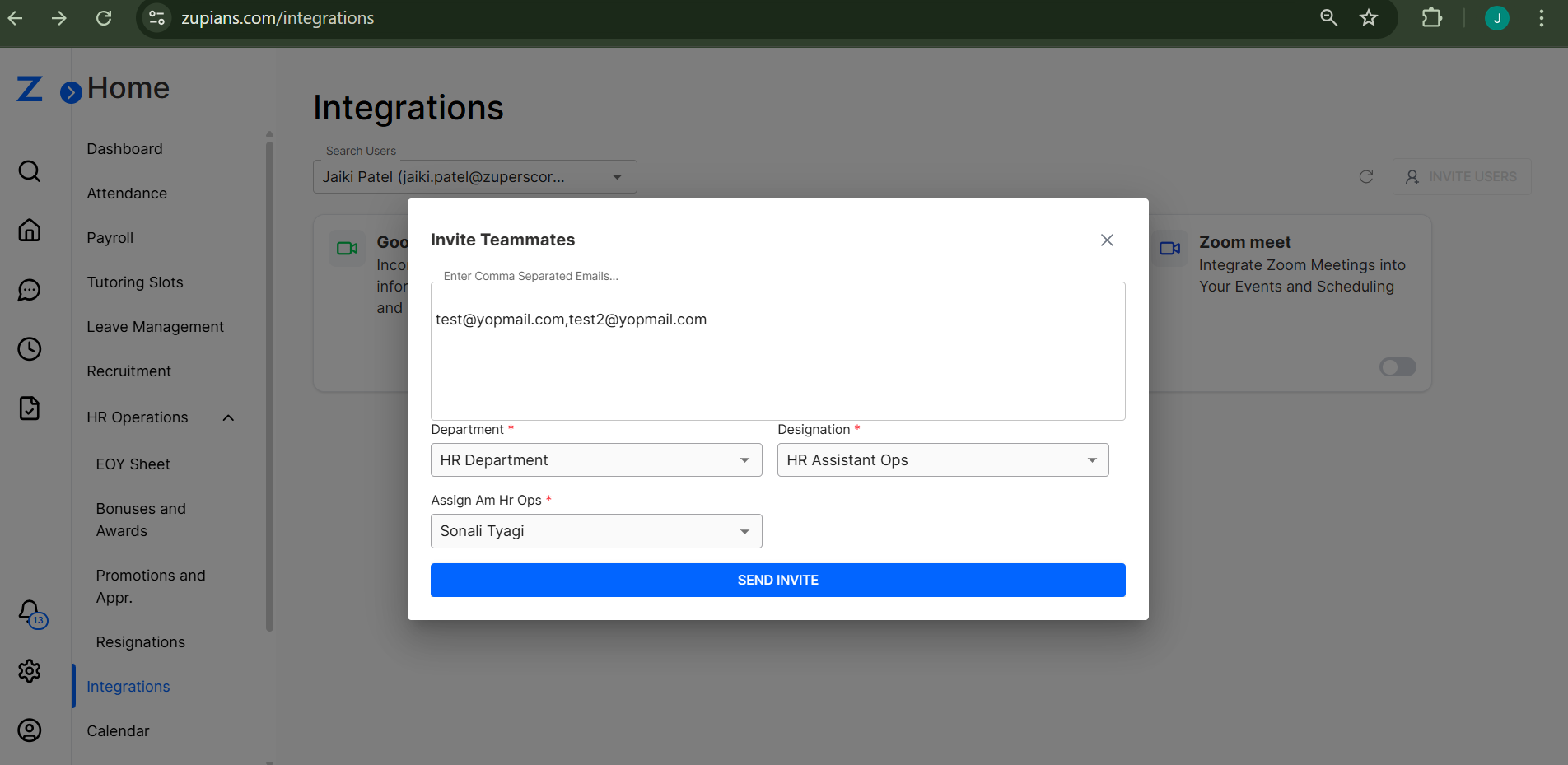
Required Fields:
- Emails – Comma-separated list of teammates to invite
- Department – Select the department (e.g., HR Department)
- Designation – Select a role (e.g., Senior HR Executive)
- Assign GM – Assign a General Manager or supervisor
✅ Click Send Invite to issue the invitation
🛑 Use the X icon to close the dialog without sending
Invited User will recieve Invitation Email
📋 Admin Controls and Filters
At the top of the Integrations page:
- Use the Search Users dropdown to filter by "All (Users)" or individual users
- Monitor which users have enabled integrations
- Assist users who encounter integration issues
💡 Best Practices
- ✅ Ensure users connect the correct Google account during integration
- 🔒 Follow internal IT policies before enabling third-party tools
- 🧭 Periodically audit integration status for all Users
- 📨 Use Invite Users to keep system access organized
That’s all for the Integrations module! This tool brings platforms together for smarter scheduling and collaboration. 🔗📆💬
🧠 Frequently Asked Questions (FAQ)
1. Do I need a Google or Zoom account to integrate?
2. Can I integrate more than one calendar or meeting platform?
3. What if I accidentally connected the wrong account?
4. Can Admins see which users are integrated?
5. Do integrations affect other users on my team?
6. What if a user faces issues during integration?
7. What permissions are requested during integration?
8. Can I remove an integration after connecting it?
9. Will users be notified after Admin invites them?
10. Is there a way to filter users by integration status?
🔗 Summary
The Integrations module streamlines collaboration by connecting your favorite productivity tools with the system. Whether you're a user managing personal connections or an administrator overseeing team integrations, this guide provides the framework for successful platform integration and team management. For additional support or feature requests, contact your system administrator or IT support team.