Training Guide
This guide explains how to use the Training module under the Upskilling section for both Admins and Users.
👩💼 Admin View – Create Training
Navigate to:
Upskilling > Training
You’ll see a section titled Candidates Under Training with the option to:
👉 Add New Training
🛠️ Create Training Form
Clicking on Create Training opens a detailed form with the following fields:
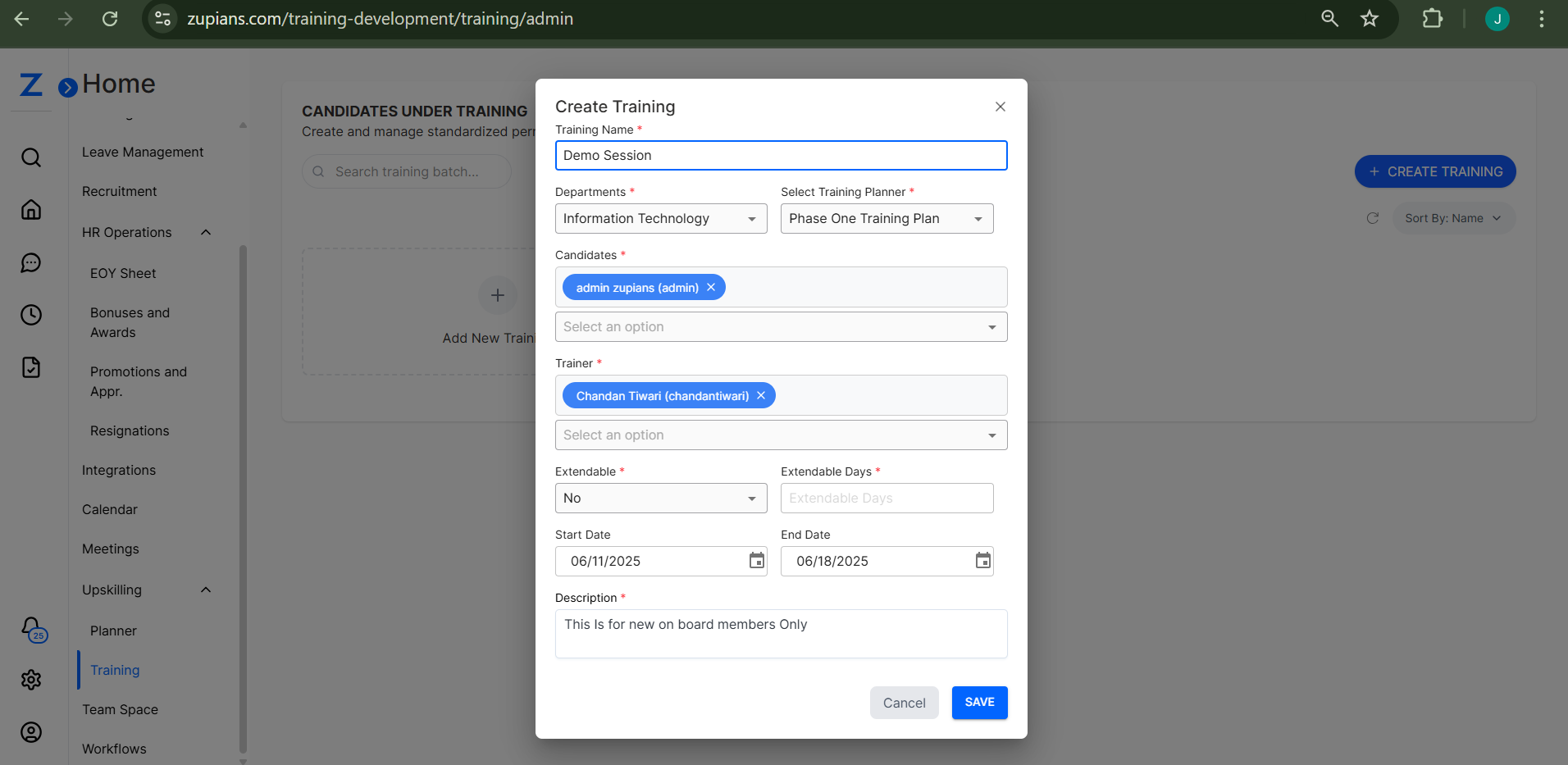
🔹 Mandatory Fields
- Training Name – Unique name for the training session
- Departments – Select department(s) the training applies to
- Select Training Planner – Choose a relevant planner from the list
- Candidates – Select the employees/candidates who will undergo training
- Trainer – Assign a trainer
- Extendable – Whether the training can be extended (Yes/No)
- Extendable Days – Number of extra days allowed (if extendable)
- Start Date & End Date – Define training duration
- Description – Provide a brief overview of the training (max 500 characters)
✅ Actions
- SAVE – Save and initiate training
- CANCEL – Discard the form
👤 Admin View – Trainings Details
Simplified card view showing trainings plan details.
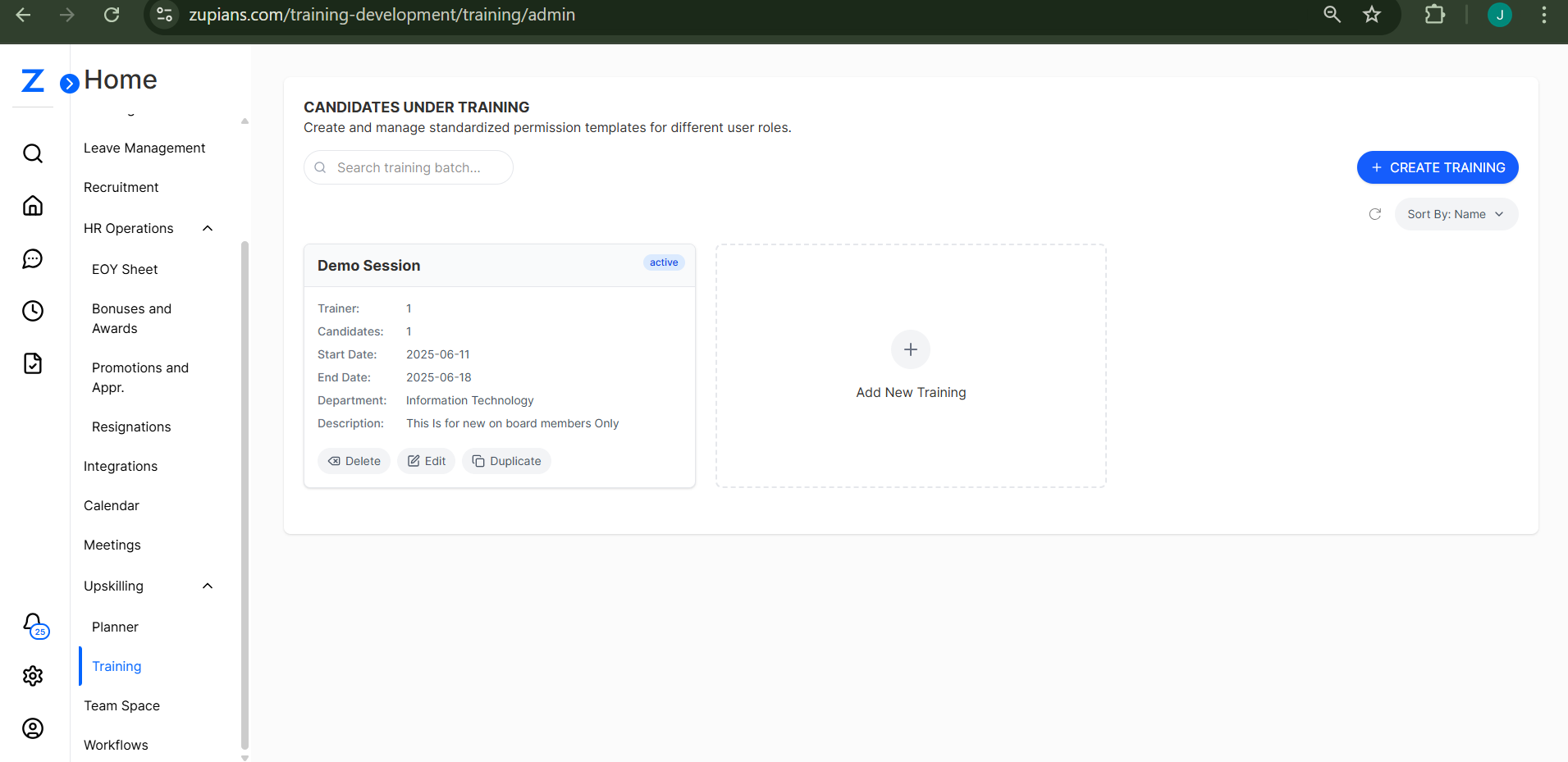
Each training entry contains:
- Training Name
- Trainer
- Candidates
- Start & End Dates
- Status (active)
- Department
- Description
- Trainer Assigned
👤 User View – Trainings Details
Simplified view showing only trainings they are a part of. They do not have access to create or edit trainings.
📌 Notes & Best Practices
- Always link a training to an existing Planner to ensure alignment with the upskilling strategy.
- Use description field to clearly specify goals or key deliverables.
- For extendable trainings, make sure policies on duration are pre-defined.
The Training module ensures structured and trackable training sessions tied to department goals and predefined plans.
🧠 Frequently Asked Questions (FAQ)
1. Can I assign multiple candidates to one training?
Yes. While creating a training session, you can select multiple candidates from the same or different departments, provided they are part of the selected training planner.
2. Is it mandatory to link a Training Planner?
Yes. Every training must be linked to a Training Planner to ensure it aligns with structured upskilling goals.
3. Can I edit training details after saving?
Only Admins can edit training details after creation. Click on the training card to update fields like trainer, end date, or description.
4. What is the use of “Extendable” and “Extendable Days”?
If marked as Extendable, a training can go beyond the original end date. You must define how many extra days are allowed for flexibility in learning schedules.
5. Can Users view all trainings?
No. Users can only view trainings they are assigned to. They cannot create, edit, or see other candidates’ sessions.
6. What does the status in the training card mean?
Status indicates whether the training is currently active, completed, or pending. This helps track progress over time.
7. How do I assign a Trainer?
Use the Trainer dropdown field when creating a session. Trainers must be available in the system and associated with relevant departments.
8. Can I cancel a training after creating it?
Yes, Admins can cancel a training if necessary. However, this action might remove it from the candidate’s learning history.
9. What if a candidate misses their training?
If the training is Extendable, you can extend the schedule. Otherwise, a new training session must be created for that candidate.
10. Can a training be reassigned to a different planner later?
No. Once assigned, the Training Planner cannot be changed. You’ll need to cancel and create a new session if the planner is incorrect.