💰 Remuneration Guide
This guide walks you through managing the User Remuneration section in the User Profile tab, where you can view, add, edit, and delete salary-related details such as Gross Salary, Bonus, TDS, and more.
✨ Accessing the Remuneration Section
- Navigate to the left sidebar and click on your profile or a specific user under User Profile.
- Click on the Remuneration tab located on the top right section beside Documents and Emergency.
➕ Adding Remuneration
-
Once in the User Remuneration section, click the edit icon (✏️) if no remuneration exists.
-
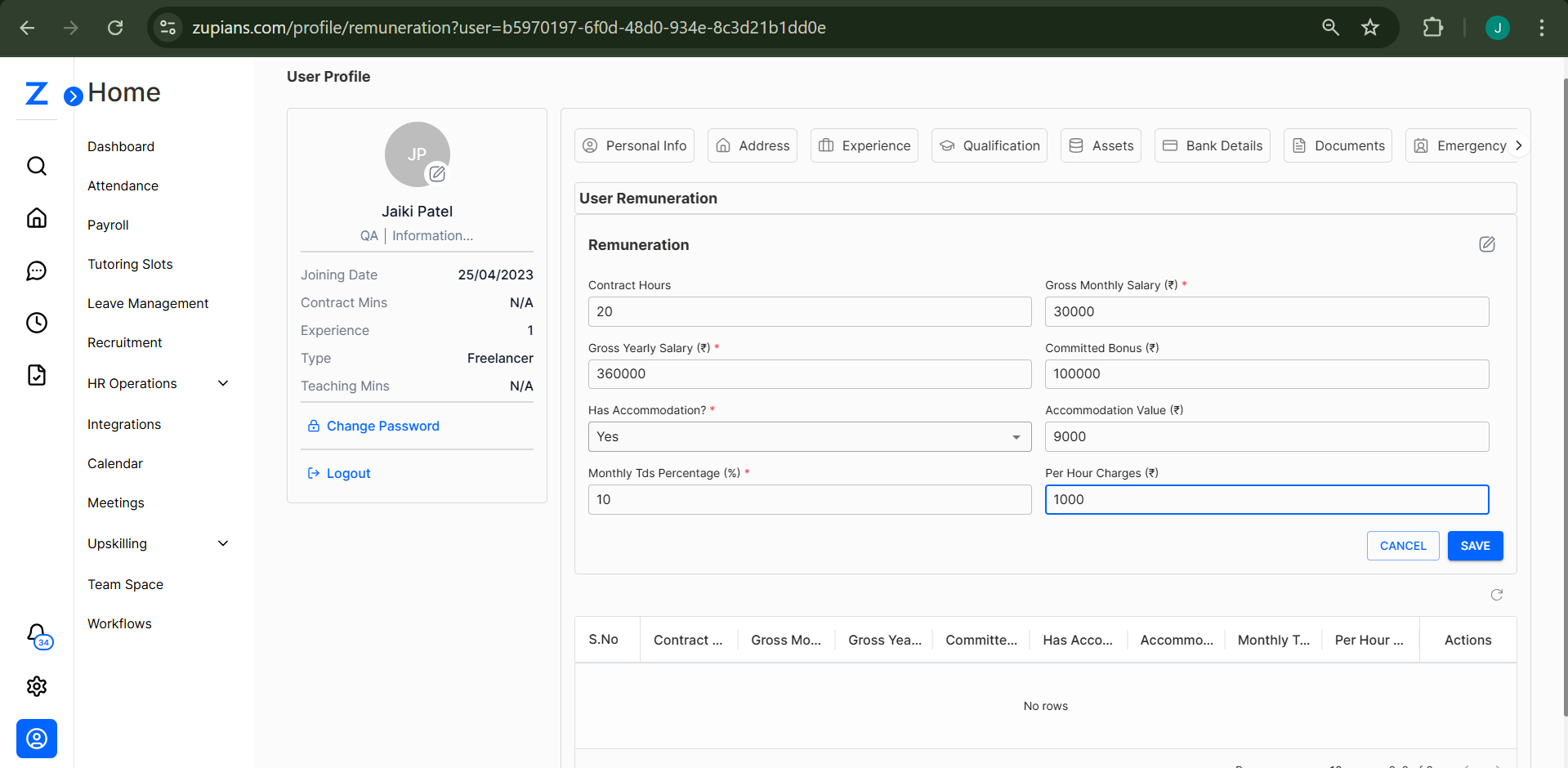
Fill out the following fields:
- Contract Hours – Weekly working hours (e.g., 20).
- Gross Monthly Salary (₹) – Monthly salary before deductions (e.g., 30,000).
- Gross Yearly Salary (₹) – Annual salary before deductions (e.g., 3,60,000).
- Committed Bonus (₹) – Annual bonus amount (e.g., 1,00,000).
- Has Accommodation? – Select Yes or No.
- Accommodation Value (₹) – Monthly accommodation value if applicable (e.g., 9,000).
- Monthly TDS Percentage (%) – Tax deduction percentage (e.g., 10).
- Per Hour Charges (₹) – Hourly billing rate (e.g., 1,000).
-
Click Save to apply the changes.
📸 Example View
📝 Editing Remuneration
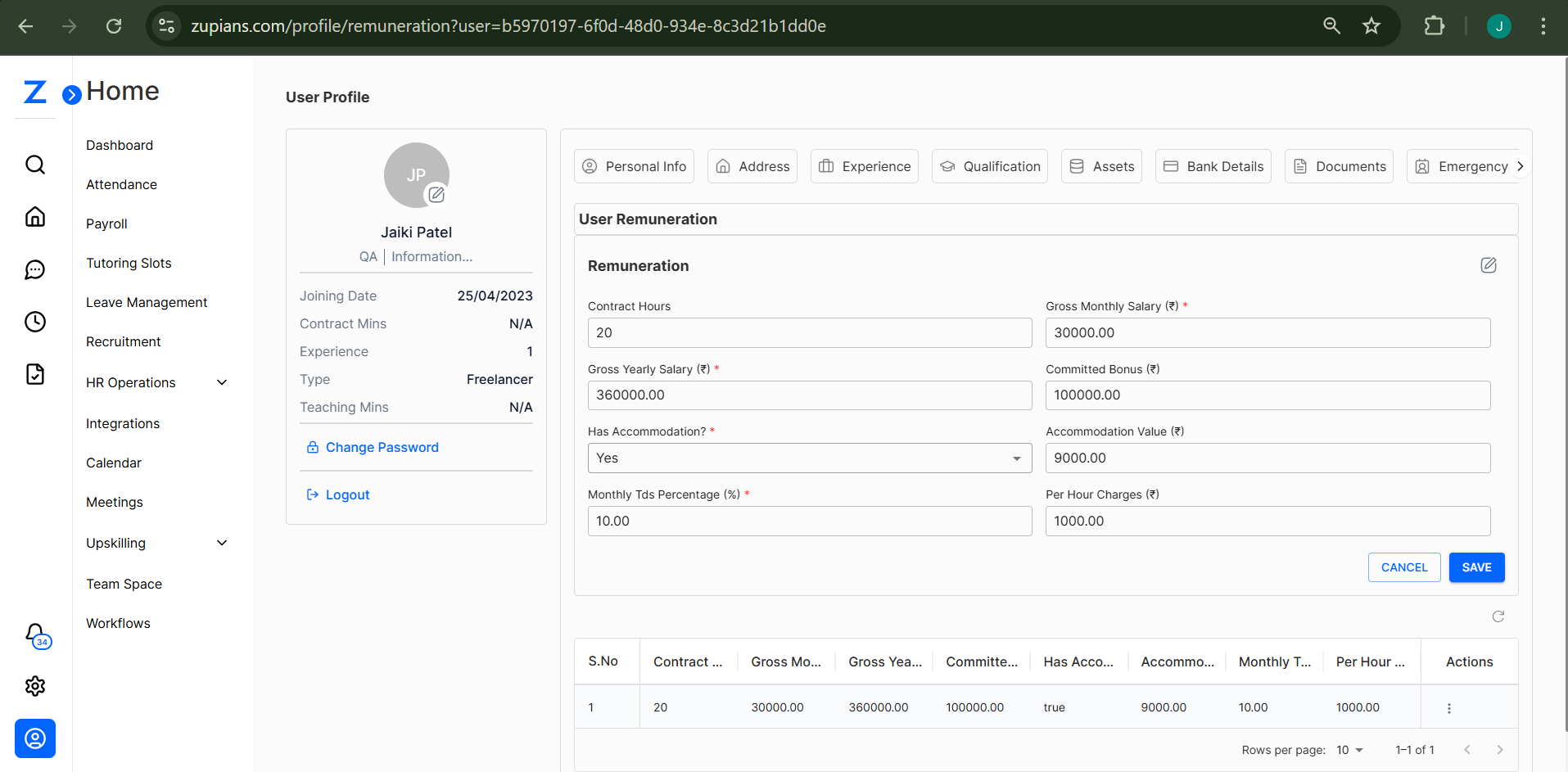
- If remuneration details already exist, click on the edit (✏️) icon on the top-right of the form.
- Update any of the available fields as needed.
- Click Save.
📸 Edit View
🗑️ Deleting Remuneration
- In the table below the remuneration form, locate the entry under the Actions column.
- Click on the three-dot menu (⋮) and select Delete.
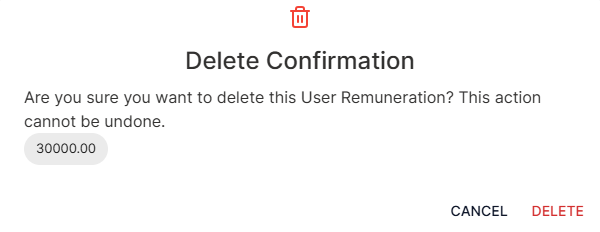
- A confirmation modal will appear asking, “Are you sure you want to delete this User Remuneration?”
- Click Delete to confirm.
📸 Delete Confirmation
📄 Remuneration Table Summary
Once saved, the remuneration is displayed in a tabular format with the following columns:
- Contract Hours
- Gross Monthly Salary
- Gross Yearly Salary
- Committed Bonus
- Has Accommodation
- Accommodation Value
- Monthly TDS %
- Per Hour Charges
- Actions (Edit/Delete)
📸 Saved Remuneration Entry
🧠 Frequently Asked Questions (FAQ)
1. Is it mandatory to fill in all fields?
Fields marked with an asterisk
(*) are mandatory, such as Gross Salary, TDS %, etc. 2. What happens if I change my TDS % mid-month?
The updated TDS % will be effective from the date of change and will impact the next payroll cycle.
3. Can I add multiple remuneration records?
No, only one active remuneration record is allowed per user at a time.
4. What if I enter the wrong accommodation value?
You can edit the remuneration record anytime to correct the Accommodation Value.