🏦 Bank Details Guide
This guide walks you through managing Bank Details under your User Profile.
✨ Accessing the Bank Details Section
- From the left-hand sidebar, go to User Profile.
- Click on the Bank Details tab.
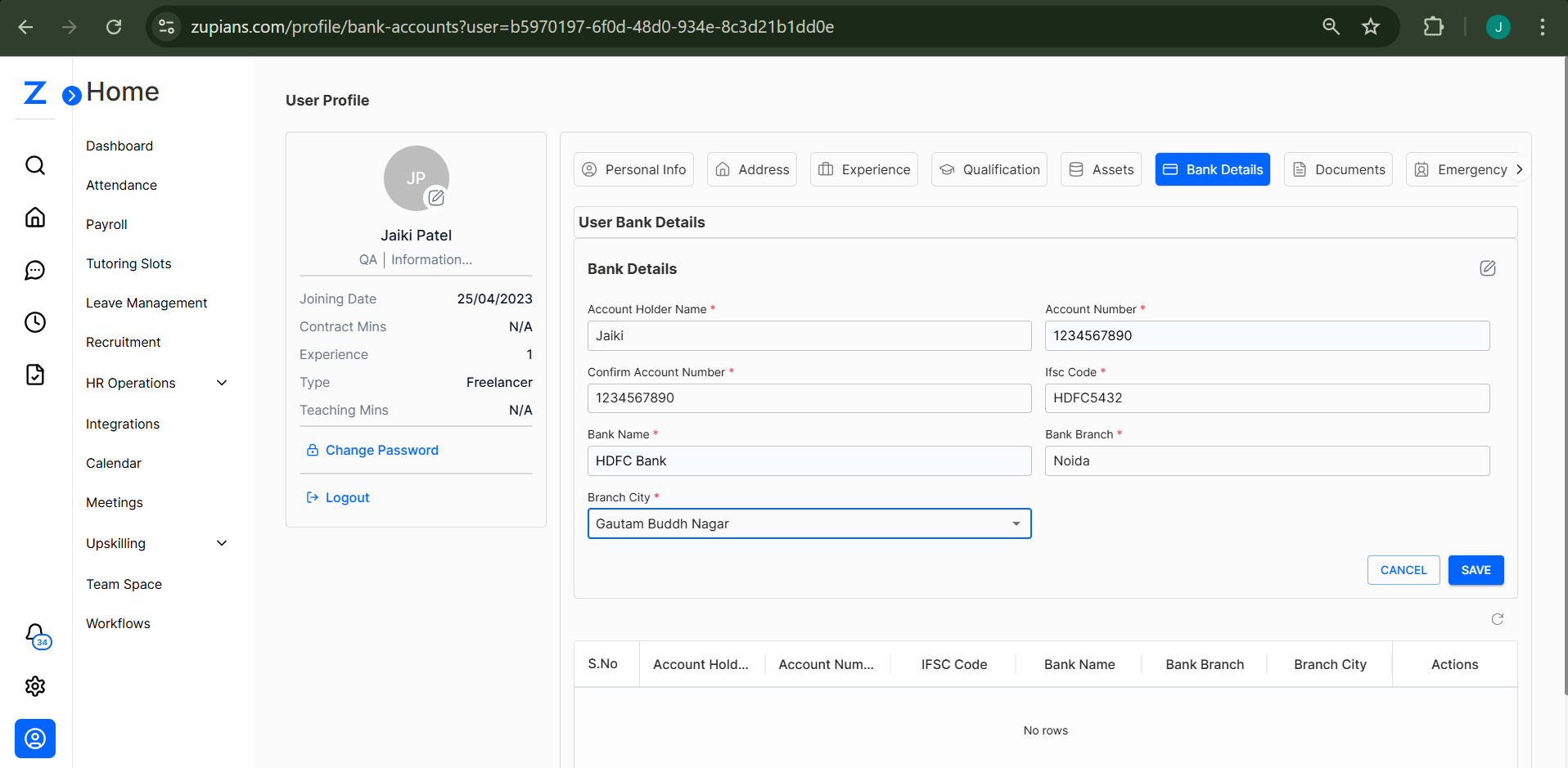
➕ Adding Bank Details
- Click the Bank Details tab under your profile.
- Fill in the required fields:
- Account Holder Name
- Account Number
- Confirm Account Number
- IFSC Code
- Bank Name
- Bank Branch
- Branch City
- Click the SAVE button to store your bank details.
⚠️ Ensure all details are accurate to avoid payment issues.
✏️ Editing Bank Details
- Click the edit icon (🖉) next to the existing record.
- Make the necessary changes to your bank details.
- Press SAVE to update.
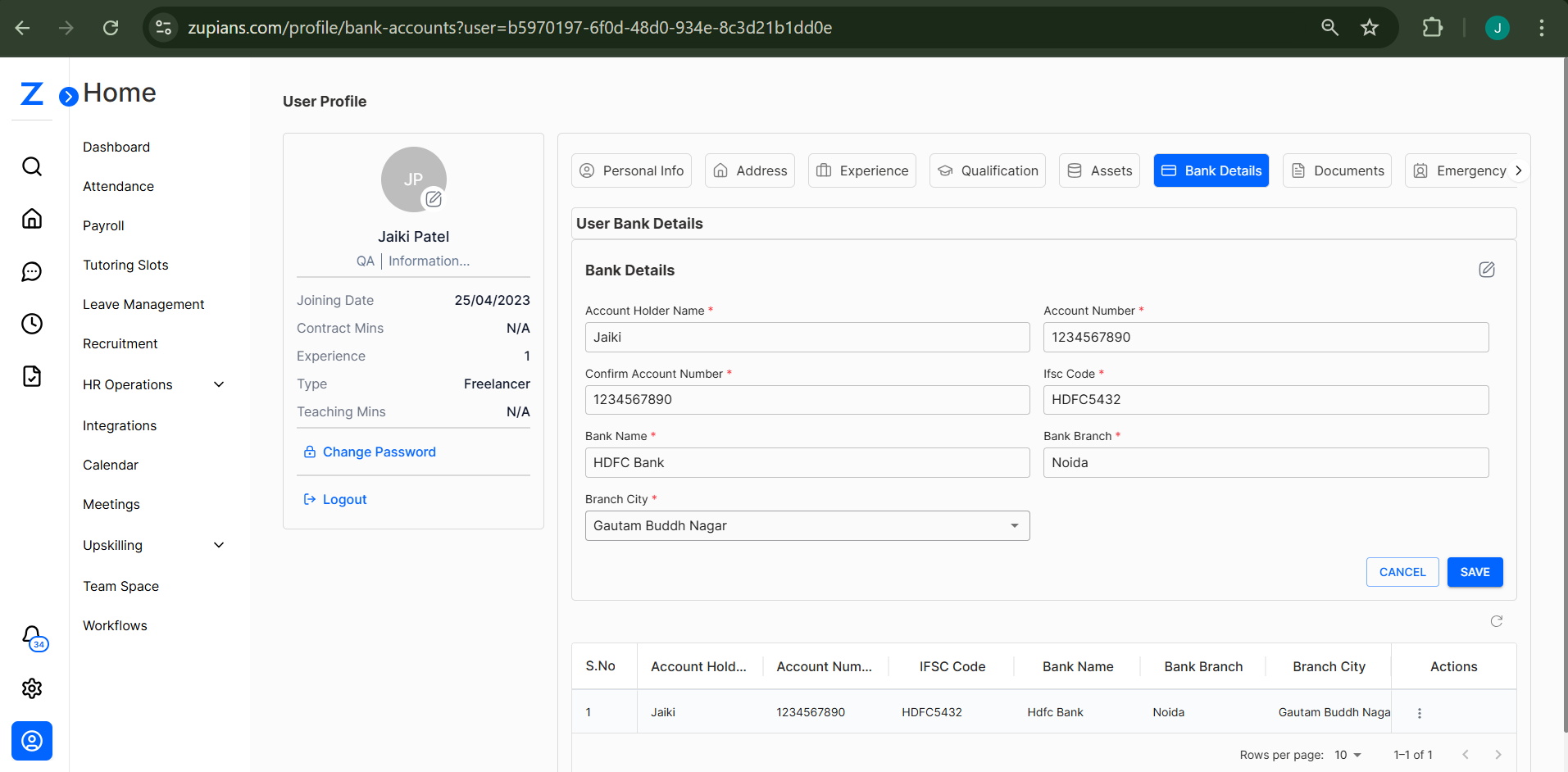
🗑️ Deleting Bank Details
- Go to the Bank Details section.
- Click the delete icon under Actions beside the account you wish to remove.
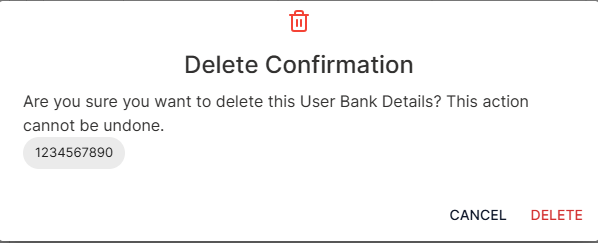
- A confirmation dialog will appear.
- Click DELETE to confirm or CANCEL to abort.
📋 View Saved Bank Details
Once saved, your bank details will appear in a table format at the bottom of the section with columns:
- Account Holder Name
- Account Number
- IFSC Code
- Bank Name
- Bank Branch
- Branch City
- Actions (Edit/Delete)
🧠 Frequently Asked Questions (FAQ)
1. Can I add multiple bank accounts?
Currently, only one bank account is allowed per user.
2. What if I enter the wrong account number?
You can click the edit icon to update it. Make sure to double-check the details before saving.
3. Is IFSC code mandatory?
Yes. The IFSC code is required to identify the bank branch correctly.
4. Can I delete bank details once added?
Yes. You can delete them using the delete icon, but this action cannot be undone.
5. Will the changes reflect immediately?
Yes. Any updates or deletions will be reflected instantly in the system.
🔐 Your bank details are stored securely and used only for payroll disbursement purposes.