📄 Documents Guide
This guide walks you through how to manage User Documents in your User Profile—including adding, editing, and deleting documents.
✨ Accessing the Documents Section
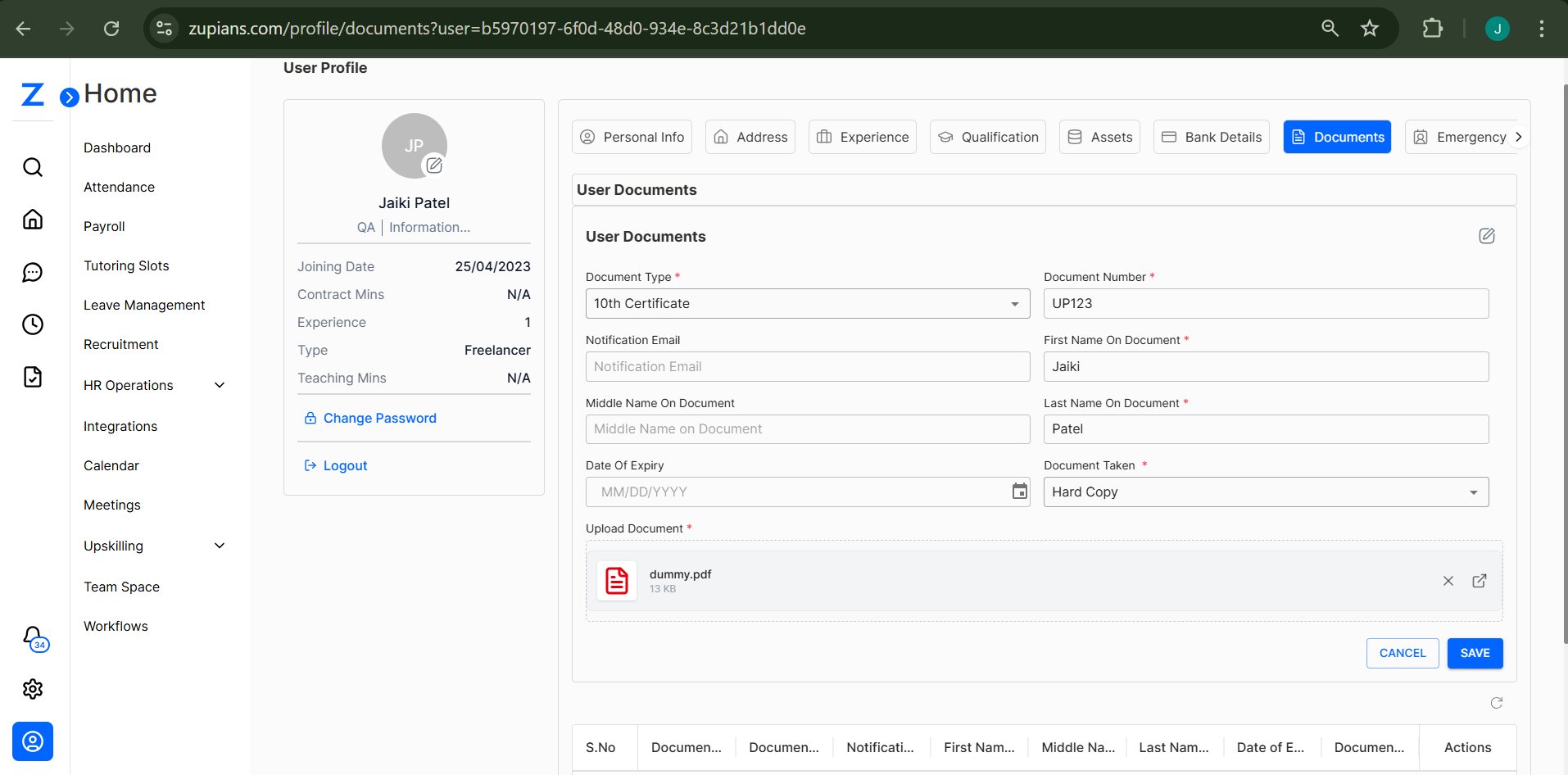
- Go to the left-hand sidebar and click on Documents under the User Profile tabs.
- You'll be taken to the User Documents page where you can view and manage your uploaded documents.
➕ Adding a New Document
To add a new document:
-
Navigate to the Documents tab.
-
Fill in the following fields:
- Document Type (e.g., 10th Certificate)
- Document Number
- First Name on Document
- Last Name on Document
- Middle Name on Document (optional)
- Date of Expiry (if applicable)
- Document Taken (e.g., Hard Copy)
- Upload Document (attach a file in PDF format)
-
Click Save to upload the document.
🖊️ Editing an Existing Document
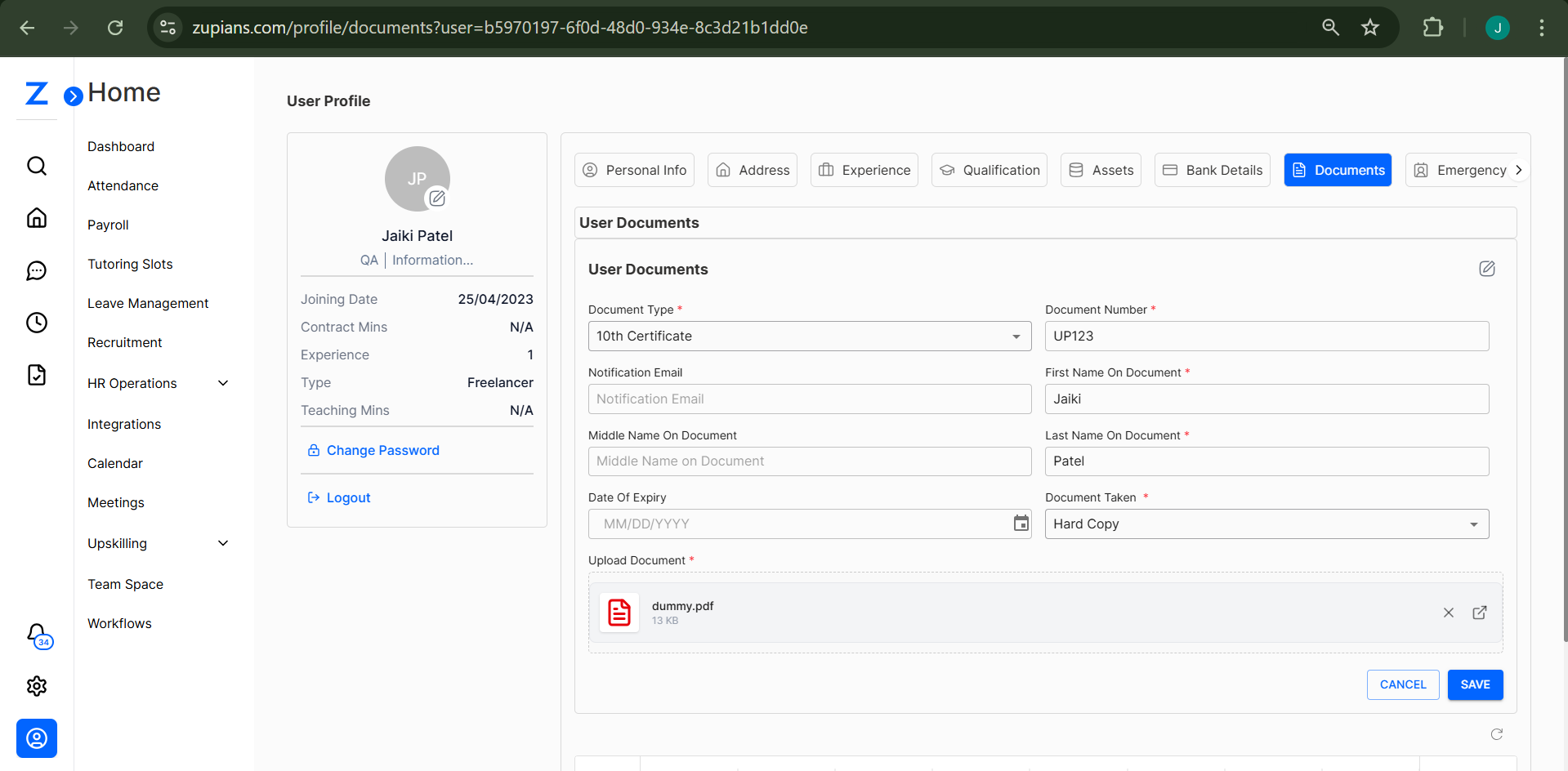
To edit a previously uploaded document:
- Click the Edit icon (✏️) next to the document entry.
- Modify the desired fields (e.g., Document Number, Name fields, etc.).
- Upload a new file if needed.
- Click Save to update the information.
🗑️ Deleting a Document
To delete a document:
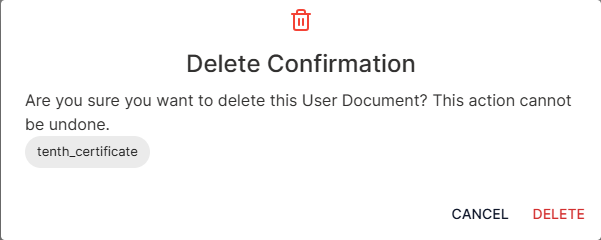
- Click the Delete icon (🗑️) next to the document you want to remove.
- A confirmation pop-up will appear.
- Click Delete to confirm and permanently remove the document.
🧠 Frequently Asked Questions (FAQ)
1. What file types are allowed for document upload?
Only PDF format is currently supported for document uploads.
2. Is it mandatory to fill all fields?
Fields marked with a red asterisk (*) are mandatory. Others, like Middle Name or Expiry Date, can be left blank if not applicable.
3. Can I upload multiple documents?
Yes. You can add multiple documents one at a time by repeating the add process.
4. What happens after deleting a document?
Once deleted, the document is permanently removed and cannot be recovered.
Let me know if you want a downloadable PDF version or this guide exported to your documentation system.