👨💼 Experience Guide
This guide helps users add, edit, and delete their prior professional experience records from their profile.
✨ Overview
The Experience tab under User Profile allows users to maintain a list of their previous employment details, such as company name, manager details, designation, and time period.
You can access it from this URL (example):
https://zupians.com/profile/experiences?user=<userId>
🪪 How to Add Experience
- Navigate to the Experience Tab
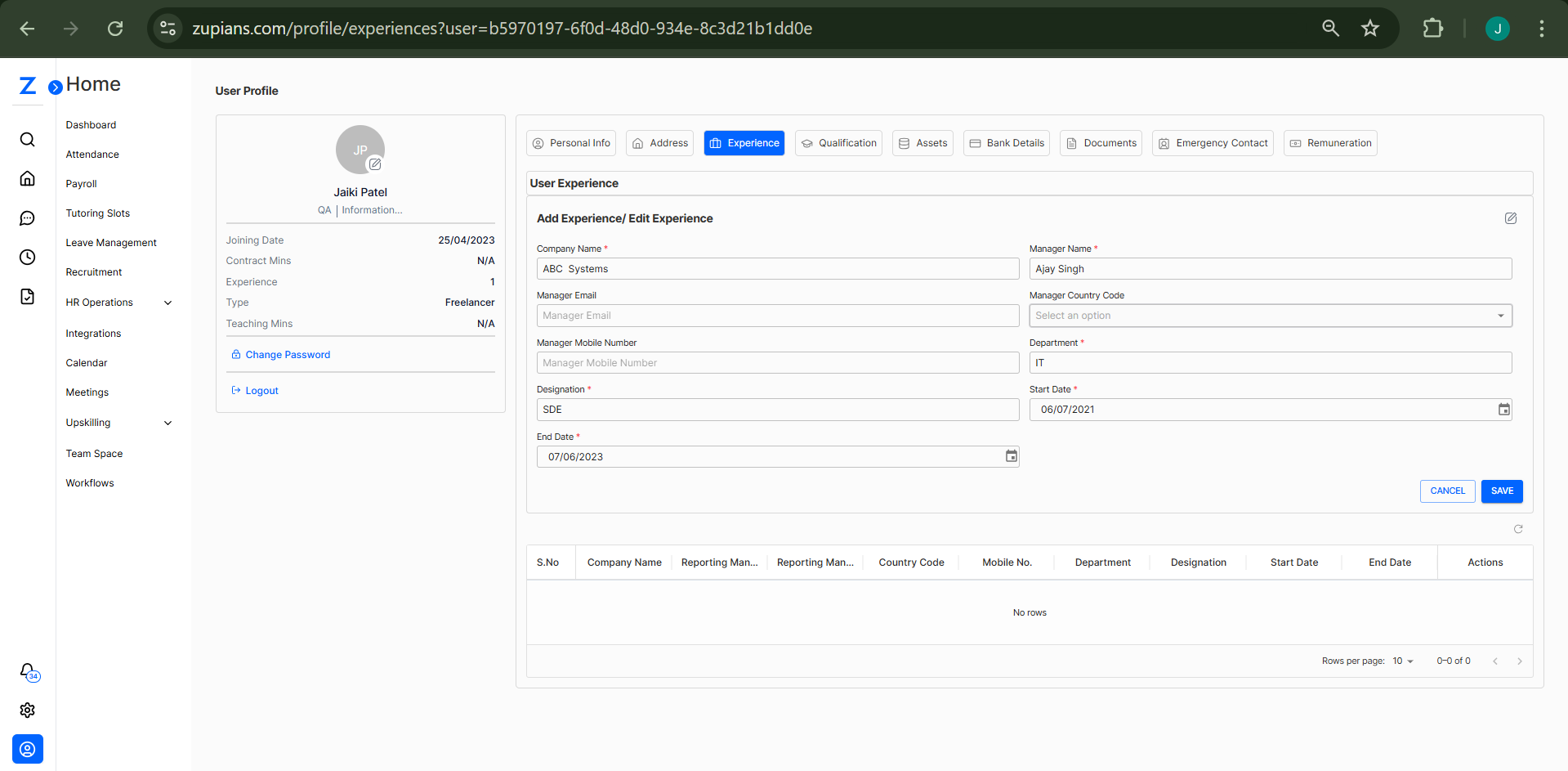
Go to User Profile > click on the Add User Experience button.
-
Fill in Experience Details
Complete the form with the following:- Company Name (e.g.,
ABC Systems) - Manager Name (e.g.,
Ajay Singh) - Manager Email (optional)
- Manager Mobile Number (optional)
- Manager Country Code (dropdown selection)
- Department (e.g.,
IT) - Designation (e.g.,
SDE) - Start Date and End Date (calendar selection)
- Company Name (e.g.,
-
Save the Experience
Click the Save button. The new entry will appear in the list below the form.
🧾 View Added Experience
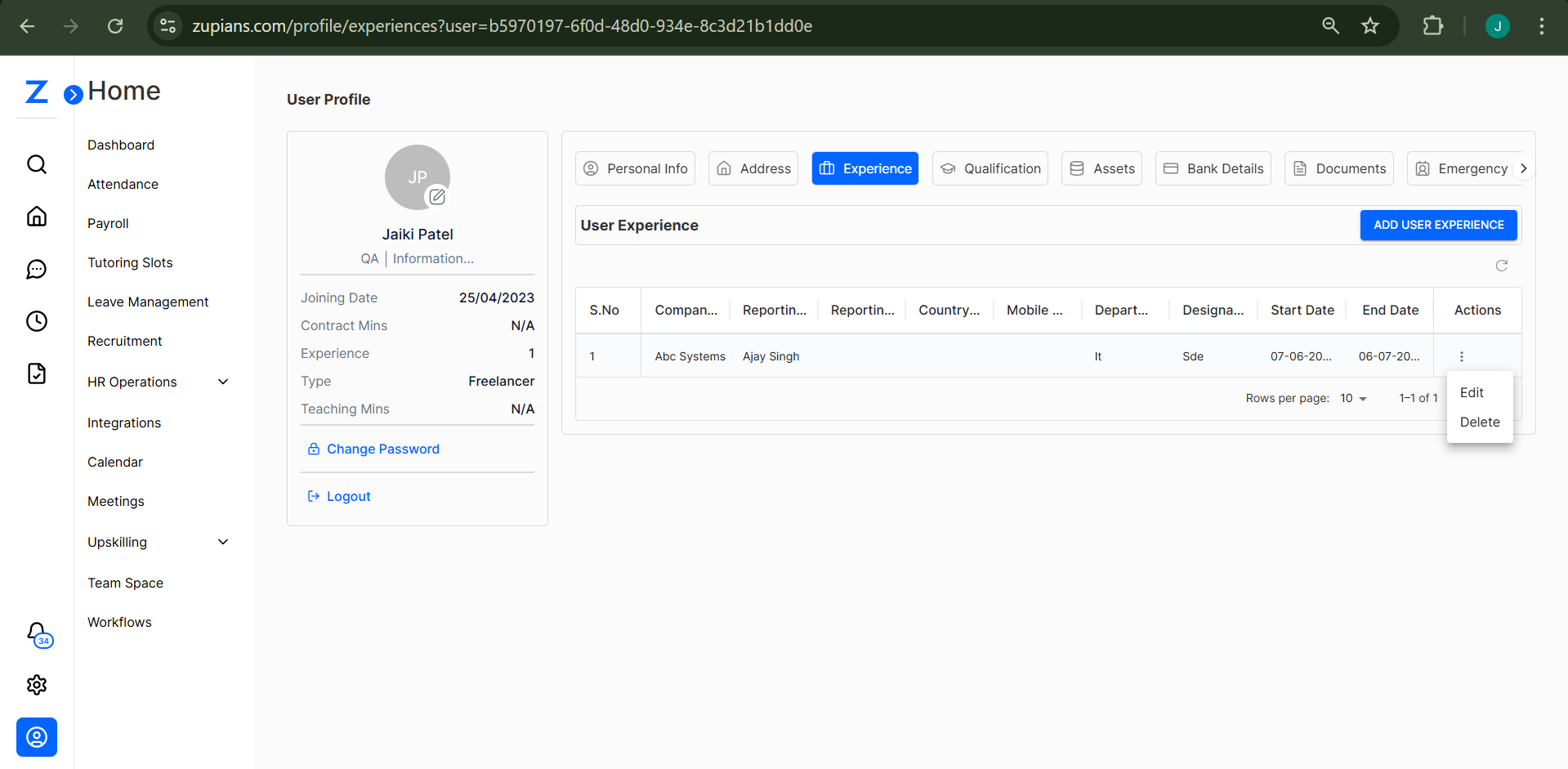
Once you add experience, it will be listed in the table below with columns like:
- Company Name
- Reporting Manager
- Country Code
- Department
- Designation
- Start Date / End Date
- Actions
✏️ Edit Experience
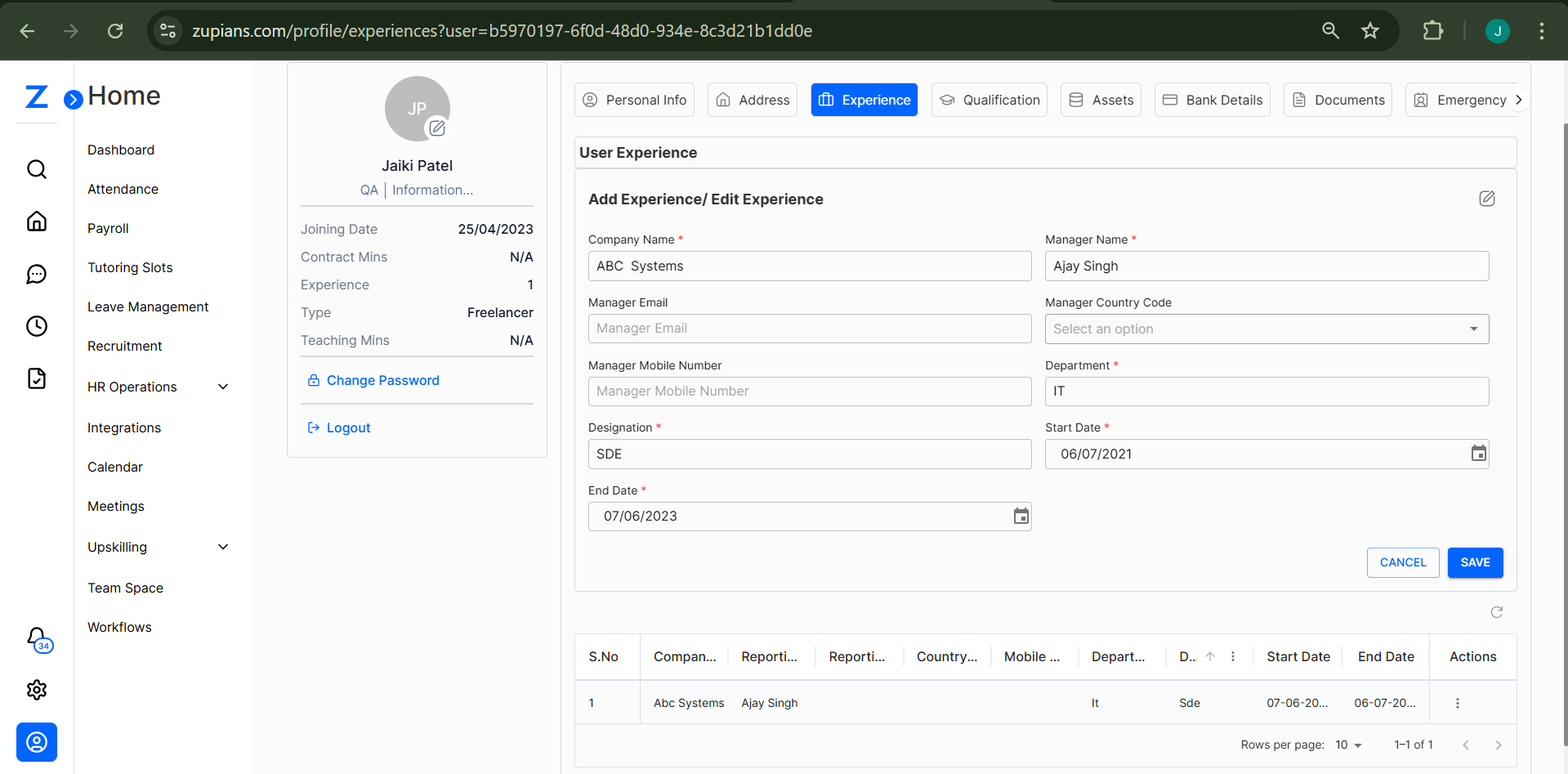
- Under the Actions column of the experience list, click the three-dot menu (⋮).
- Select Edit.
- The form fields above will populate with the selected experience.
- Make necessary changes and hit Save to update.
🗑️ Delete Experience
-
In the Actions column, click the three-dot menu (⋮) and select Delete.
-
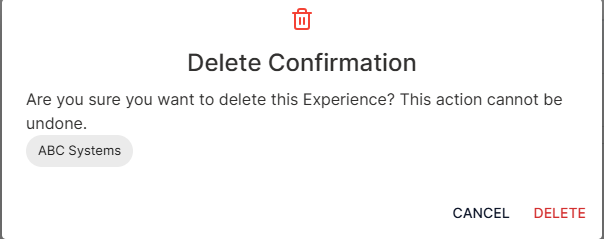
A Delete Confirmation popup will appear.
-
Click Delete to permanently remove the entry.
⚠️ This action cannot be undone.
💡 Best Practices
- Ensure dates do not overlap with other entries.
- Keep manager details accurate for verification purposes.
- Always double-check before deleting an experience record.
🧠 Frequently Asked Questions (FAQ)
1. Can I add multiple experiences?
2. What happens if I delete an experience?
3. Why is the “Save” button disabled?
*) are filled correctly. The Save button activates once all validations are met.