🎓 Qualification Guide
This guide walks you through managing educational qualifications in your User Profile.
✨ Accessing the Qualification Section
-
Navigate to Profile:
- Click the blue user icon at the bottom-left sidebar.
- URL:
https://zupians.com/profile/qualifications?...
-
Go to Qualification Tab:
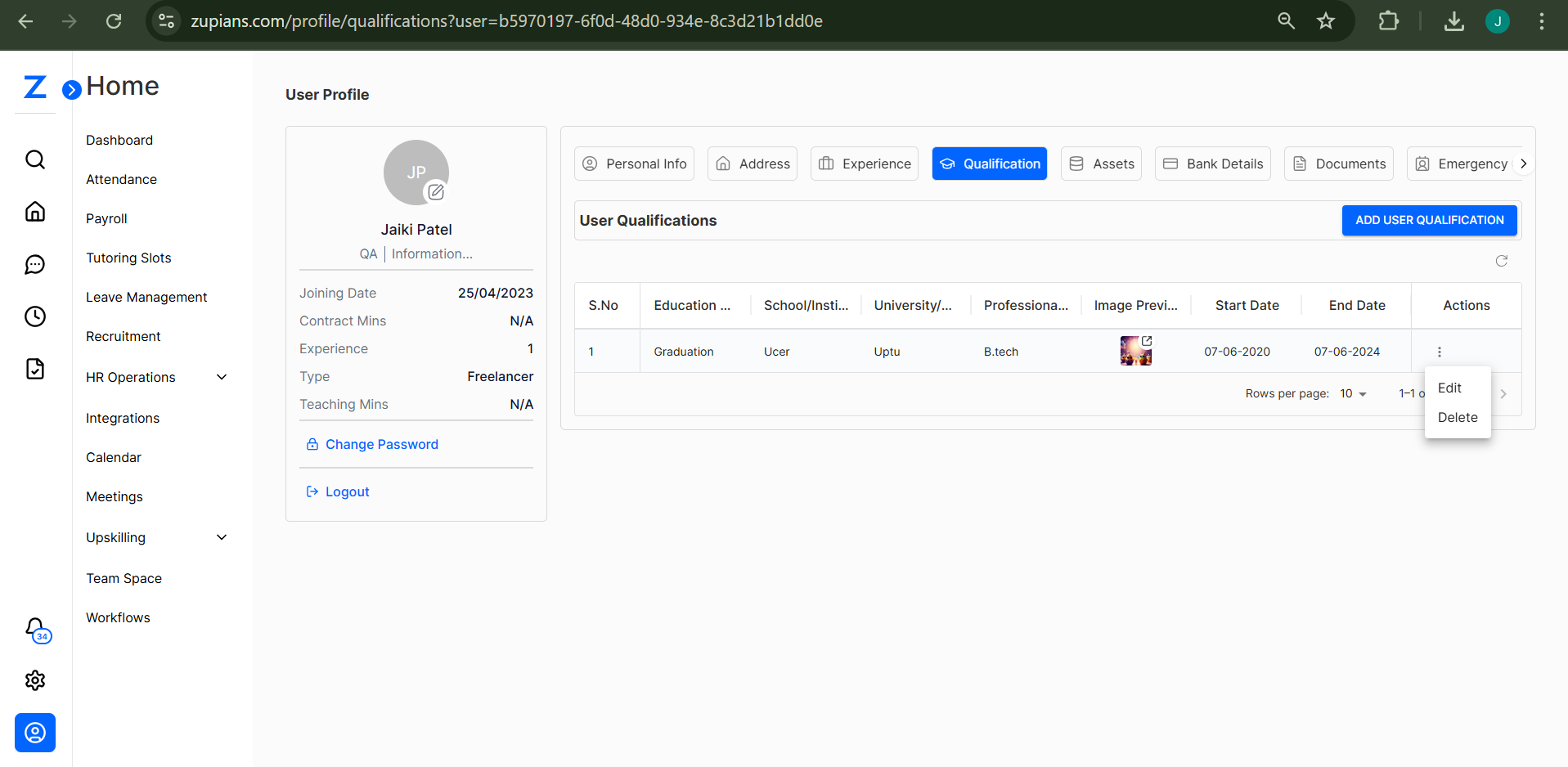
- Select the Qualification tab from the top navigation.
➕ Add a Qualification
- Click on the blue "Add User Qualification" button.
- Fill in the qualification form with the following details:
- Education Qualification (e.g., Graduation)
- School / Institute Name (e.g., UCER)
- University / Board (e.g., UPTU)
- Professional Courses (if any) (e.g., B.TECH)
- Start Date and End Date
- Upload Qualification Document (PDF, JPG, PNG)
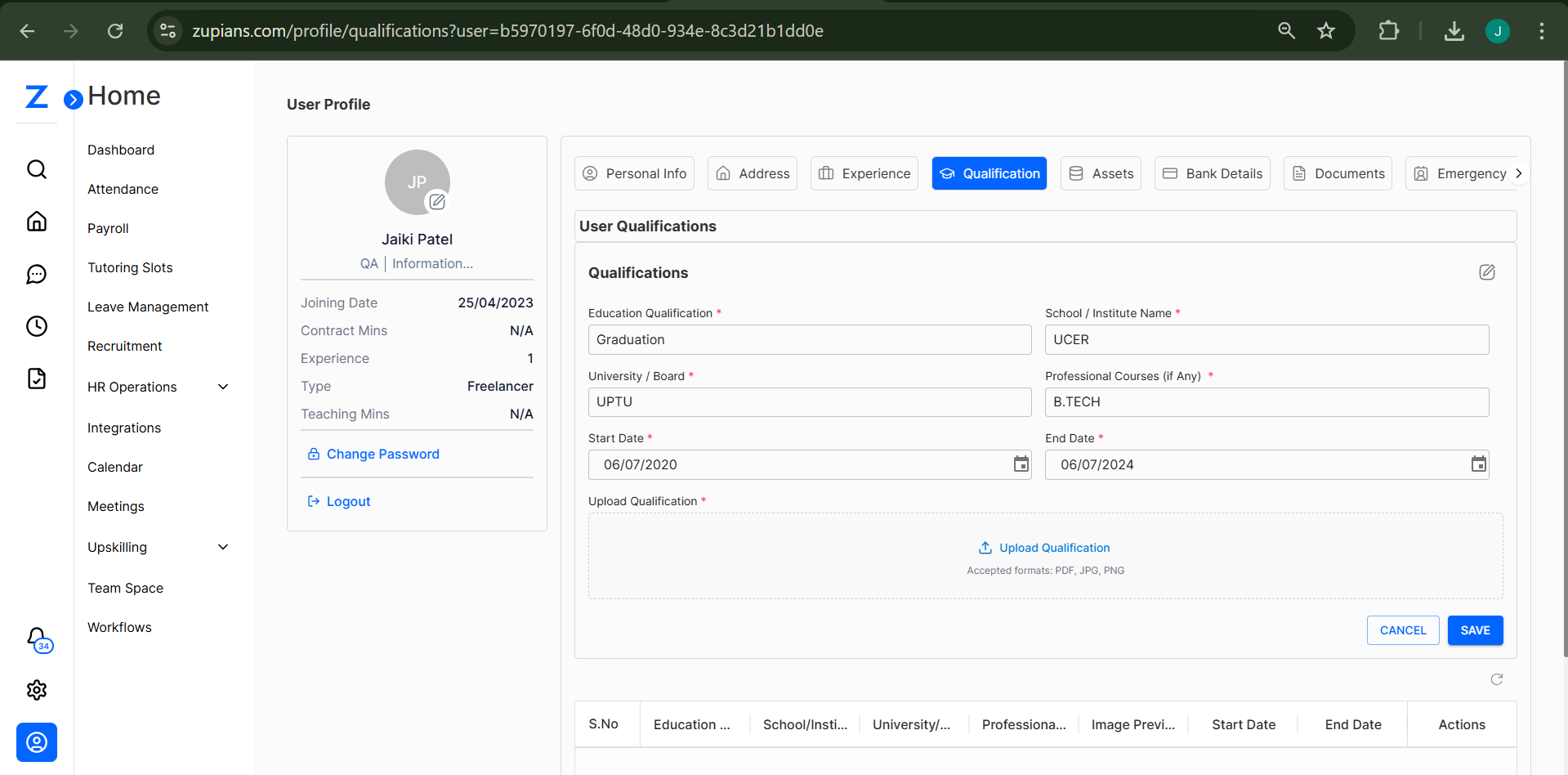
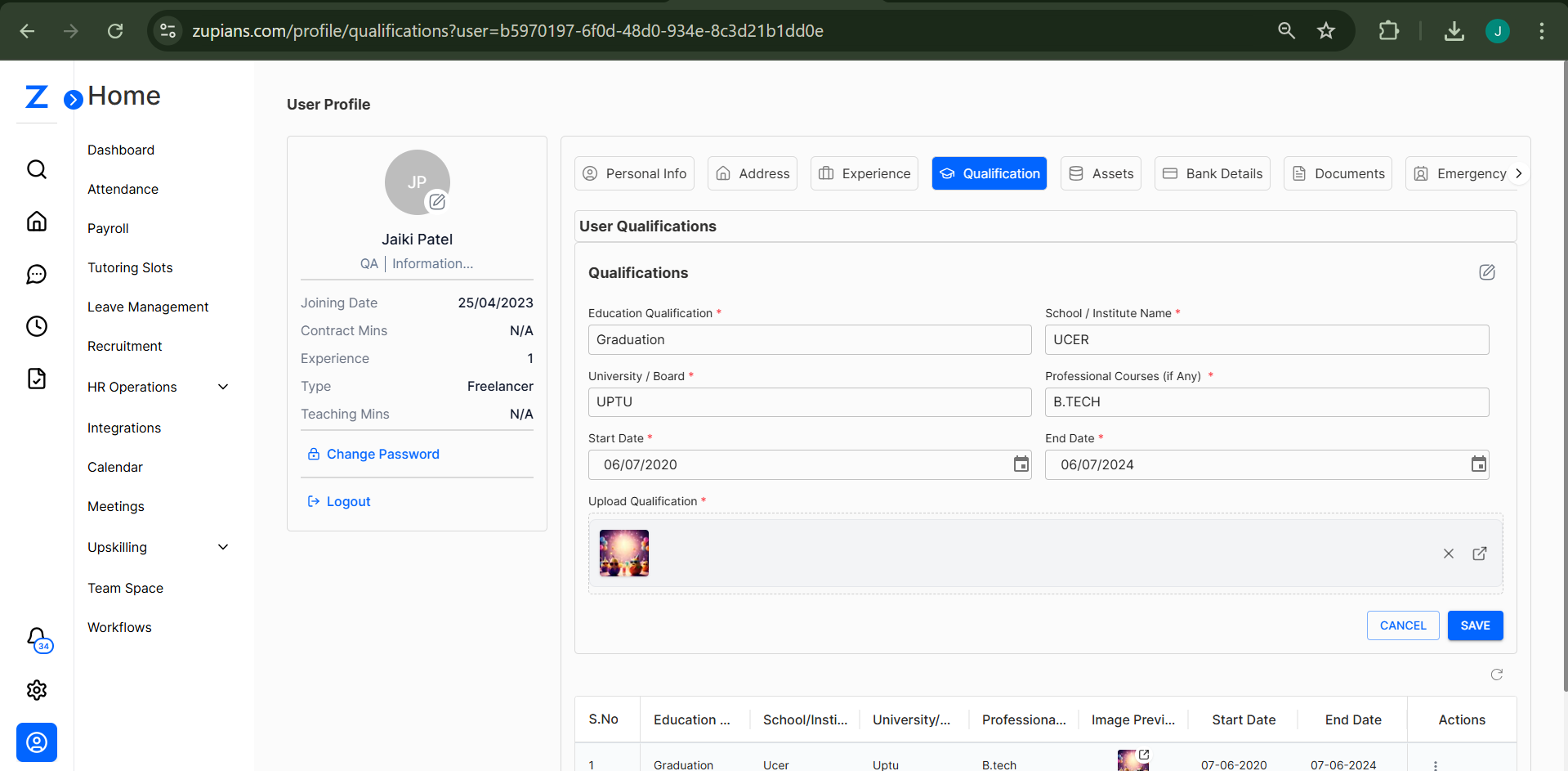
- Click Save to store the entry.
The entry will appear in a table listing your qualifications with:
- Education
- School
- University
- Course
- Start & End Dates
- Document Preview
📝 Edit a Qualification
- Find the qualification row in the list.
- Click the 3-dot icon (⋮) under the Actions column.
- Select Edit.
- The form opens pre-filled. Make changes as needed.
- Click Save to update.
🗑️ Delete a Qualification
- In the Actions column, click the 3-dot icon (⋮) and choose Delete.
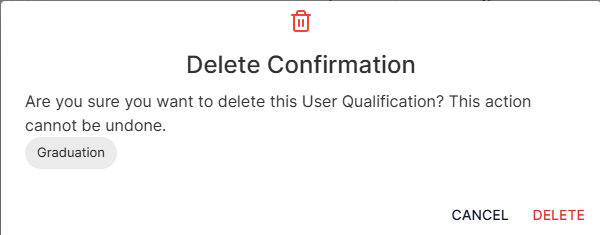
- A Delete Confirmation modal will appear.
- Click Delete to confirm.
⚠️ This action cannot be undone.
✅ Best Practices
- Ensure the document you upload is clear and matches the mentioned degree/course.
- Use correct dates to reflect your actual duration of study.
- Double-check spellings of Institute and University names.
🧠 Frequently Asked Questions (FAQ)
1. Can I upload multiple qualifications?
Yes, you can add multiple entries. Just click "Add User Qualification" again for each new qualification.
2. What file types are supported for qualification documents?
You can upload PDF, JPG, or PNG files. Make sure the file is under the size limit (as specified in the upload field).
3. Can I edit or delete my qualification later?
Yes, use the 3-dot (⋮) menu next to each qualification to Edit or Delete.
4. My document is not uploading. What should I do?
Check the file format and size. If the problem persists, try refreshing the page or contact support.