User Management Guide
This guide covers everything you need to know about managing users in your system, including adding users, managing their information, and maintaining user lists.
🌐 Overview
User management allows authorized personnel to:
- Add new users to the system
- Manage existing user information
- Filter and search through user lists
- Export user data
- Control user access and permissions
Only Admin users or users with custom access permissions (such as HR roles) can add or invite users to the system.
➕ Adding Users
✅ Method 1: Direct Addition via User Management
Ensure you have Admin privileges or HR access permissions before proceeding.
- Navigate to Settings → User Management
- Click the “ADD USER” button in the top-right corner
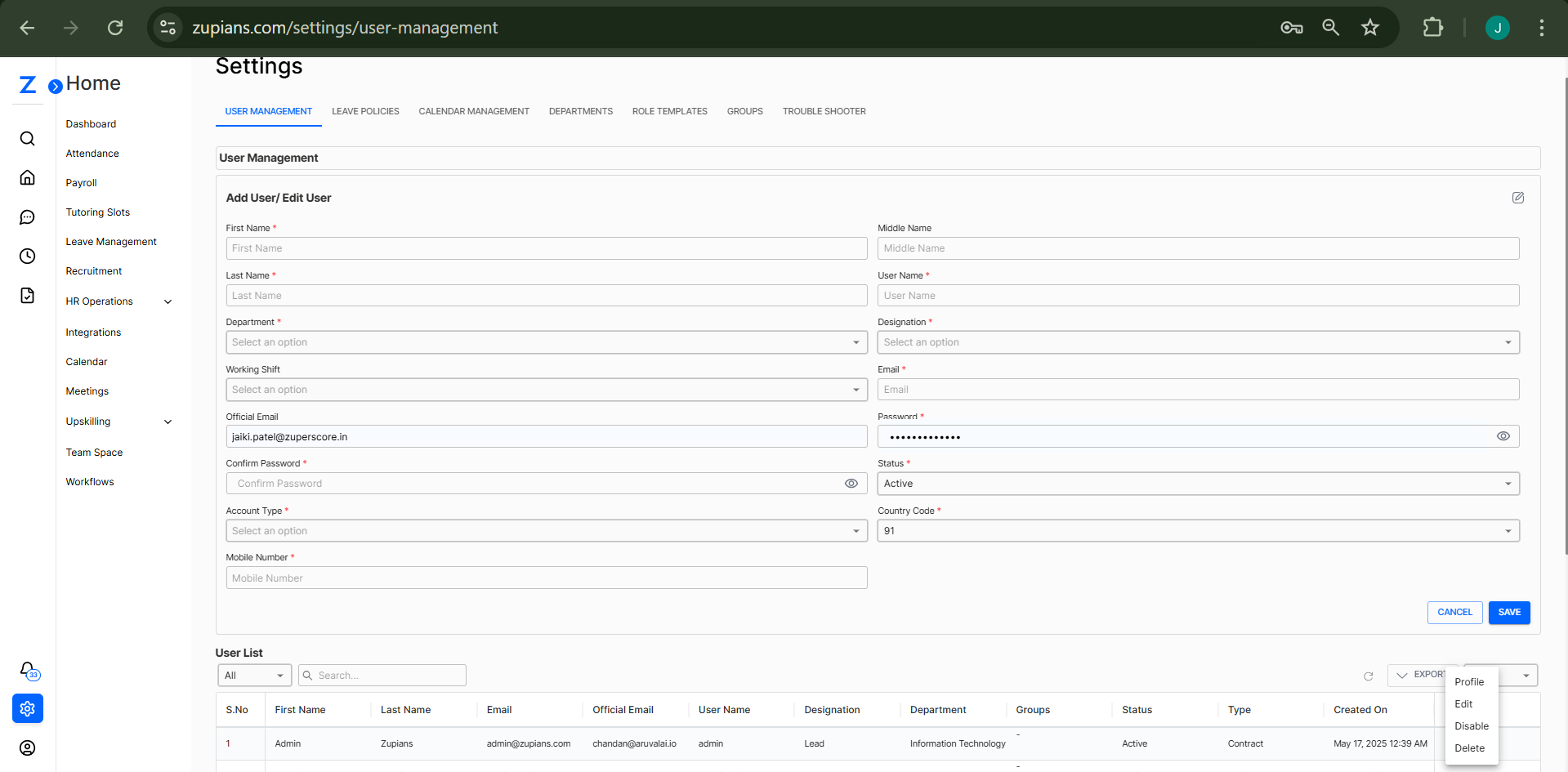
- Fill in required fields across the following sections:
📇 Personal Information
- First Name*
- Middle Name (Optional)
- Last Name*
- User Name*
📞 Contact Details
- Email*
- Official Email (Optional)
- Mobile Number (Optional)
- Country Code*
🏢 Organization Details
- Department*
- Designation*
- Working Shift
🔐 Account Settings
- Password*
- Confirm Password*
- Account Type*
- Status*
- Click SAVE to create the user, or CANCEL to discard changes
- The user appears in the list immediately
Email is sent to the new user, and admins receive web push notification
✅ Method 2: Invite via Integrations
- Go to Integrations → Invite Teammates

- Click "Invite Teammates"
- In the popup window:
- Enter comma-separated emails
- Select Department and Designation
- Click SEND INVITE
Invited users complete registration via email; system notifies admins upon completion
📋 Managing User Lists
👁️ Viewing Users
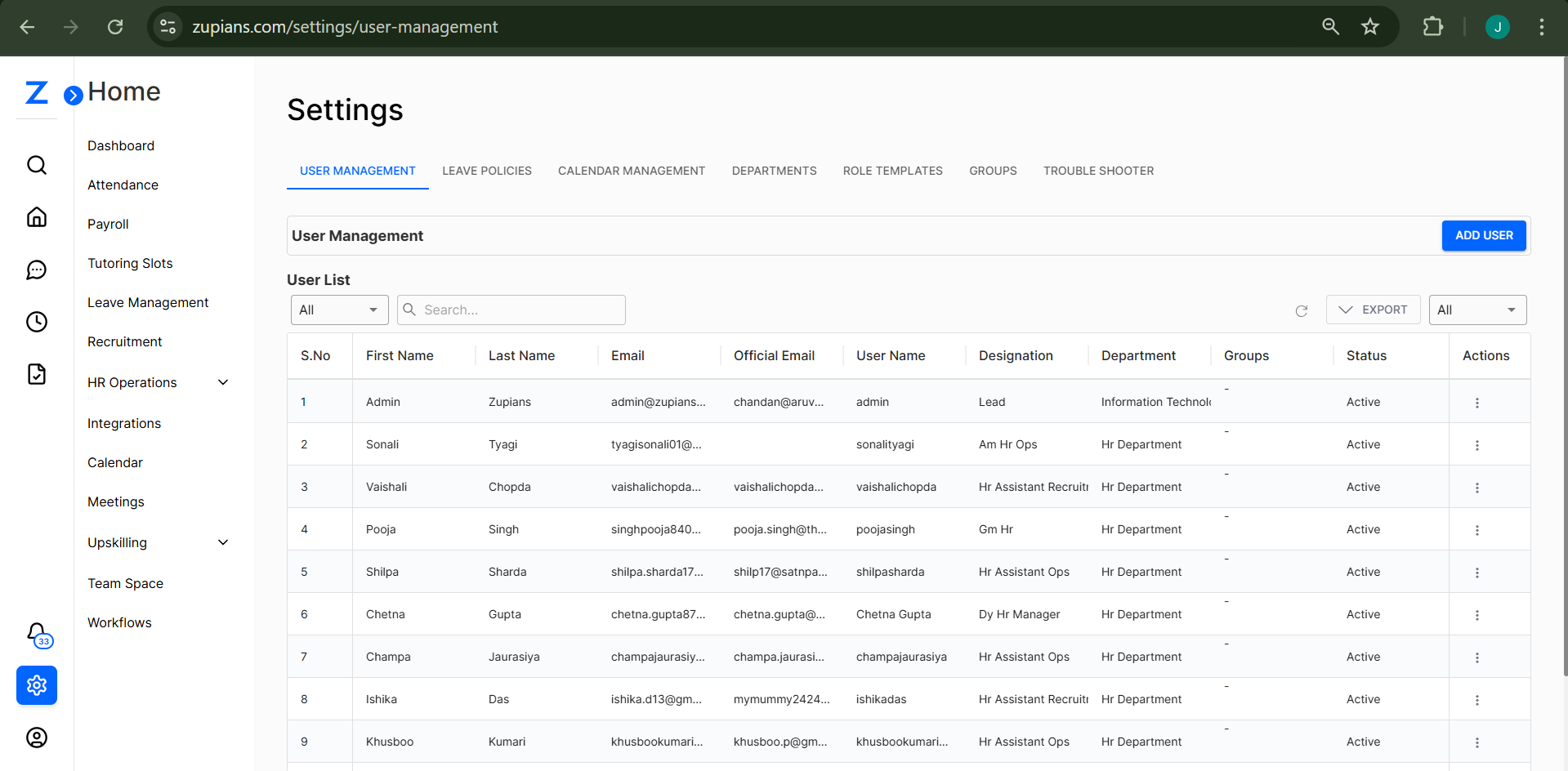
User list includes:
| Column | Description |
|---|---|
| S.No | Serial number |
| First Name / Last Name | User name |
| Email / Official Email | Contact emails |
| User Name | System login |
| Designation / Department | Org structure |
| Groups | User group memberships |
| Status | Active/Inactive |
| Type | Contract, Full-Time, Freelancer |
| Created On | Account creation date |
| Actions | Profile, Edit, Disable/Enable, Delete |
🔍 Filtering and Searching
Left-Side Filters
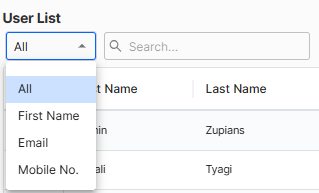
Filter by:
- All
- First Name
- Mobile No.
Right-Side Filters
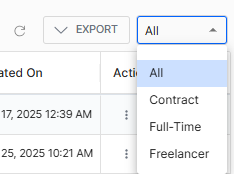
Filter by:
- All
- Contract
- Full-Time
- Freelancer
🔎 Search Bar
Enter name, email, or keyword – results auto-update
🔄 Refresh Button
Click ↻ to reload user list
⚙️ User Actions
Individual User Actions
Click the three dots (⋮) in the Actions column to access the user action menu:

👤 View Profile
- Access via “Profile” in Actions (⋮)
- View user profile
- Audit-logged
✏️ Edit User

- Update user info, department, shift, email, access
- Notifies user and admin
- Changes are audit-logged
🚫 Disable / ✅ Enable
- Disable blocks login, keeps data intact
- Enable restores access
- Notifications sent both ways
🗑️ Delete
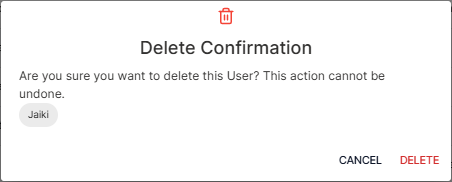
- Confirmation dialog: irreversible
- Removes user and data permanently
- Audit log created
Deleting users cannot be undone. Use Disable if unsure.
📦 Bulk Actions
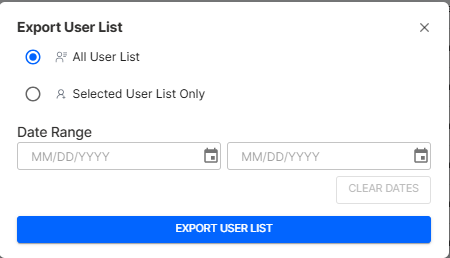
📁 Export User Data
- Click EXPORT in toolbar
- Choose:
- All User List
- Selected User List Only
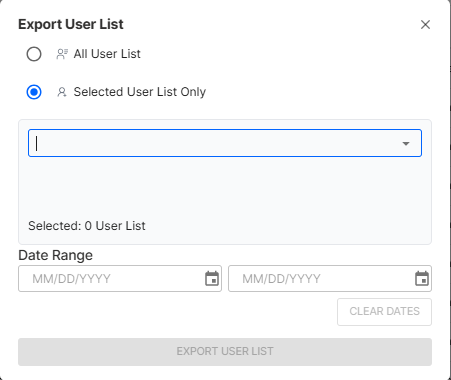
Configure:
- Date Range (or leave blank for full export)
- Click EXPORT USER LIST to download CSV/Excel
🔔 Notification System
📧 Email Notifications
Users and admins are notified of:
- Account creation
- Profile changes
- Status changes
- Bulk actions
🌐 Web Push Notifications
For:
- User creation
- Status updates
- Bulk operation completions
- Login/logout activities
Admins can customize notification triggers via profile settings
🧪 Step-by-Step Workflows
🆕 Complete User Addition
- Confirm access and collect details
- Go to User Management → Add User
- Fill all sections and save
- Verify user appears and is notified
- Onboard user: confirm email, provide system access
🔁 User Maintenance
- Regularly review user list
- Disable users on leave
- Update departments/designations as needed
- Delete users who have exited organization
📊 Data Management
- Export data
✅ Best Practices
🔐 Security
- Limit admin access
- Enforce strong passwords
- Disable accounts immediately when needed
- Audit changes quarterly
🏃 Operational Efficiency
- Use bulk invites for onboarding
- Standardize usernames
- Clean up test/inactive accounts
- Keep training docs updated
- Tweak notifications to avoid overload
🧠 Frequently Asked Questions (FAQ)
1. Who can manage users?
2. Can regular users see the user list?
3. What’s the difference between “Add” and “Invite”?
4. Can I add multiple users at once?
5. What notifications are sent on user creation?
6. What’s the difference between Disable and Delete?
7. Do disabled users appear in exports?
8. What happens when user info is edited?
9. What alerts do users receive?
10. Can users control which alerts they receive?
11. What to do if email isn't received?
12. How to find users by join date?
13. Can I search using partial names?
14. What’s the difference between left and right filters?
15. What are the export formats?
16. Can I export specific users only?
17. How frequently should I back up user data?
18. New user not appearing?
19. Can’t delete a user?
20. Can a deleted account be recovered?
21. How to convert Contract to Full-Time?
22. Web push notifications not working?
23. Why is the user list loading slowly?
24. Do more users affect performance?
📌 Summary
To manage users effectively:
- Secure access rights
- Follow workflows
- Keep records current
- Communicate via system notifications