🛠️ Troubleshooter Logs Guide
This guide walks you through the Troubleshooter Logs feature under the Settings module. Use it to log system-related issues, track them through various statuses, and export records when needed.
📌 Navigating to Troubleshooter Logs
Go to:
🔗 https://zupians.com/settings/trouble-shooter
or navigate via Settings → Troubleshooter
📋 Tabs Overview
At the top, you’ll find filter tabs to help you navigate logs based on their status:
- ALL – Shows every log regardless of its status.
- PENDING – Logs yet to be resolved.
- RESOLVED – Issues that have been marked completed.
- AWAITING – Logs that need follow-up or confirmation.
🧾 Add or Edit a Log
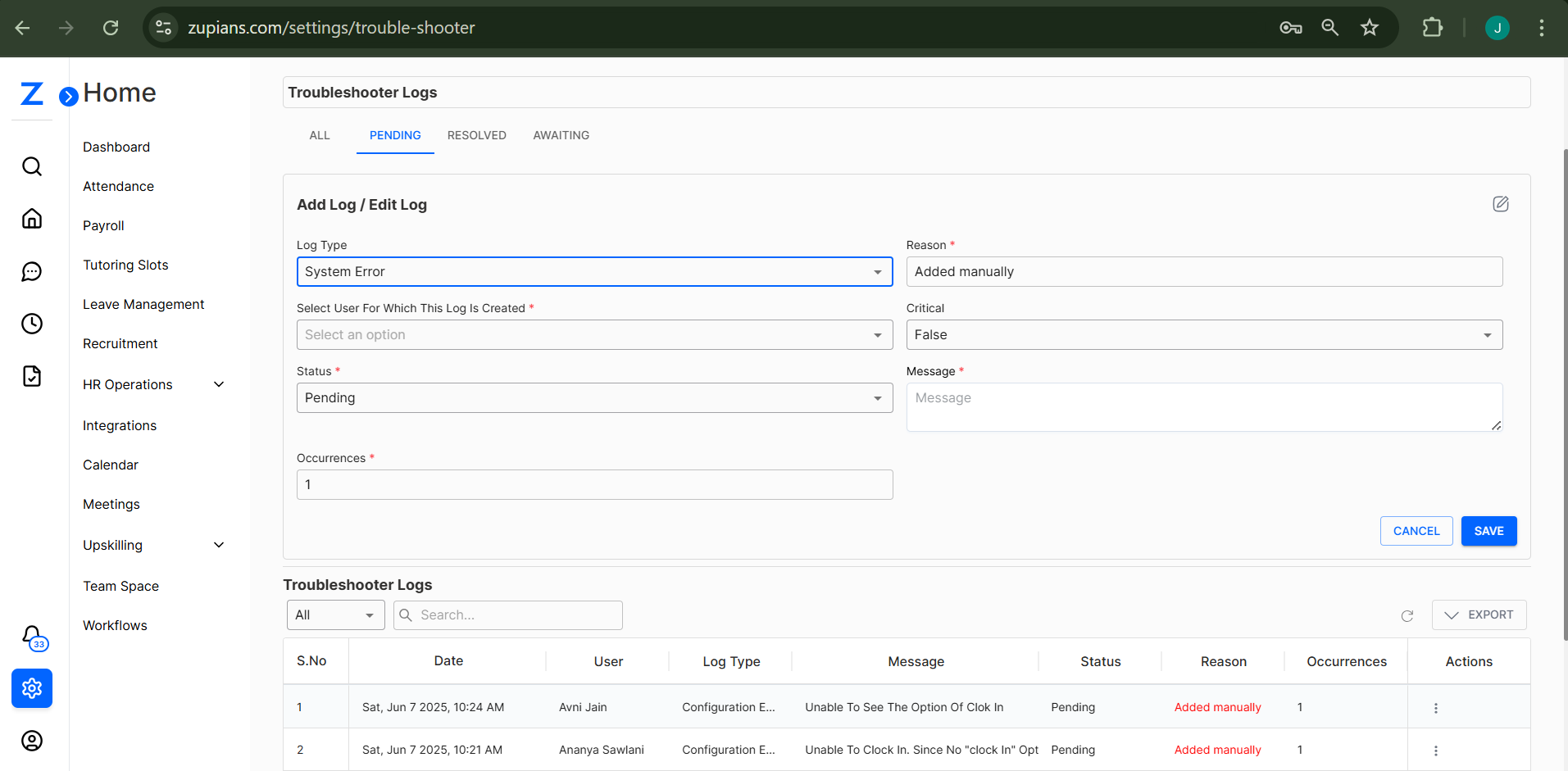
You can add a new log or edit an existing one using the form.
➕ Steps to Add Log:
- Click on the "ADD LOG" button at the top right.
- Fill in the following fields:
| Field | Description |
|---|---|
| Log Type | Select the category (e.g., System Error, Configuration Error, etc.) |
| Select User | Choose the user facing the issue |
| Status | Default is "Pending" |
| Occurrences | Number of times the issue occurred |
| Reason | Select from dropdown (e.g., Added manually) |
| Critical | Mark as True/False depending on urgency |
| Message | Describe the issue in detail |
- Click Save to submit the log.
📄 Viewing & Managing Logs
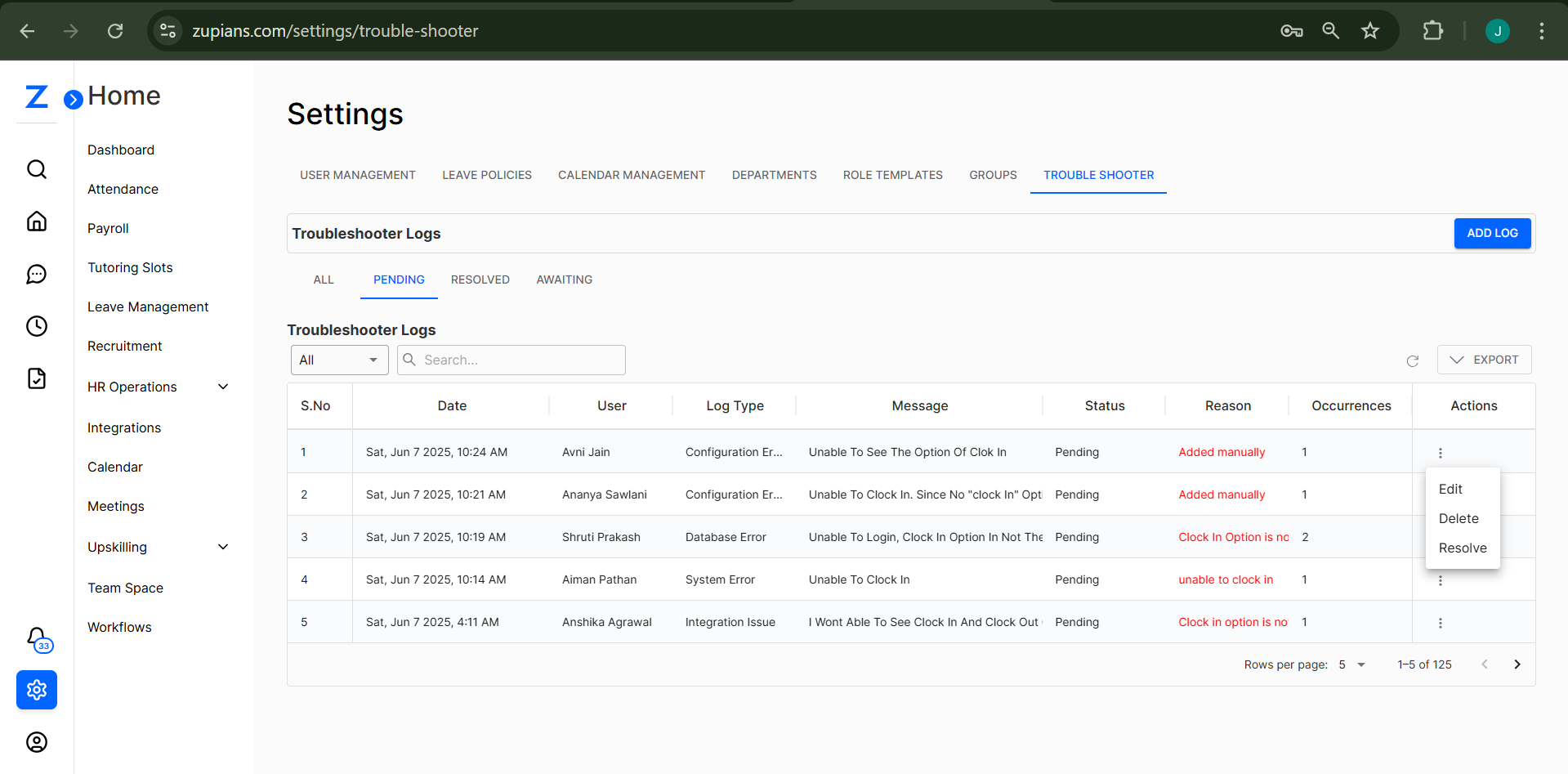
Once logs are added, they appear in the list below the form.
You can:
- Use the search bar to filter based on keywords.
- Click the dropdown next to "All" to filter by log type.
🛠️ Actions on Logs
Click the three-dot menu (⋮) under the Actions column for each log to access the following options:
- Edit – Modify existing log details.
- Delete – Permanently remove the log.
- Resolve – Change the status of the log to "Resolved".
📤 Exporting Logs
To export logs for reporting or auditing:
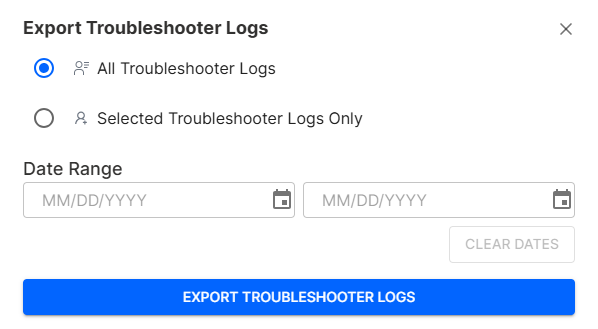
- Click the EXPORT button on the right.
- Choose from:
- All Troubleshooter Logs
- Selected Troubleshooter Logs Only
- Apply a Date Range if needed.
- Click Export Troubleshooter Logs to download.
🧠 Frequently Asked Questions (FAQ)
1. Who can access Troubleshooter Logs?
Only users with Settings module access and relevant permissions can view, add, or manage logs.
2. What are the log statuses and what do they mean?
- Pending: Issue is logged but not resolved - Resolved: Issue is fixed and marked complete - Awaiting: Waiting for follow-up, confirmation, or user input
3. Can I assign a log to a specific user?
Yes. Use the "Select User" field while creating or editing a log to assign it to a specific individual.
4. Can I change the status of a log?
Yes. - Use the three-dot menu (⋮) next to a log entry - Select Resolve to mark it as completed
5. What happens when I delete a log?
Deleted logs are permanently removed and cannot be recovered. Use this with caution.
6. Can I filter logs by type or keyword?
Yes. - Use the dropdown to filter by log type - Use the search bar to filter by keyword
7. How does exporting logs work?
Click EXPORT, then: - Choose All Logs or Selected Logs - Optionally apply a Date Range - Click Export Troubleshooter Logs to download as CSV/Excel
8. What is the "Critical" toggle used for?
Mark the log as Critical = True to flag urgent issues that need immediate attention.
9. How often should I review logs?
It's best to review pending logs weekly, resolve outdated ones, and export logs regularly for compliance.
10. Can I add a log without assigning a user?
Yes, but it’s recommended to select a user for better tracking and resolution accountability.
✅ Best Practices
- Always include a clear message when creating logs.
- Use "Resolve" only when the issue has been verified as fixed.
- Regularly review pending logs to ensure they don’t pile up.
- Export logs weekly for compliance or reporting use cases.