👥 Groups Guide
This guide walks you through the Groups feature under the Settings module. Groups help in assigning specific role templates to sets of users for consistent permission control.
🚀 Overview
Groups allow you to:
- Assign specific role templates to multiple users at once.
- Create and manage user groups based on departments, designations, or access needs.
- Efficiently modify, view, or delete group-based permissions.
🔧 How to Create a Group
Follow these steps to create a new group:
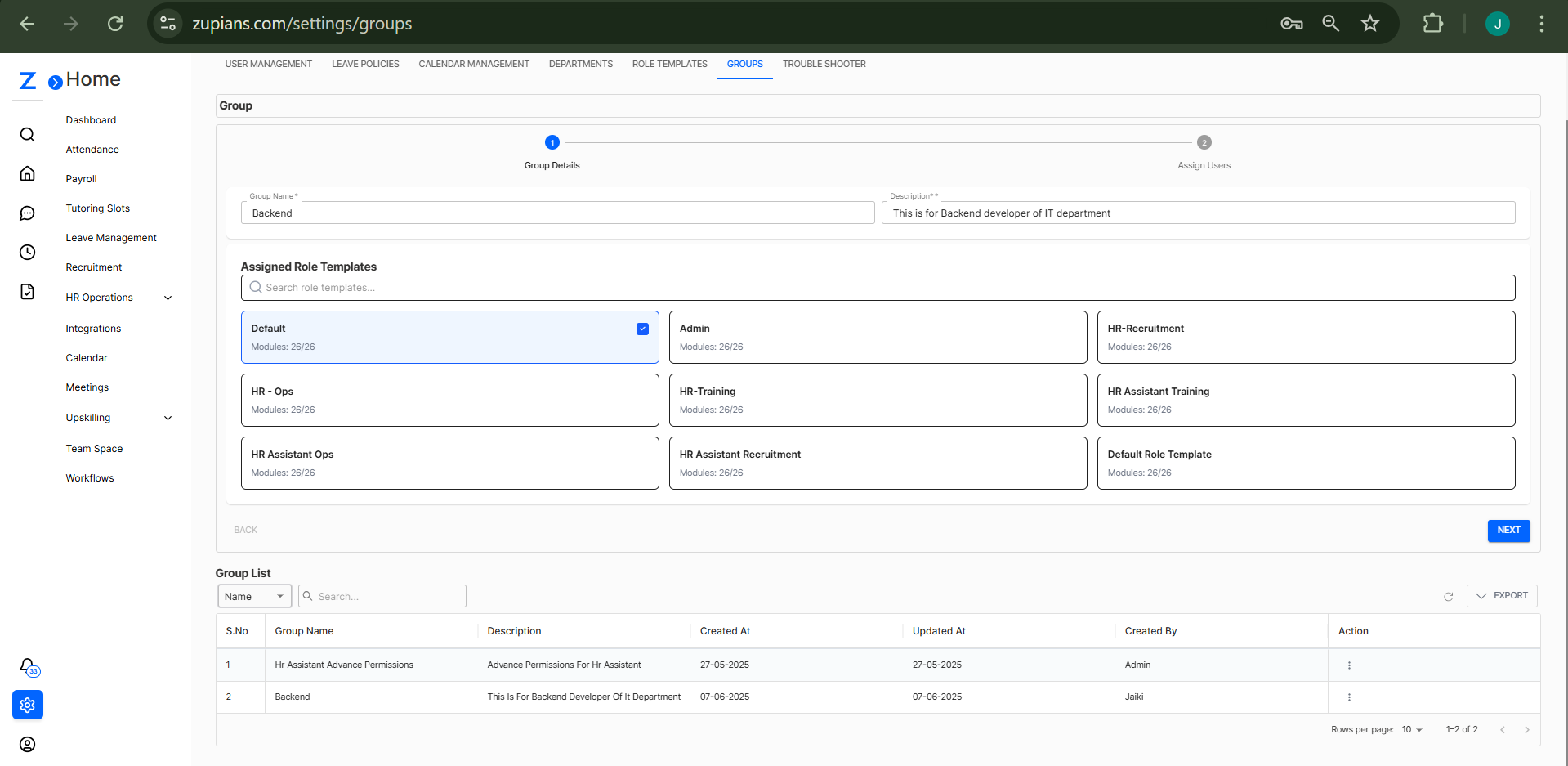
🟦 Step 1: Group Details
-
Navigate to
Settings > Groupstab. -
Click the CREATE GROUP button.

-
Enter the required details:
- Group Name (e.g.,
Backend) - Description (e.g.,
This is for Backend developer of IT department)
- Group Name (e.g.,
-
Select one or more Role Templates from the list to assign permissions.
- Each role template shows the number of modules it includes (e.g.,
Modules: 26/26). - Click the card to select it.
- Each role template shows the number of modules it includes (e.g.,
-
Click Next to proceed.
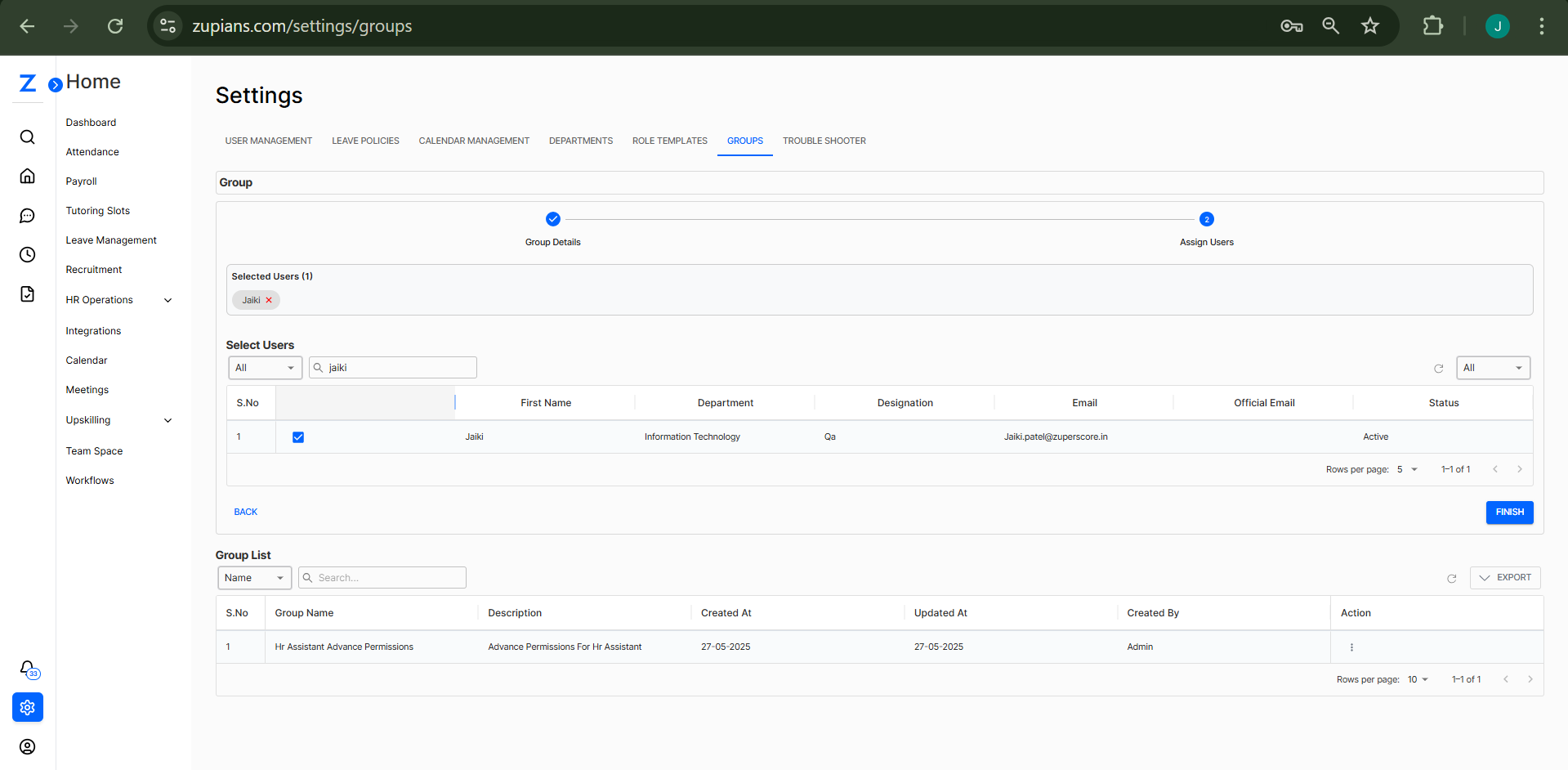
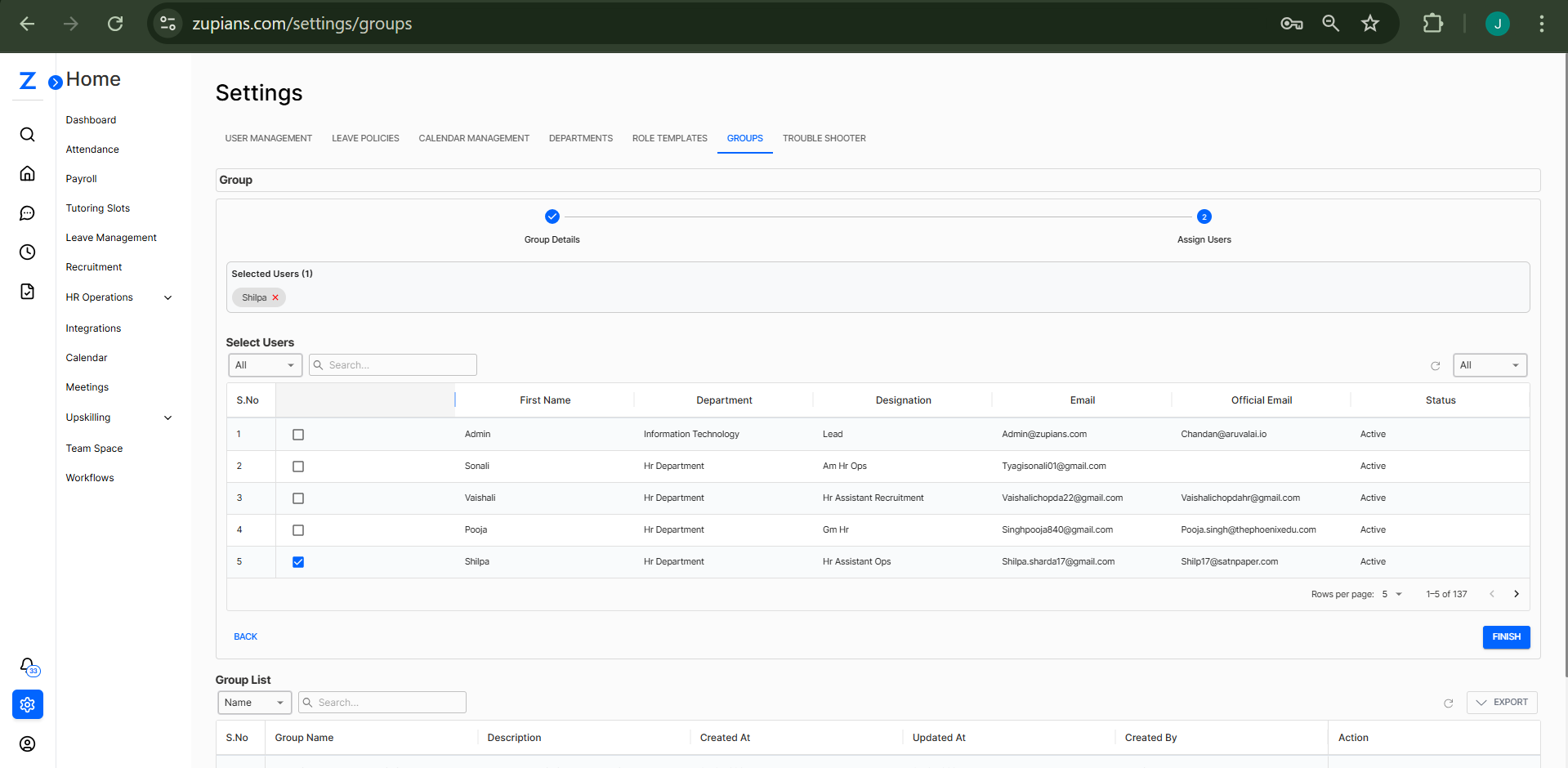
🟦 Step 2: Assign Users
-
Search and select users to be added to this group.
-
The selected users will appear under the Selected Users section.
-
Once users are added, click Finish to complete group creation.
📋 Group List View
After groups are created, they are listed on the main screen with key details:
-
Group Name
-
Description
-
Created/Updated Date
-
Created By

Use the filter and search bar to find specific groups easily.
✏️ Edit or Delete Groups
-
From the Group List, click the three-dot icon under the Action column.
-
Choose Edit to modify group details or users.
-
Choose Delete to remove the group permanently.
- A confirmation dialog will appear.

🧠 Frequently Asked Questions (FAQ)
1. Can a user belong to multiple groups?
2. Can I edit the assigned role template later?
3. What happens when a group is deleted?
4. What’s the difference between Role Templates and Groups?
✅ Best Practices
- Name groups clearly based on department or role (e.g.,
HR Assistant Ops,Frontend Dev). - Regularly audit group-user mappings for accuracy.
- Avoid assigning conflicting role templates to a single user across groups.