Leave Policies Guide
The Leave Policies section within the Settings module allows administrators to define and manage the types of leaves, accrual methods, notice periods, and related rules for the organization.
🌐 Purpose
- Define types of leaves (e.g., sick, casual, earned)
- Set accrual and encashment rules
- Apply policies by departments
- Customize notice periods, grace hours, and document requirements
- Ensure compliance across the organization
🧭 Navigation
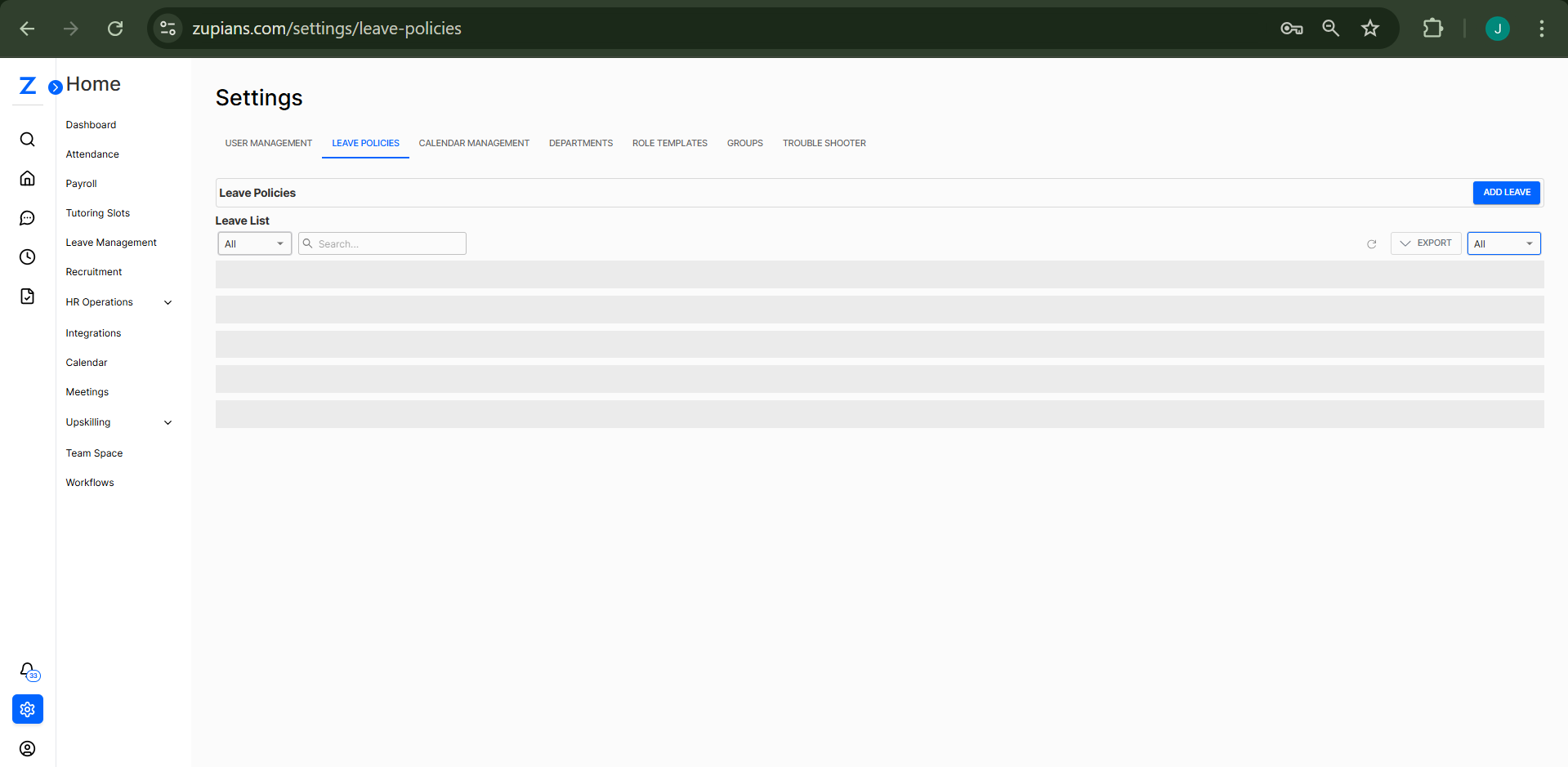
✅ Step-by-step navigation
- Click the ⚙️ Settings icon on the left sidebar.
- Select the Leave Policies tab from the top bar.
- The Leave Policies screen will show two main sections:
- Leave List View
- Add/Edit Leave Form
📝 Add / Edit Leave Form
Use this form to create or update a leave policy.
➕ How to Add a New Leave Policy
- Click the Add Leave button on the top-right corner.
- Fill in the following fields:
| Field | Description |
|---|---|
| Leave Name | The name of the leave (e.g., Casual Leave) |
| Leave Type | Select type: Paid, Unpaid, Sick, etc. |
| Annual Days | Total leave days allotted per year |
| Effective Date | Start date of the leave policy |
| Departments | Apply policy to specific departments |
| Weekend Leave | Include/exclude weekends in leave count |
| Approval Workflow | Choose an approval route |
| Minimum Notice In Days | Required notice before applying |
| Accrual Method | Monthly, quarterly, yearly, etc. |
| Enable Prorata Calculation | Choose if proration applies |
| Carry-over Policy | Whether unused leave carries forward |
| Encashment | Can unused leave be encashed? |
| Allow Partial-day Leave | Allow half-day or hourly leave |
| Min Service (days) | Minimum service needed to avail |
| Grace Hours | Grace hours allowed |
| Count Public Holidays | Whether public holidays are included |
| Require Supporting Document | Mandate documents for approval |
| Remarks | Any internal notes |
- Click Save to add the policy or Cancel to discard.
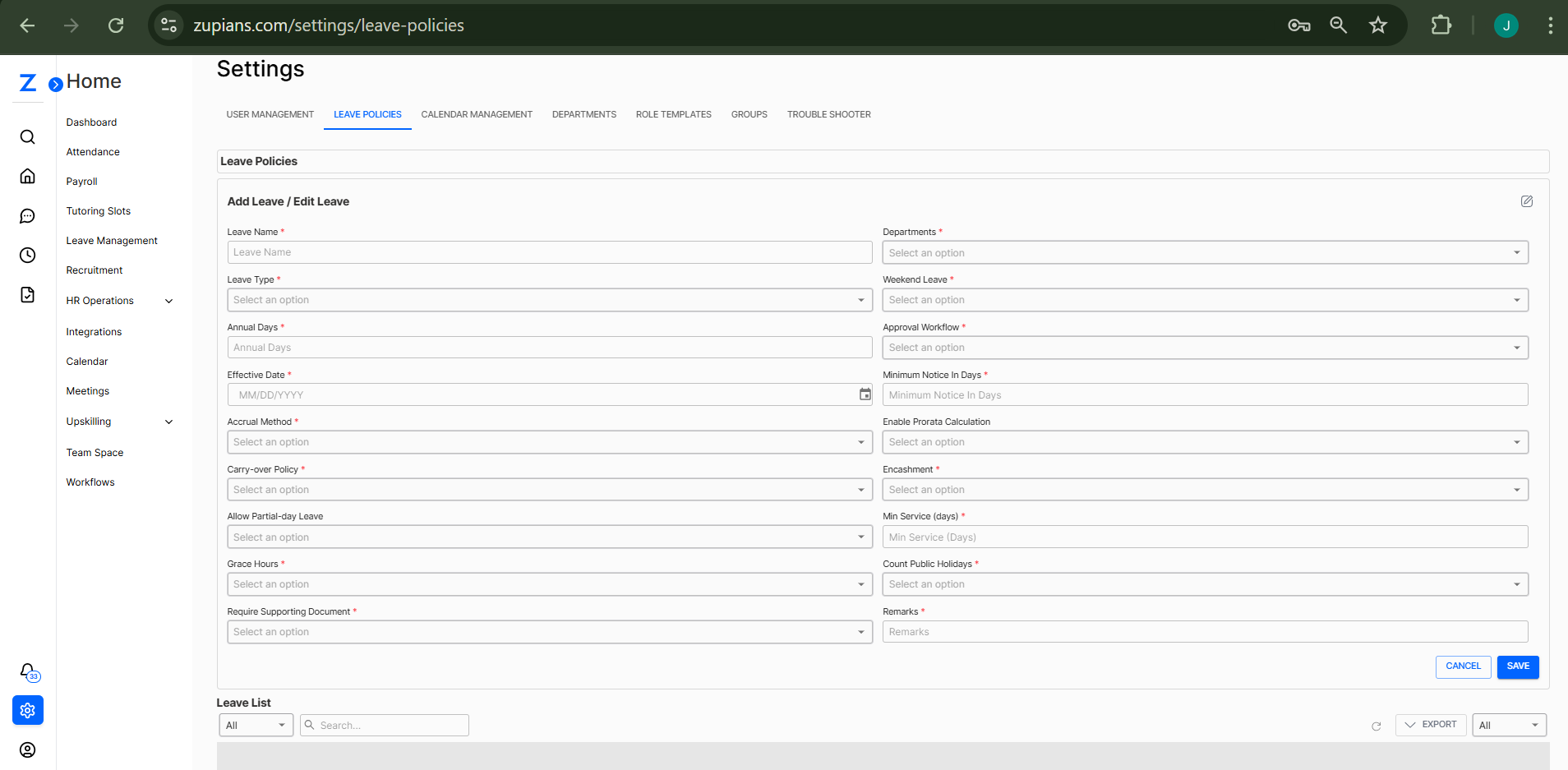
📋 Leave List View
The Leave List shows all existing policies in a tabular format.
- Use the filter dropdown to view leaves by type or department.
- Search for a policy using the Search bar.
- Use the Export button to download leave policies.
- Click on an existing policy row to edit or update.
🧪 Example Workflow
- Navigate to Settings → Leave Policies.
- Click Add Leave.
- Enter:
- Leave Name: “Earned Leave”
- Leave Type: “Paid”
- Annual Days: “18”
- Enable Carry-over and Accrual
- Assign to specific departments.
- Choose “Yes” for Encashment.
- Save the policy.
🧠 Frequently Asked Questions (FAQ)
1. Who can create or edit leave policies?
Only users with: - Admin rights, or - Access to Settings > Leave Management can create or modify leave policies.
2. Can we assign different policies to different departments?
Yes. You can: - Configure policies department-wise - Use the Departments field when setting up the policy
3. What happens if I don’t enable prorata calculation?
If prorata is disabled: - Users receive the full annual leave entitlement upfront, - Even if they joined mid-year.
4. How are public holidays counted in leave duration?
This depends on your setting: - Use the “Count Public Holidays” toggle - You can choose to include or exclude them from total leave days
5. Can users apply for partial-day leave?
Yes, if the policy setting “Allow Partial-day Leave” is set to Yes.
6. What is ‘Encashment’ in leave policies?
Encashment enables users to: - Convert unused leaves into monetary value, - Based on the company’s encashment rules
7. How can I update a leave policy?
To update: - Open any policy from the Leave List - Modify the desired fields - Click Save to apply the changes