📅 Calendar Management Guide
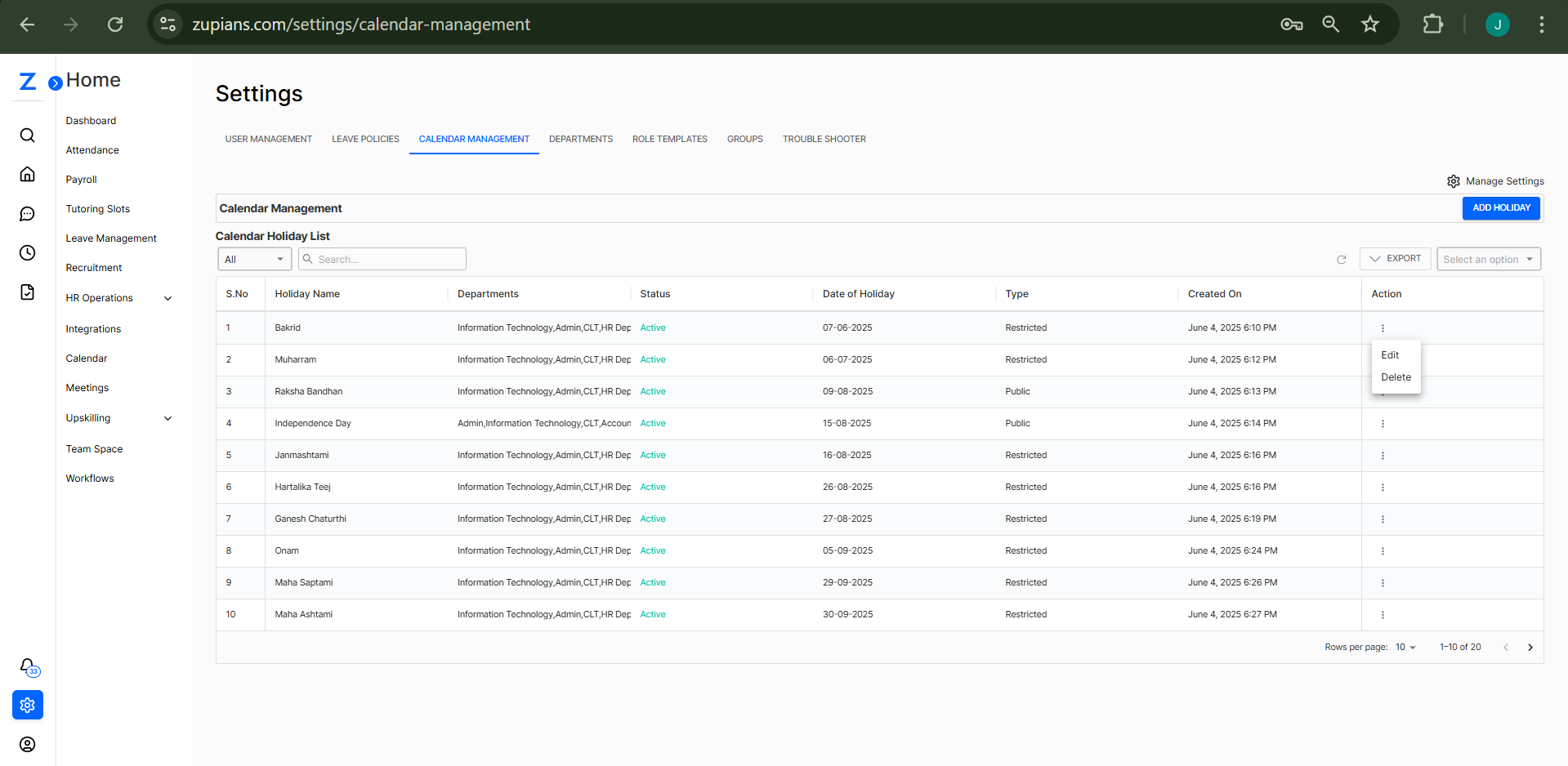
This guide walks you through the Calendar Management section under Settings, where you can add, edit, and delete holidays for different departments.
🧭 How to Access Calendar Management
- Go to the Settings page from the sidebar.
- Click on the CALENDAR MANAGEMENT tab.
📍 URL: https://zupians.com/settings/calendar-management
➕ Add New Holiday
- Click on the blue ADD HOLIDAY button on the top right.
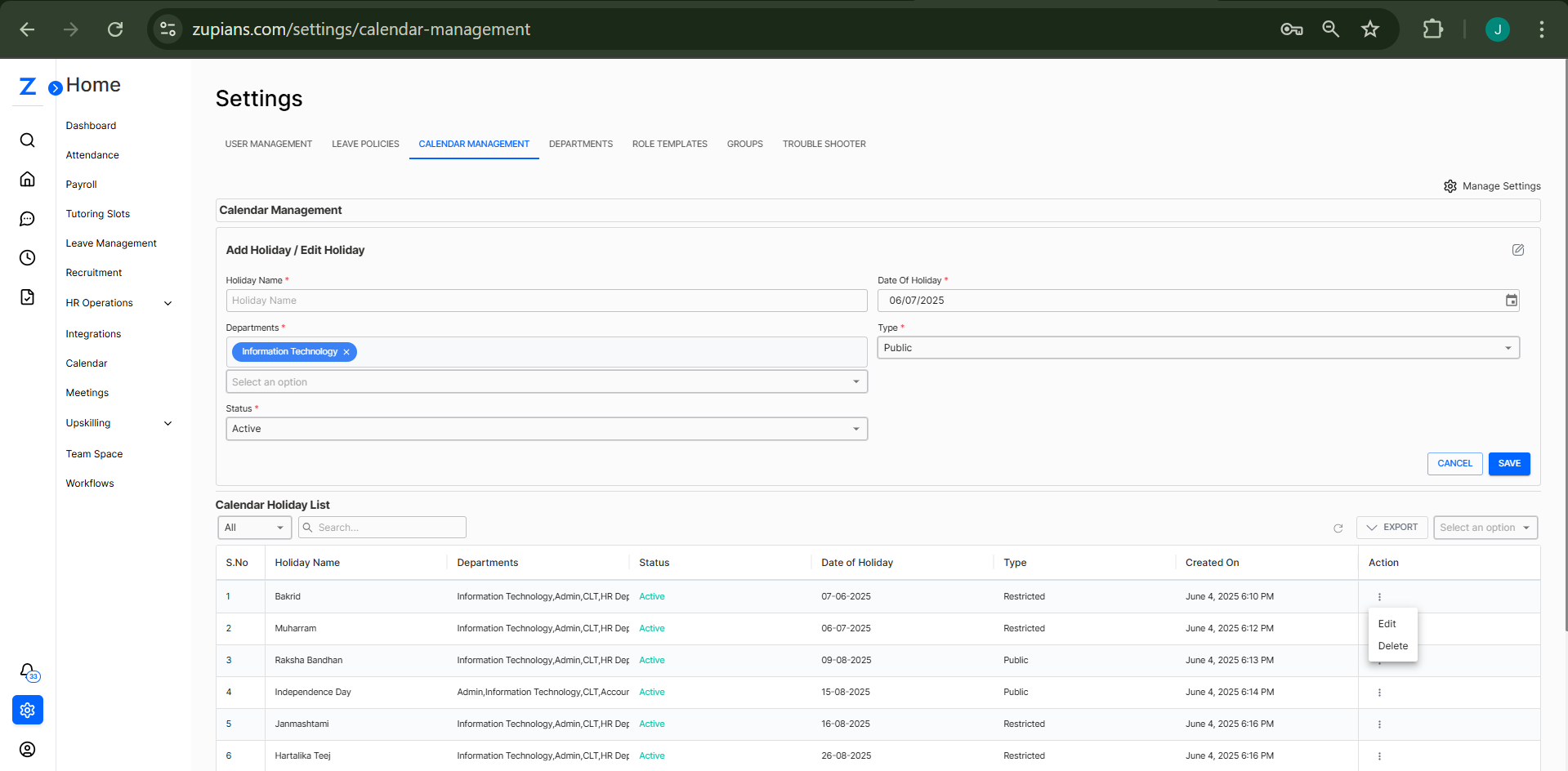
- A form titled Add Holiday / Edit Holiday will appear.
- Fill out the form with the following details:
- Holiday Name (e.g., Diwali)
- Date of Holiday (e.g.,
12/11/2025) - Departments (Select one or multiple)
- Status (Set as
ActiveorInactive) - Type (Choose
PublicorRestricted)
- Click SAVE to add the holiday.
🖼️ 
📝 Edit or Delete a Holiday
- In the Calendar Holiday List, find the holiday you want to change.
- Click on the three dots (⋮) under the Action column.
- Choose:
- Edit – The form will auto-fill. Make necessary changes and click SAVE.
- Delete – Confirm to remove the holiday from the list.
🖼️ 
📋 Calendar Holiday List Overview
Each holiday entry displays the following details:
| Column | Description |
|---|---|
| Holiday Name | The name of the holiday |
| Departments | Departments the holiday applies to |
| Status | Active or Inactive |
| Date of Holiday | Exact date in DD-MM-YYYY format |
| Type | Public or Restricted |
| Created On | Date & time the entry was created |
| Action | Options to Edit or Delete |
Use the search bar and filters to quickly find specific holidays.
🔄 Export Holiday List
- Click the EXPORT button to download the holiday list in your preferred format.
💡 Best Practices
- Use Public holidays for company-wide events.
- Use Restricted holidays for optional, regional, or religious observances.
- Regularly update the list before the start of each calendar year.
🧠 Frequently Asked Questions (FAQ)
1. Can I assign holidays to multiple departments?
Yes. When adding or editing a holiday: - Use the Departments dropdown - Select multiple departments as needed
2. What's the difference between Public and Restricted holidays?
- Public holidays apply to all employees - Restricted holidays are optional and may vary by: - Department - Employee location
3. Can I edit a holiday after it's been created?
Yes. To edit a holiday: - Click the three-dot menu (⋮) beside the entry - Select Edit and update the details
4. What happens if I delete a holiday?
Once deleted: - The holiday is removed from the calendar - It won’t reflect in related modules or reports