Department Guide
This guide helps you add, edit, and manage departments in the system under the Settings > Departments section. It outlines how to define department-specific configurations such as roles, shifts, and week-off days.
🛠️ How to Add a New Department
- Navigate to:
Settings → Departments
🖼️ 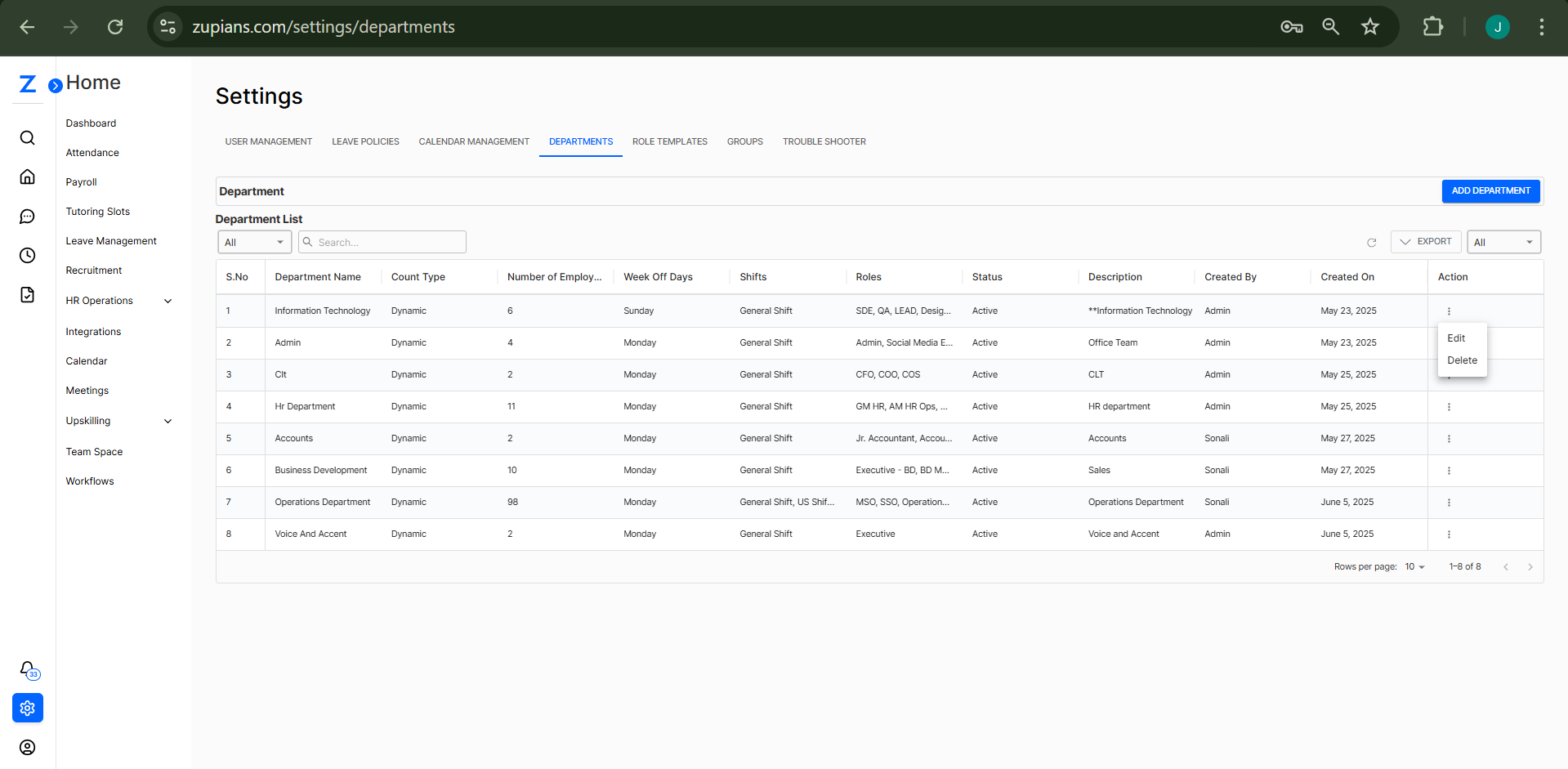 2. Click the "ADD DEPARTMENT" button at the top-right corner.
-
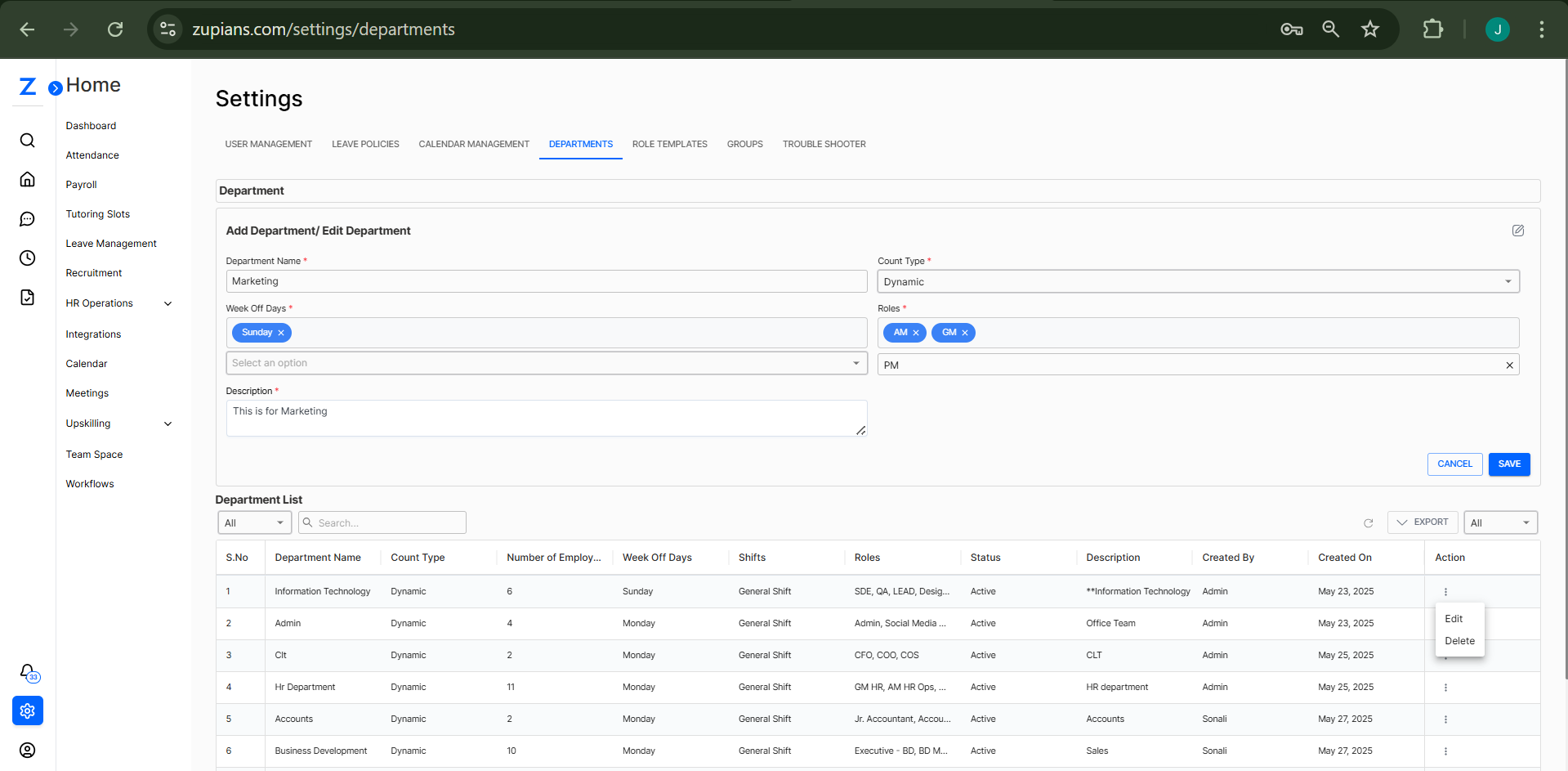
Fill in the form:
- Department Name: e.g.,
Marketing - Count Type: Select
DynamicorStatic - Week Off Days: Choose one or multiple days (e.g.,
Sunday) - Roles: Select relevant role tags (e.g.,
AM,GM,PM) - Description: Add a brief explanation (e.g., "This is for Marketing")
- Department Name: e.g.,
-
Click SAVE to create the department.
🖼️ 
✏️ How to Edit or Delete a Department
-
In the Department List table, locate the department you want to change.
-
Under the Action column (last column), click the three dots (⋮).
-
Select:
- Edit – Load department details into the form above and make changes.
- Delete – Permanently remove the department from the system.
📋 Department List View
The lower section shows a searchable, paginated table of all departments:
| Column | Description |
|---|---|
| Department Name | Name of the department |
| Count Type | Dynamic or Static |
| Number of Employees | Current headcount |
| Week Off Days | Weekly off assigned |
| Shifts | Assigned working shift(s) |
| Roles | Linked roles for employees |
| Status | Active or Inactive |
| Description | Notes or description of the department |
| Created By | Creator of the record |
| Created On | Date of creation |
| Action | Edit or Delete option |
Use the Search bar or filter dropdown to quickly find departments.
🧠 Frequently Asked Questions (FAQ)
1. What is "Count Type"?
- Dynamic: Auto-adjusts employee count using live system data - Static: Requires manual input and won’t update automatically
2. Can I assign multiple roles to a department?
Yes. While configuring a department: - Open the Roles dropdown - Select multiple roles as needed
3. What happens when I delete a department?
If deleted: - The department is removed from the system - All linked records lose their department mapping > ⚠️ Use with caution; this action may impact reporting and access