🛡️ Role Template Guide
This guide helps you manage Permission Role Templates in the Settings section. Role templates allow you to standardize access across different user roles by assigning them permissions module-wise.
📍Navigation Path
Home > Settings > Role Templates
URL: https://zupians.com/settings/manage-templates
🧱 Overview: Manage Permission Templates
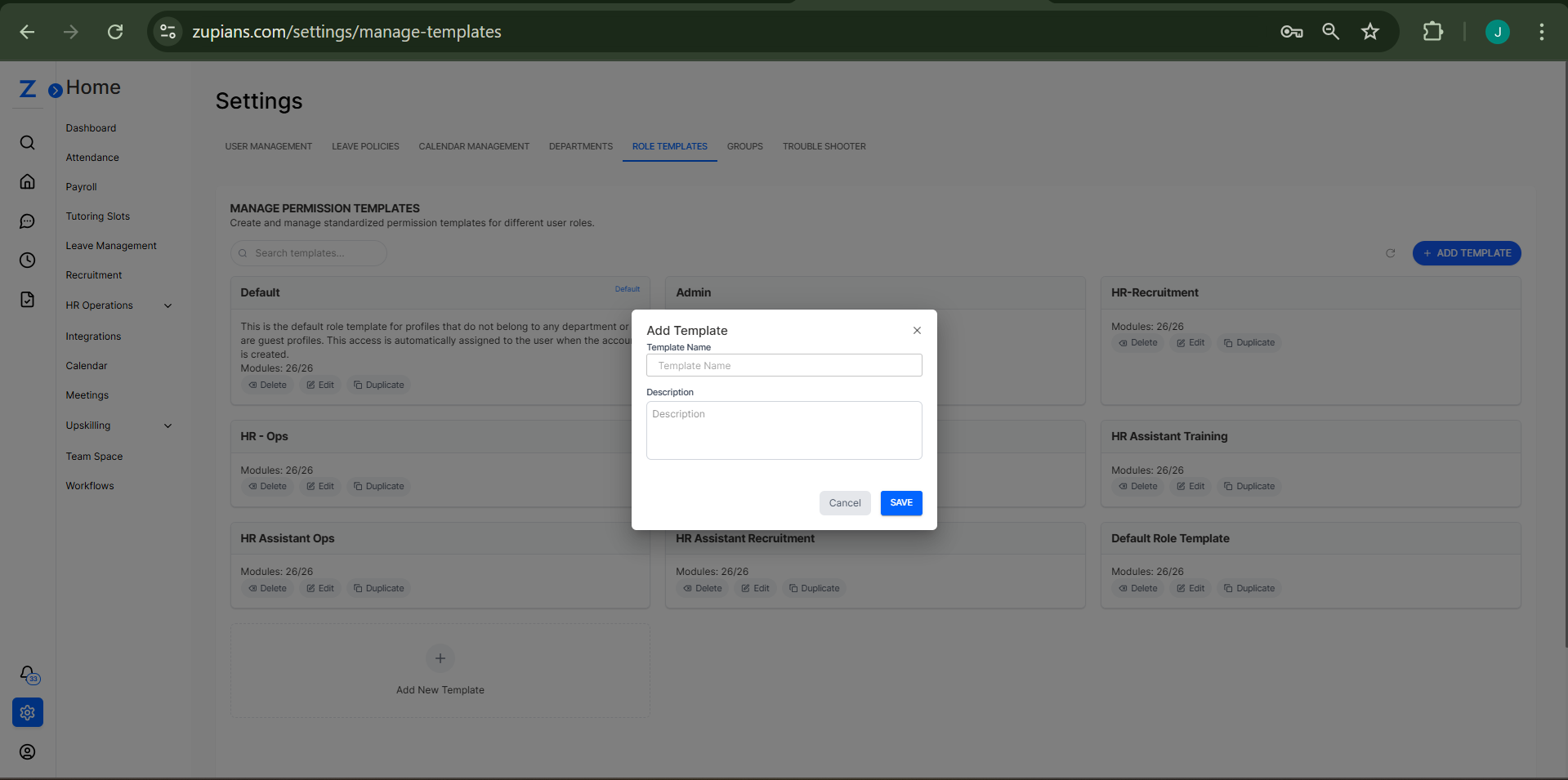
You will see a grid layout displaying all your existing templates.
✨ Existing Template Cards
Each template is represented as a card with the following elements:
- Template Name – e.g.,
Default,Admin,HR-Recruitment - Modules Access Count – e.g.,
Modules: 26/26 - Actions:
- 🔄 Duplicate – Clone the existing template.
- ✏️ Edit – Modify the template name or description.
- 🗑️ Delete – Permanently remove the template.
⚠️ Default templates may be restricted from deletion.
➕ Add New Template
Click the + Add Template button in the top-right or Add New Template card at the bottom.
You’ll see a popup:
Template Name: Enter a name (e.g., "Team Lead")Description: Briefly describe the template purpose
🖱️ Click Save to create it.
✏️ Edit Template
To update a template, click Edit on the desired card. You’ll get a popup where you can:
- Modify the template name
- Update the description
Then click Update.

🗑️ Delete Template
Click the Delete button on any card.
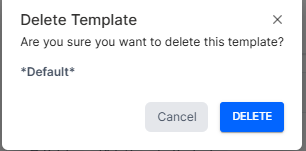
A confirmation popup will appear:
- Action: Click
DELETEto confirm orCancelto abort.
⚠️ Some templates like “Default” might be protected.
📂 Role Template Detail View
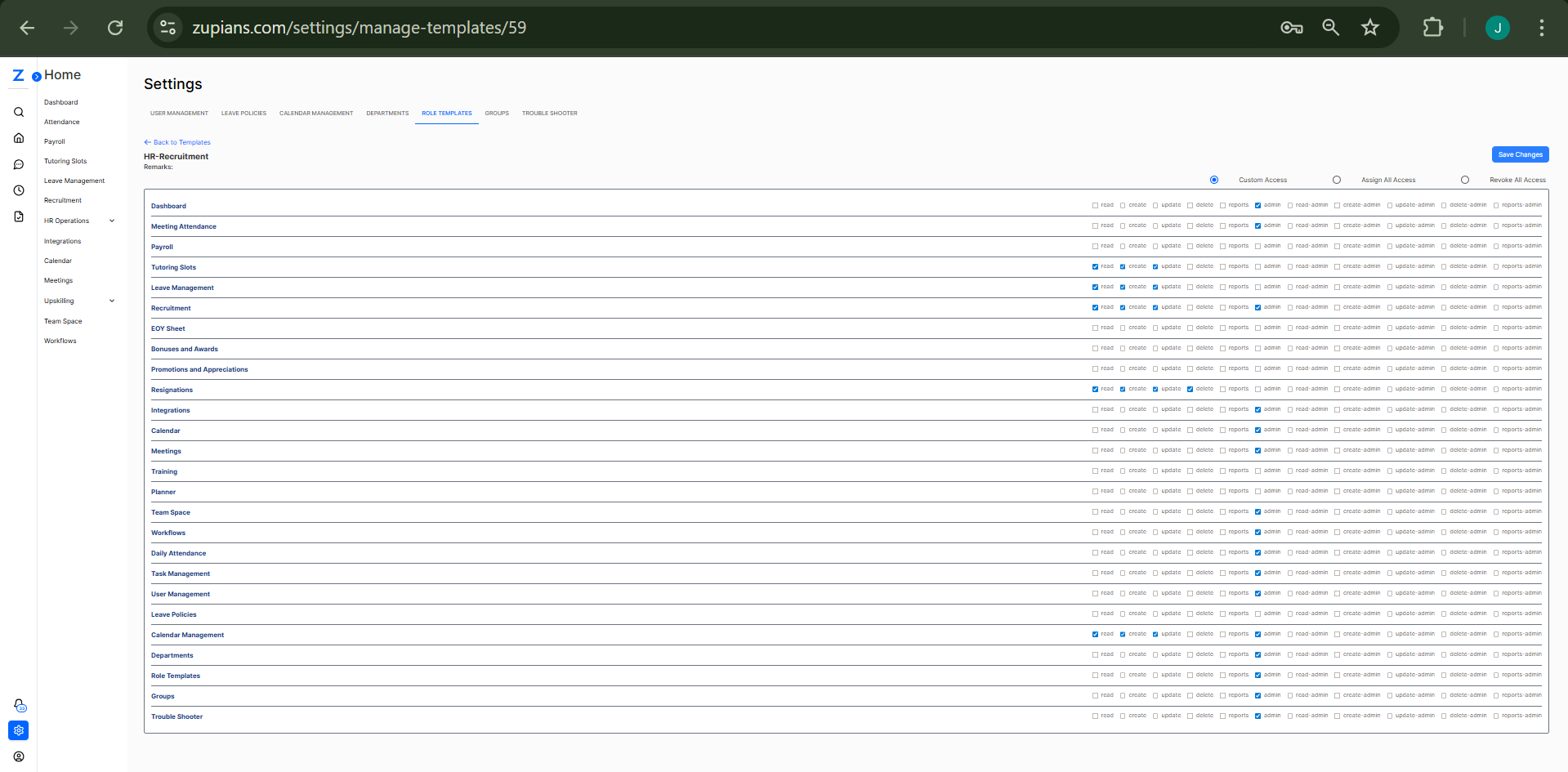
Clicking on any template card opens a module-wise permission view.
URL format: /settings/manage-templates/{templateId}
Each module listed (e.g., Payroll, Attendance, Recruitment) shows permission checkboxes:
- ✅ Read
- ✅ Create
- ✅ Update
- ✅ Delete
- ✅ Reports
- 🛡️ Admin Level: read-admin, create-admin, etc.
You can configure permissions per module or use batch actions:
- Custom Access
- Assign All Access
- Revoke All Access
🖱️ Click Save Changes to apply updates.
🔁 Duplicate Template
Use this when you want to reuse permission settings from an existing template.
- Click Duplicate on a card
- A new editable copy is created instantly
📌 Default Role Template
- This is automatically assigned to users who don’t belong to any department or are guest profiles.
- It cannot be modified to be department-specific.
- Marked with a small “Default” badge.